 FaxStore
Review Booster
Review Booster is a FaxStore app that gets you more reviews by asking the right customers at the right time. It waits until a customer has had time to use what they bought, checks they're likely to be happy, then asks them for a review:
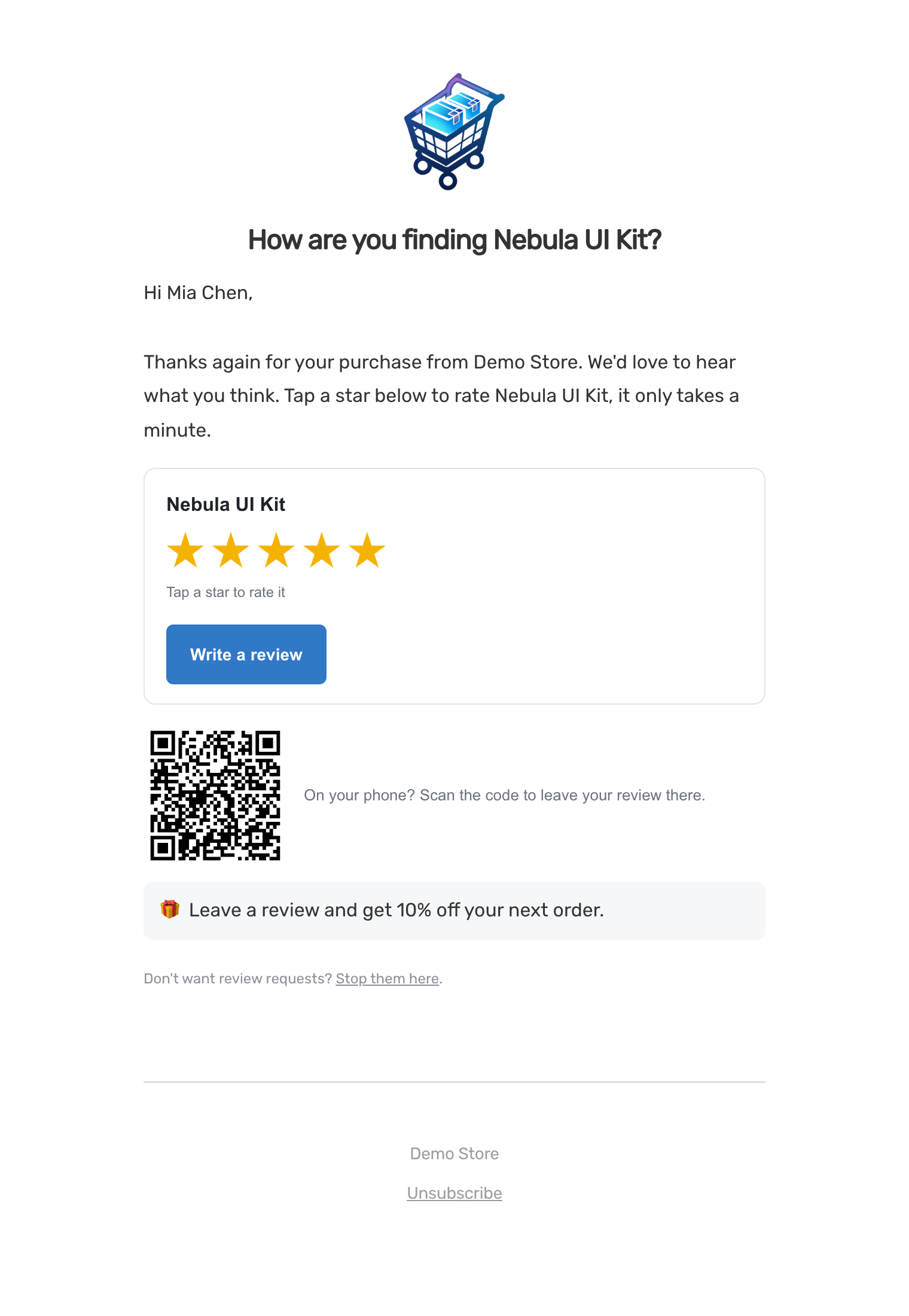
Messages: an email, a Discord DM and a site notification, with one-click star ratings and an optional QR code.
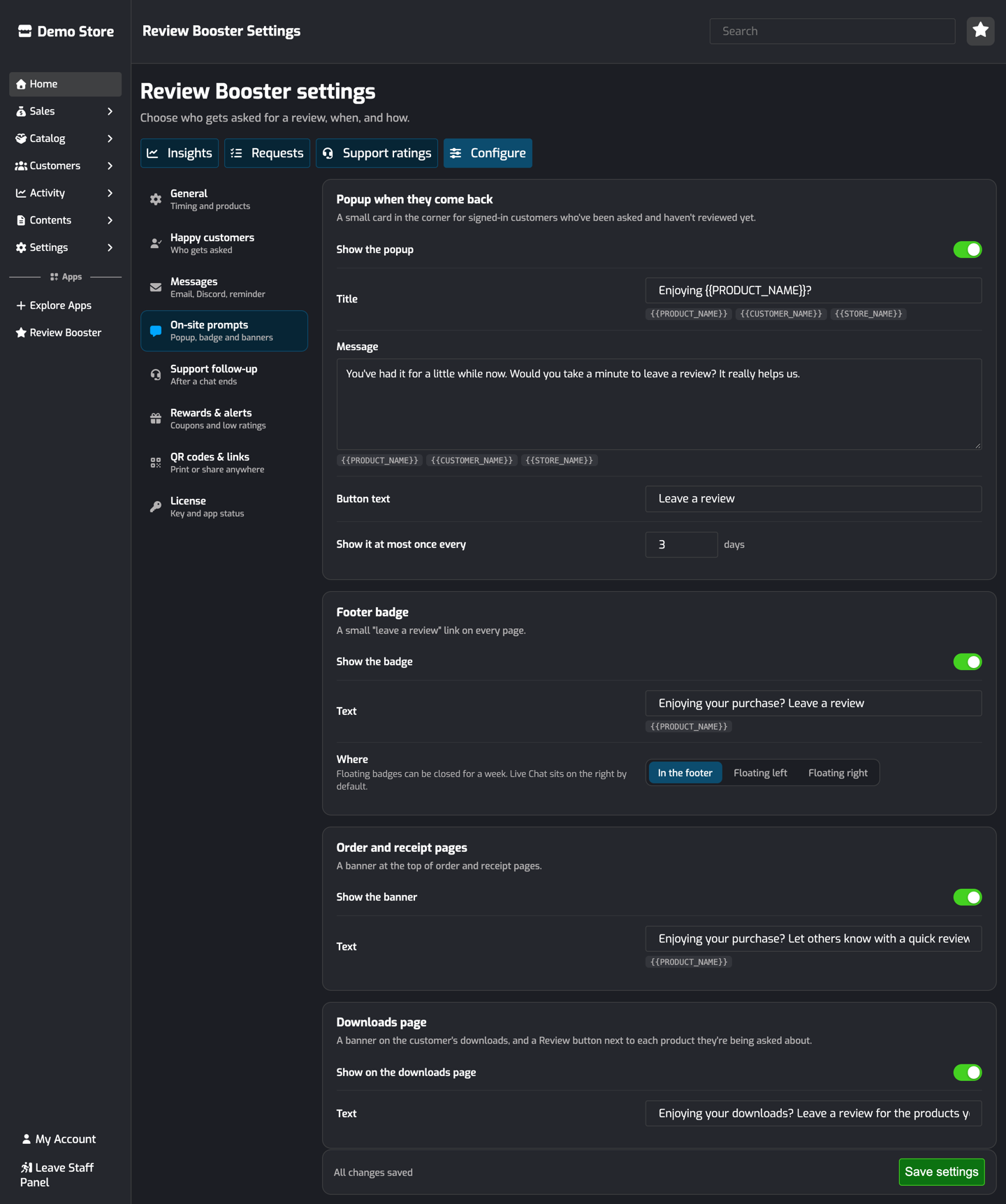
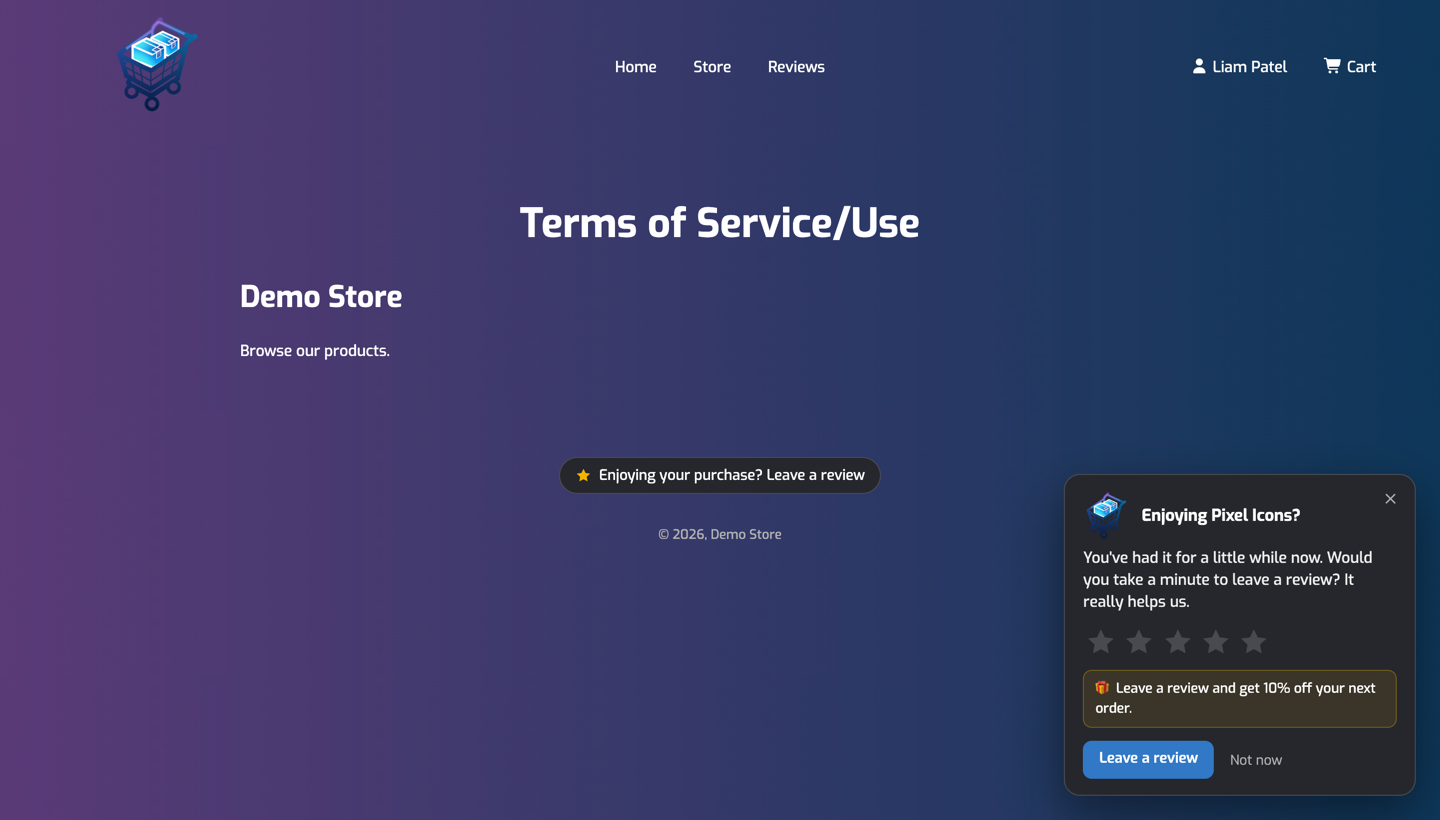
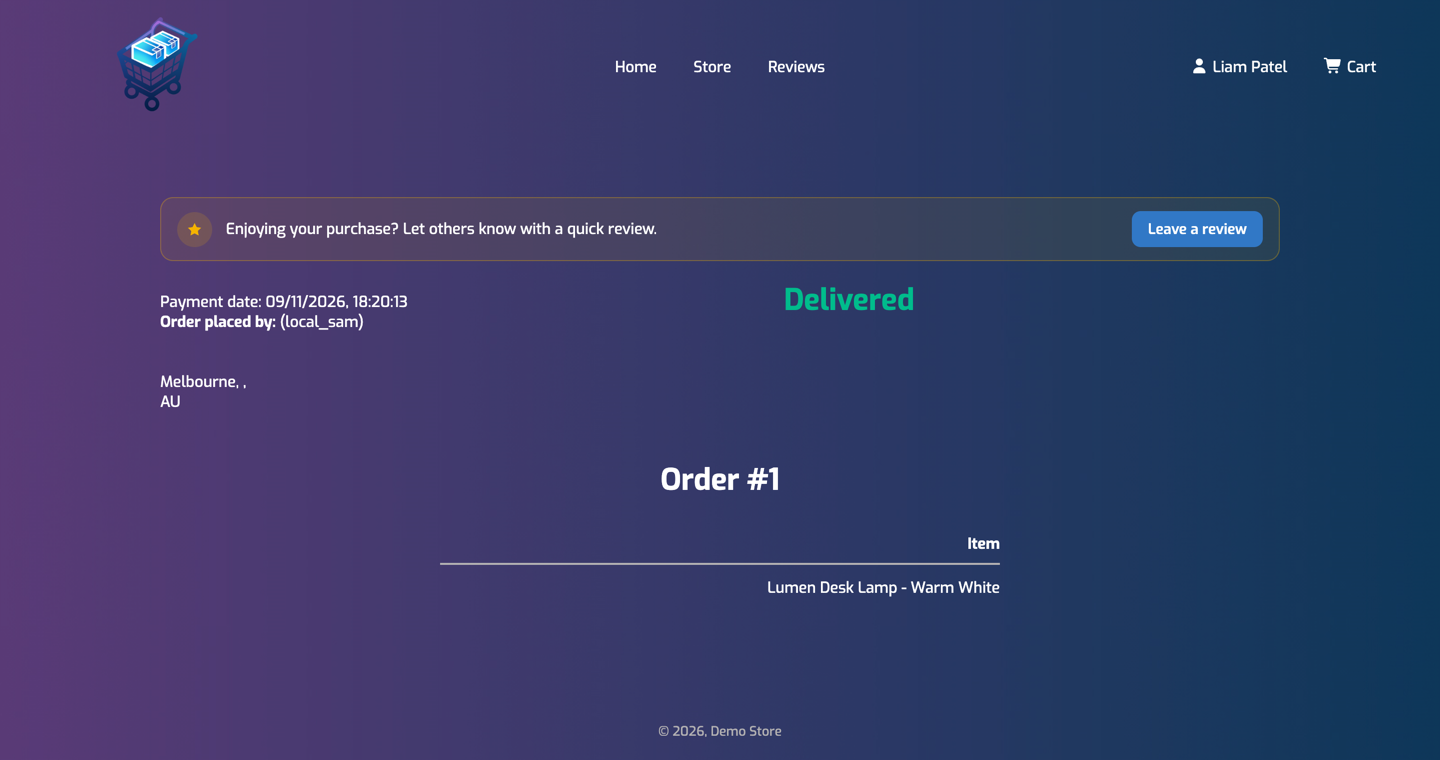
On-site prompts: a popup when they come back, a footer badge, a banner on order and receipt pages, and a Review button on their downloads.
After support: once a live chat ends, customers are asked how it went. Happy ones are then asked for a review.
QR codes and links: for packaging, invoices, your Discord server or social media.
The Insights page shows how many customers were asked, how many reviewed, and which channels bring the most reviews in.
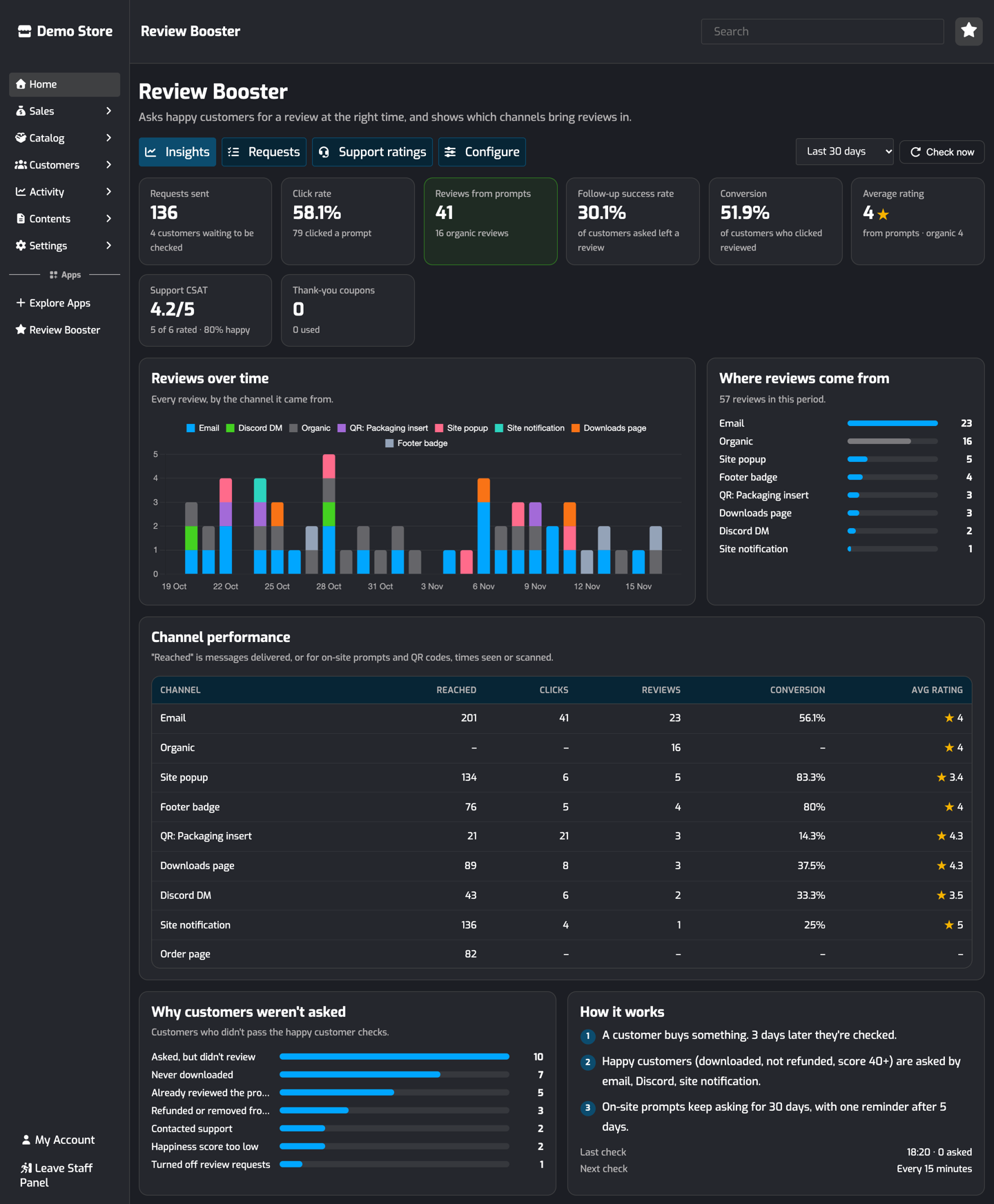
Table of Contents
For routes, events and database tables, see Review Booster for Developers.
Installing Review Booster
In the staff panel, open Apps → Explore Apps and install Review Booster. FaxStore restarts to load it (or restart it yourself if your host doesn't restart automatically).
Open Review Booster → Configure → License, enter your license key and save. Only the store owner can change the key.
Check the other tabs (see below). The defaults work for most stores.
Review requests are sent with your existing email integration (SendGrid or SMTP) and your Discord Integration bot. Without email set up, customers are still asked by Discord, site notification and on-site prompts.
Review Booster only asks about purchases made after it was installed. Customers who bought before then are never messaged out of the blue.
How It Works
A customer buys something. Review Booster notes the purchase.
It waits. By default customers are checked 3 days after they buy, so they've had time to use it. Physical orders are checked once you mark them Delivered or Completed, and at least a day after that.
It checks they're happy. See Happy Customer Checks. Customers who don't qualify yet are checked again every few hours until they do, or until you give up on them (30 days after purchase by default).
It asks. Happy customers get an email, a Discord DM and a site notification, whichever are turned on and can reach them. Products bought together are asked about in the same message.
It keeps asking on your site. For the next 30 days, the customer sees on-site prompts when they're signed in. If they haven't reviewed after 5 days, they get one reminder.
It counts the result. When they leave a review, it's credited to the channel they came from. Customers who never review are closed as Asked, but didn't review after the 30 days.
Review Booster checks for new purchases and due customers every 15 minutes. To check straight away, use Check now on the Insights page.
Happy Customer Checks
Open Configure → Happy customers.
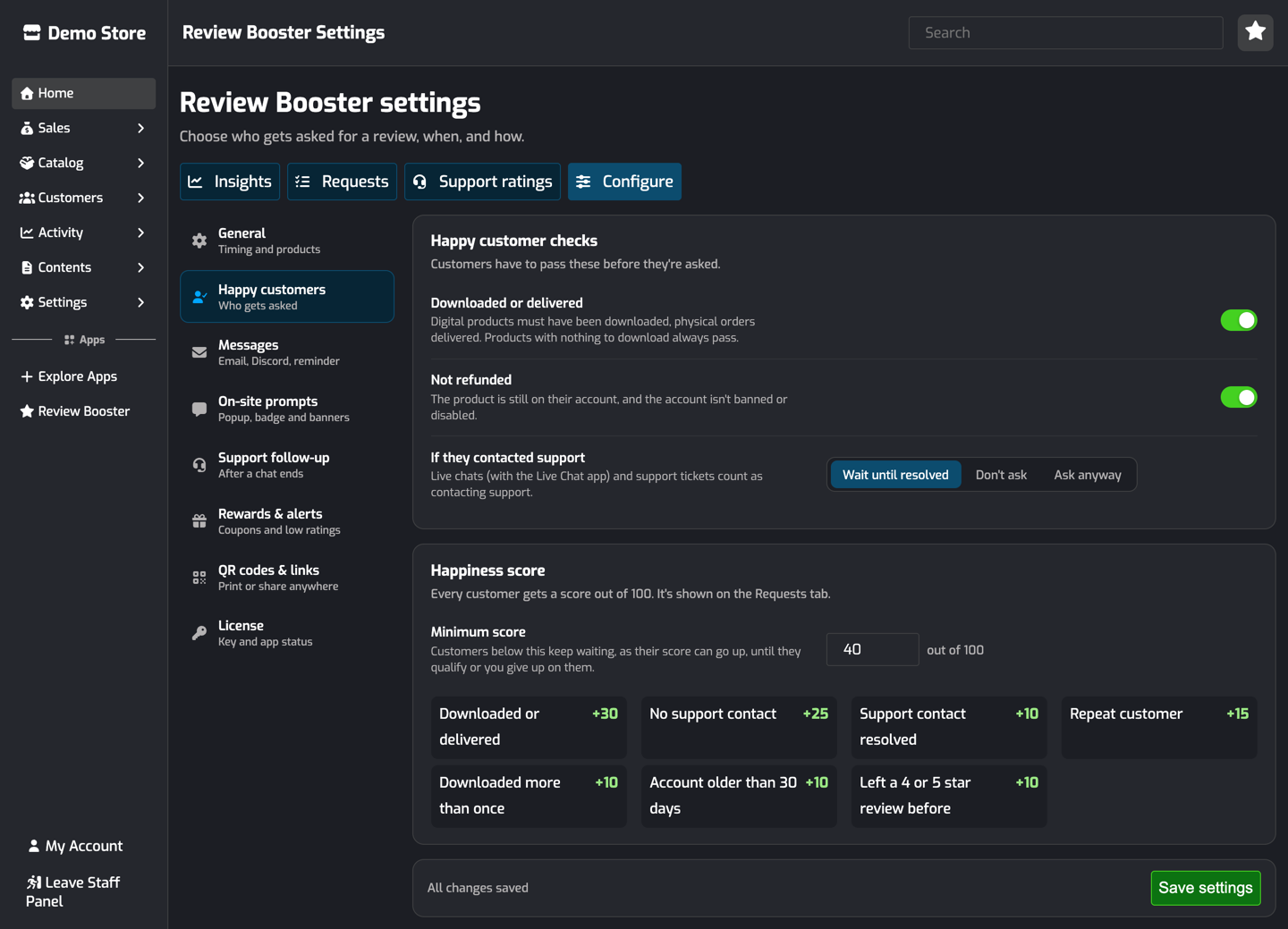
Customers have to pass these checks before they're asked:
Check | Default | What it means |
|---|---|---|
Downloaded or delivered | On | Digital products must have been downloaded at least once. Physical orders must be delivered. Products with no files to download, free downloads and Tebex packages always pass, as their downloads can't be tracked. |
Not refunded | On | The product is still on the customer's account (removing it from their profile counts as a refund), and the account isn't banned or disabled. |
If they contacted support | Wait until resolved | A live chat started after the purchase counts as contacting support. Wait until resolved asks once the chat has ended. Don't ask skips the customer. Ask anyway ignores it. |
Customers who have already reviewed the product, or who turned off review requests, are never asked.
Happiness score
Every customer also gets a score out of 100, shown on the Requests tab:
Signal | Points |
|---|---|
Downloaded or delivered | +30 |
No support contact since buying | +25 |
Support contact that was resolved | +10 |
Repeat customer | +15 |
Downloaded more than once | +10 |
Account older than 30 days | +10 |
Left a 4 or 5 star review before | +10 |
Customers are only asked once they reach the Minimum score (40 by default). A customer below it keeps waiting, because their score can go up, for example when they download.
Why customers weren't asked
The Insights page lists customers who weren't asked, or were asked but didn't review, by reason:
Reason | Meaning |
|---|---|
Never downloaded | Still not downloaded when you gave up on them. |
Refunded or removed from their account | The product was removed from their account. |
Contacted support | They contacted support and If they contacted support is set to Don't ask. |
Support contact never resolved | Their support contact was still open when you gave up on them. |
Happiness score too low | They never reached the minimum score. |
Already reviewed the product | They reviewed it before they were asked. |
Turned off review requests | They used the stop link in a request. |
Account banned, disabled or deleted | |
Asked, but didn't review | They were asked but didn't review within the 30 days. |
Skipped by staff | Someone used Skip on the Requests tab. |
Messages
Open Configure → Messages. Each message can be turned on or off and written in your own words. Click a token under a field to add it where your cursor is:
Token | Becomes |
|---|---|
| The customer's username |
| The product, or "your purchases" when several are asked about together |
| Every product in the message, for example "Nebula UI Kit and Orbit Theme" |
| Your store's name |
| The thank-you coupon's discount, for example "10%" |
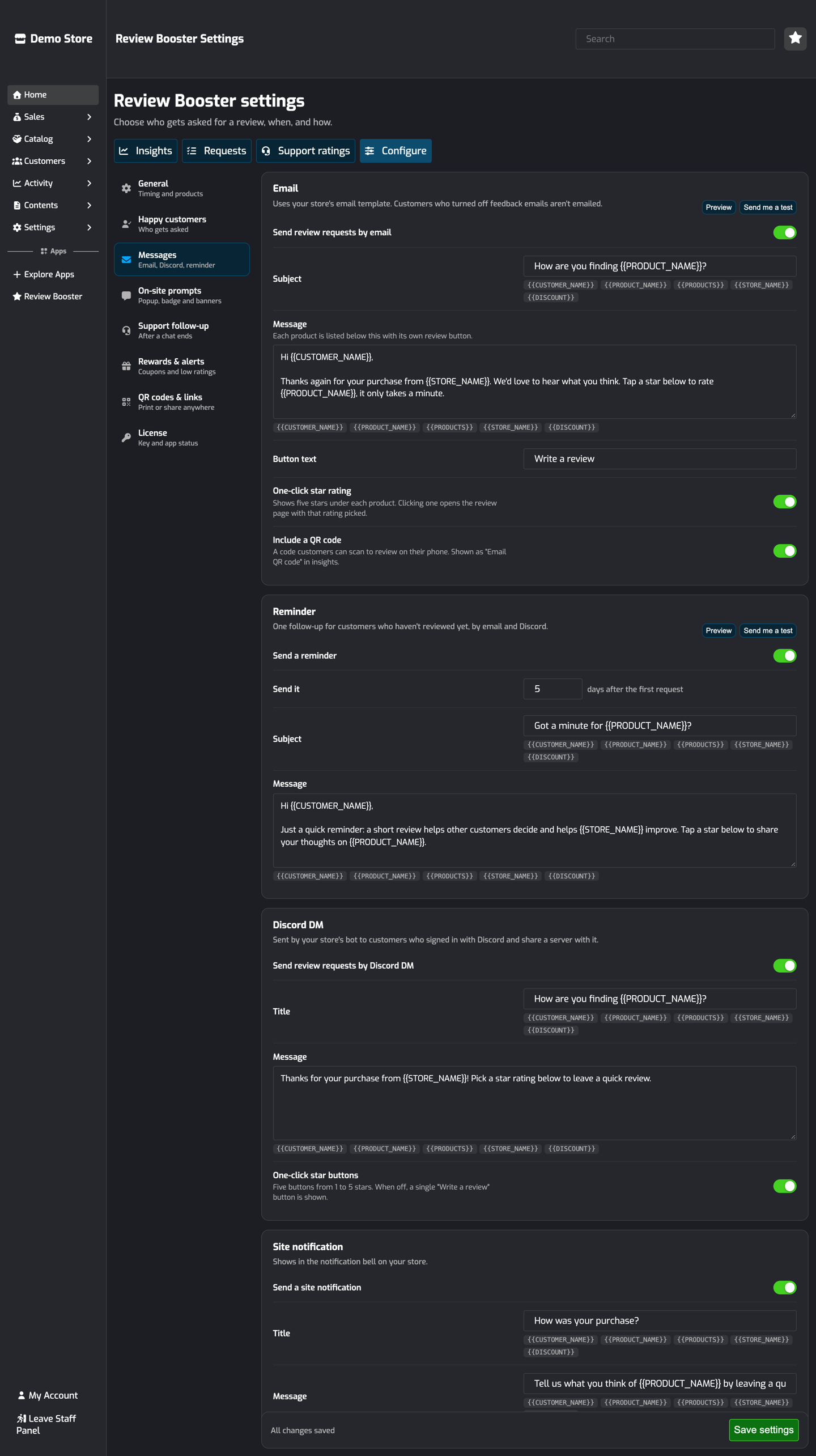
The email uses your store's email template. Each product gets its own box with a Write a review button.
One-click star rating shows five stars under each product. Clicking a star opens the review page with that rating already picked.
Include a QR code adds a code the customer can scan to review on their phone. Reviews from it show as Email QR code in Insights.
When Thank-you Coupons are on, the email can mention them.
Every email ends with a Stop them here link (see Email Preferences and Opting Out).
Use Preview to see the email with what's typed on the page, before you save, and Send me a test to send it to your own account.
Reminder
One follow-up, sent by email and Discord 5 days after the first request (you can change this) to customers who haven't reviewed yet. It's only sent once.
Discord DM
Sent by your store's bot to customers who signed in with Discord and share a server with the bot. With One-click star buttons on, the message has buttons from 1 to 5 stars. When several products are asked about together, there's a button for each one instead. Every DM has a Stop these requests button.
If a DM can't be delivered, for example because the customer has DMs turned off, the other channels are still used.
Site notification
Shows in the notification bell on your store and links to the review page.
On-site Prompts
Open Configure → On-site prompts. On-site prompts only show to signed-in customers who have been asked and haven't reviewed yet. They show for 30 days after the request was sent. They never show on the staff panel, cart, checkout or login pages, and they work with custom themes.
Popup
A small card in the corner with the product, five clickable stars and a Leave a review button. It appears a couple of seconds after the page loads, at most once every 3 days. Not now or the close button hides it until then.
Footer badge
A small "Enjoying your purchase? Leave a review" link. Choose In the footer (above your copyright line) or a floating badge on the left or right. Customers can close a floating badge for a week. Live Chat sits on the right by default, so the left works best if you use both.

Order and receipt pages
A banner at the top of order and receipt pages.
Downloads page
A banner on the customer's Product Downloads tab, plus a Review button next to each product they're being asked about.
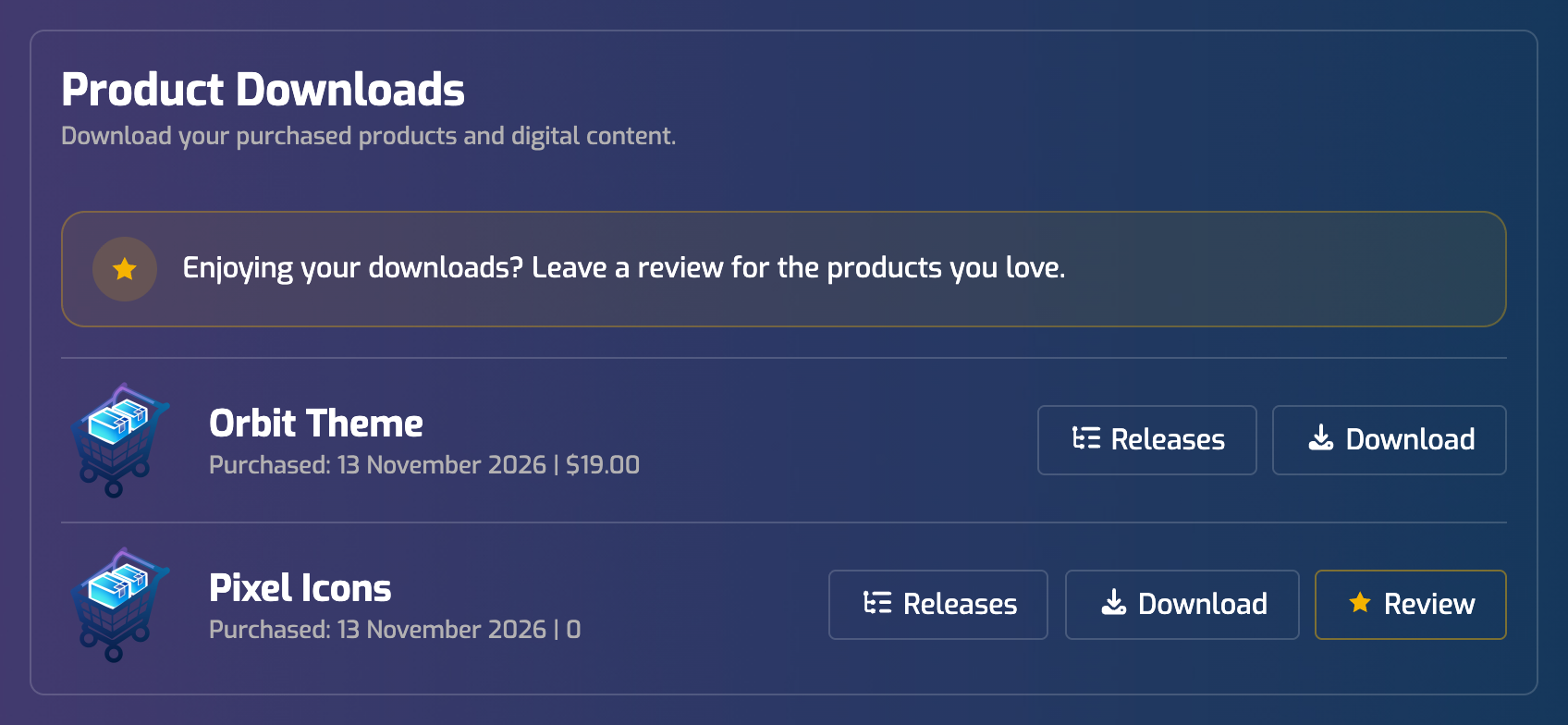
On order, receipt and downloads pages, the popup and footer badge are left out so the customer only sees one prompt.
What the Customer Sees
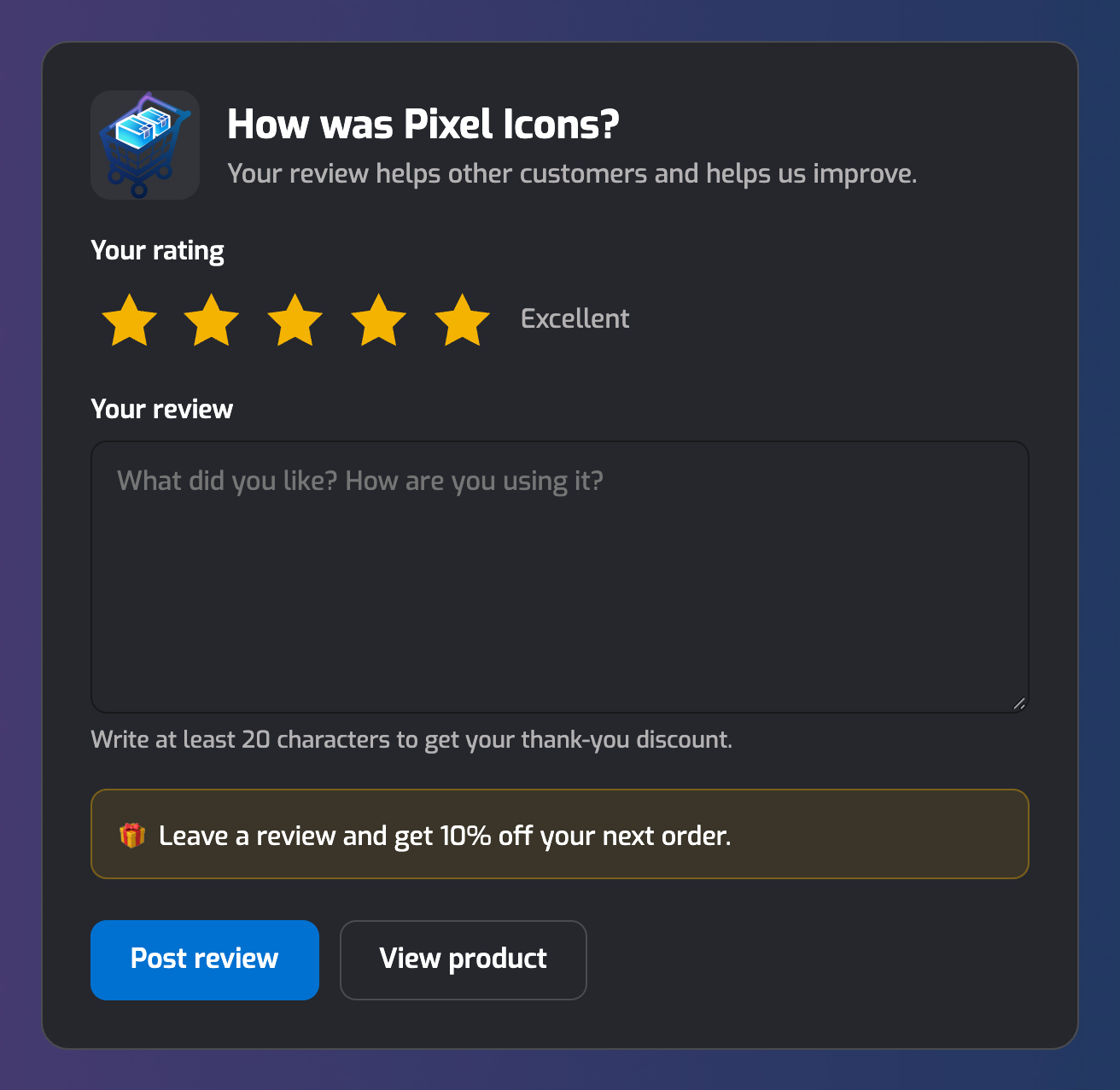
Every link in a message or prompt goes to the review page for that product. The customer needs to be signed in with the account they bought with, so reviews always come from real customers. If they aren't signed in, they're sent to your login page and come straight back afterwards.
If they clicked a star in the email, Discord message or popup, that rating is already picked. They write a few words and click Post review. The review is posted to your Reviews page, exactly like one written from the normal review form.
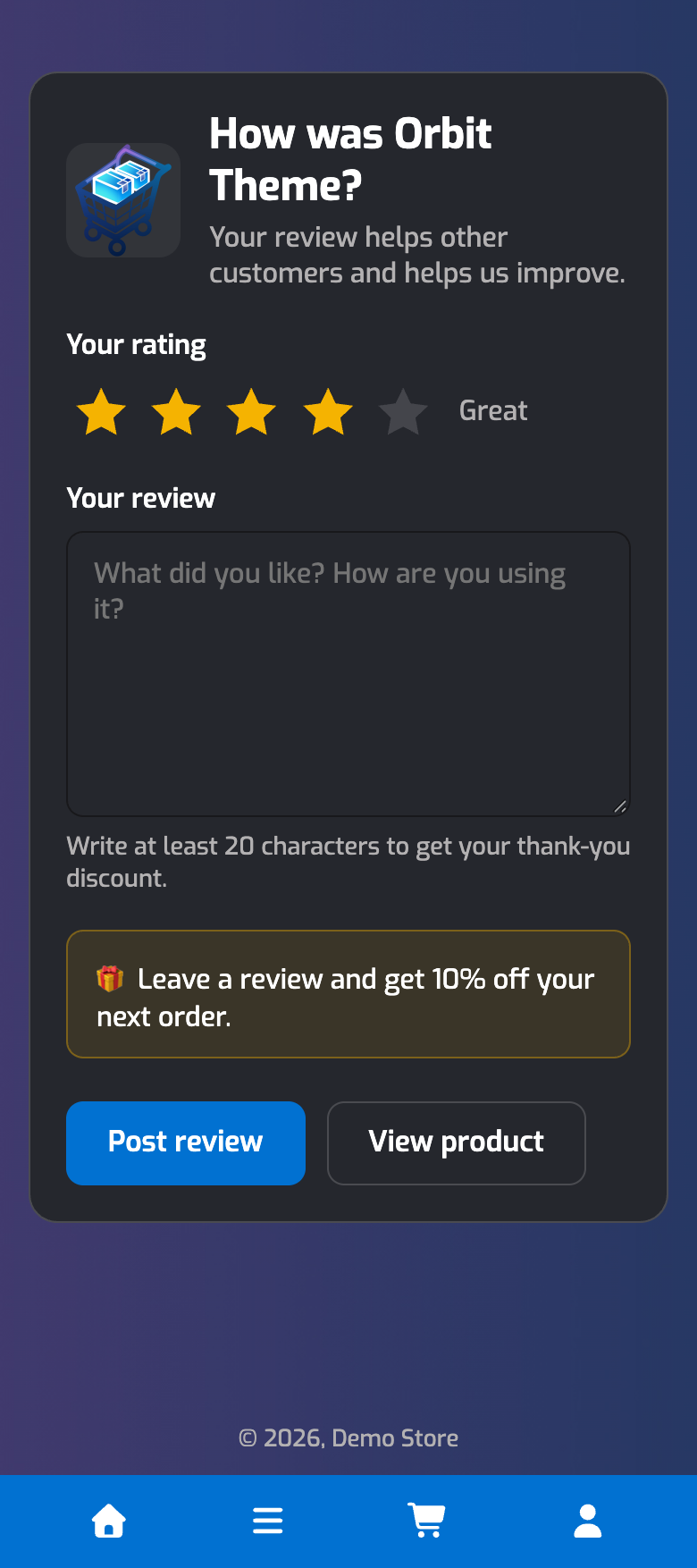
The page works on phones too:
Afterwards, the customer sees a thank-you page with a link to their review, their coupon if they earned one, and up to three other products they're being asked about.
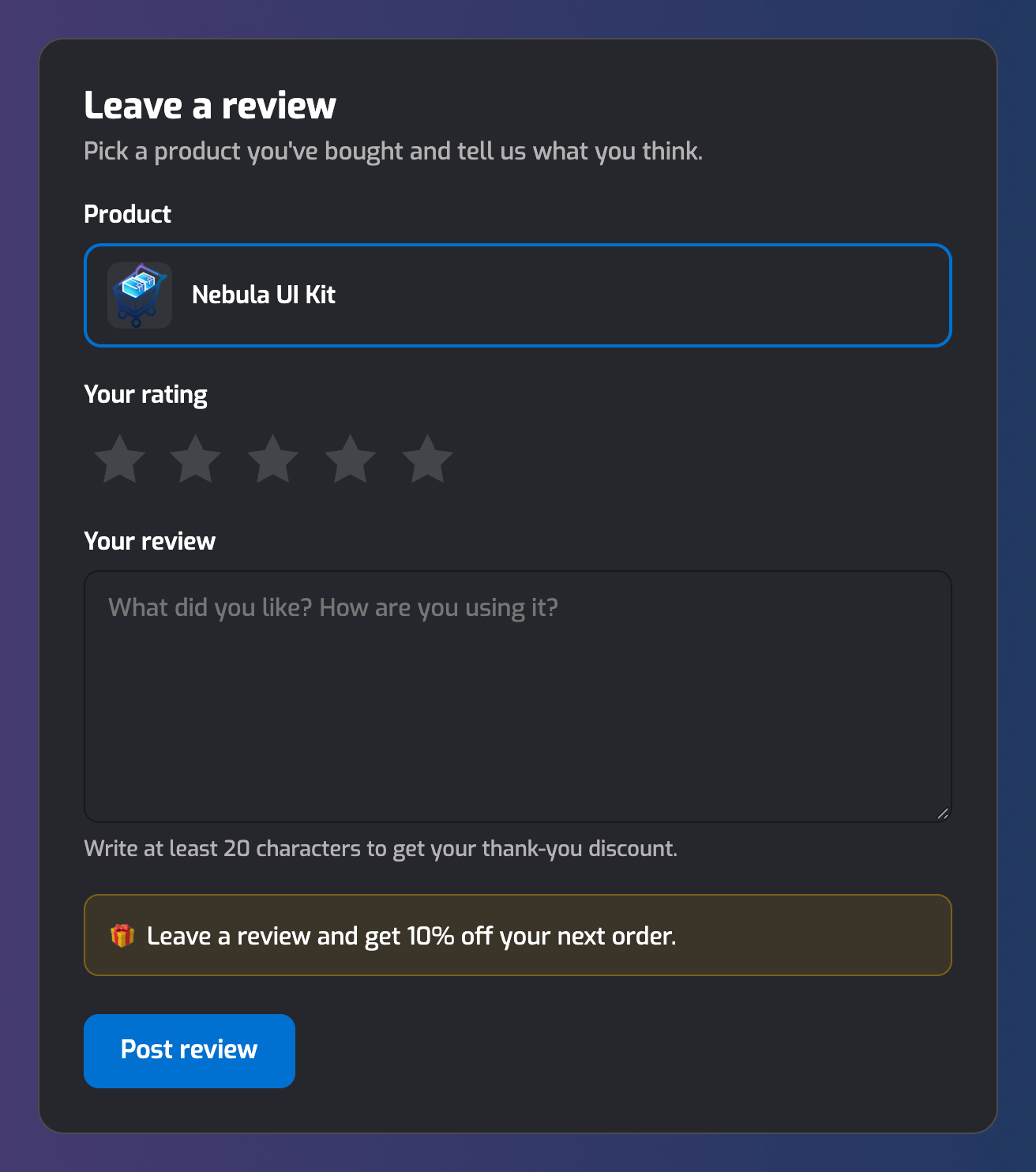
QR codes and links open a version of the page where the customer picks which product to review. It lists everything they've bought and haven't reviewed:
Customers can still review from your normal review form. If they were asked about that product, the review still counts towards the request (see How reviews are credited).
Support Follow-up
Open Configure → Support follow-up. With the Live Chat app installed, customers are asked how their support went an hour after a chat ends. Only chats with signed-in customers that one of your team replied to are followed up.
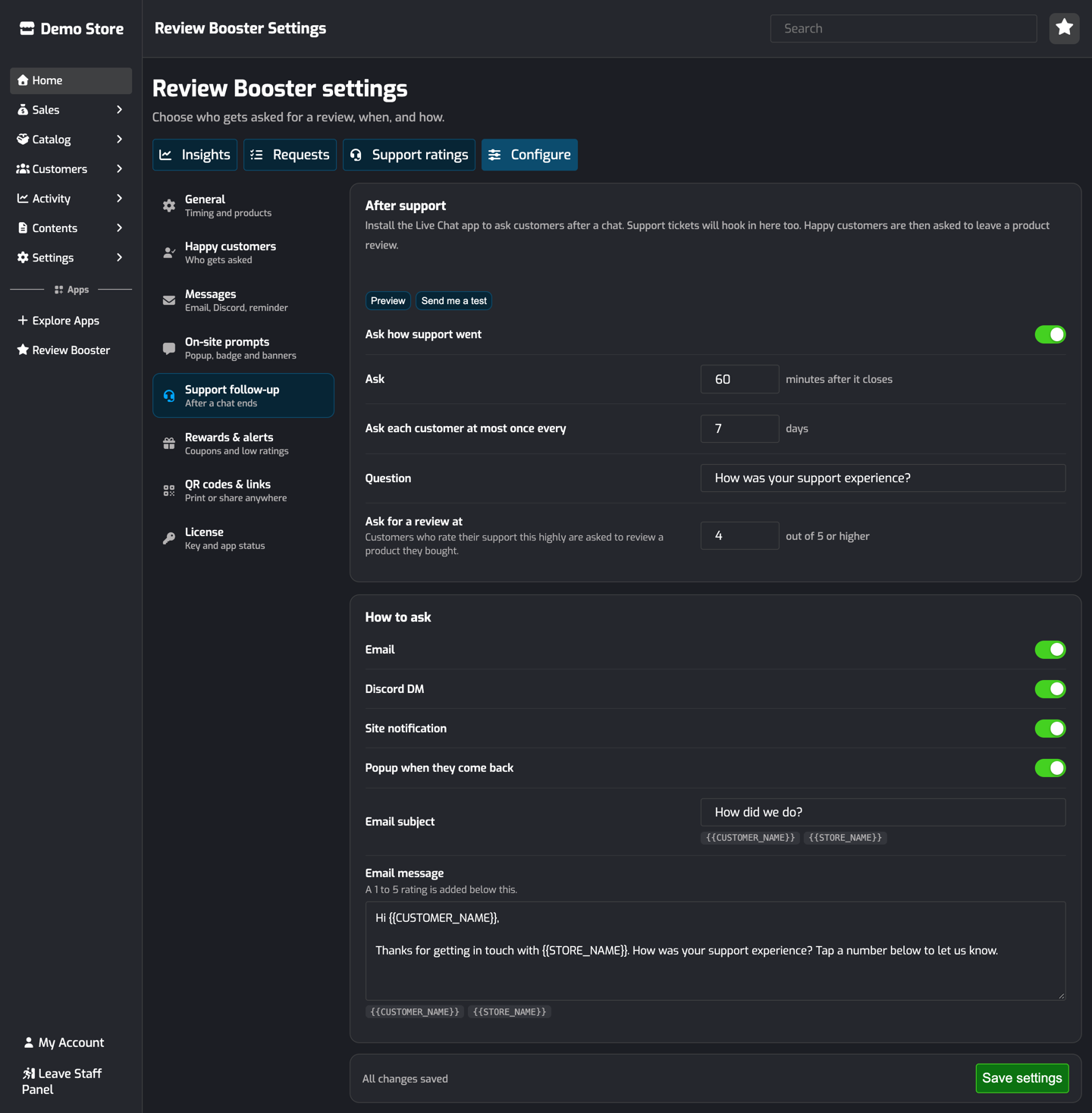
The question goes out by email, Discord DM, site notification and the popup, whichever you turn on. The customer taps a number from 1 to 5, and can add a comment.
If they rate their support 4 or higher (you can change this), they're asked to leave a review of something they bought:
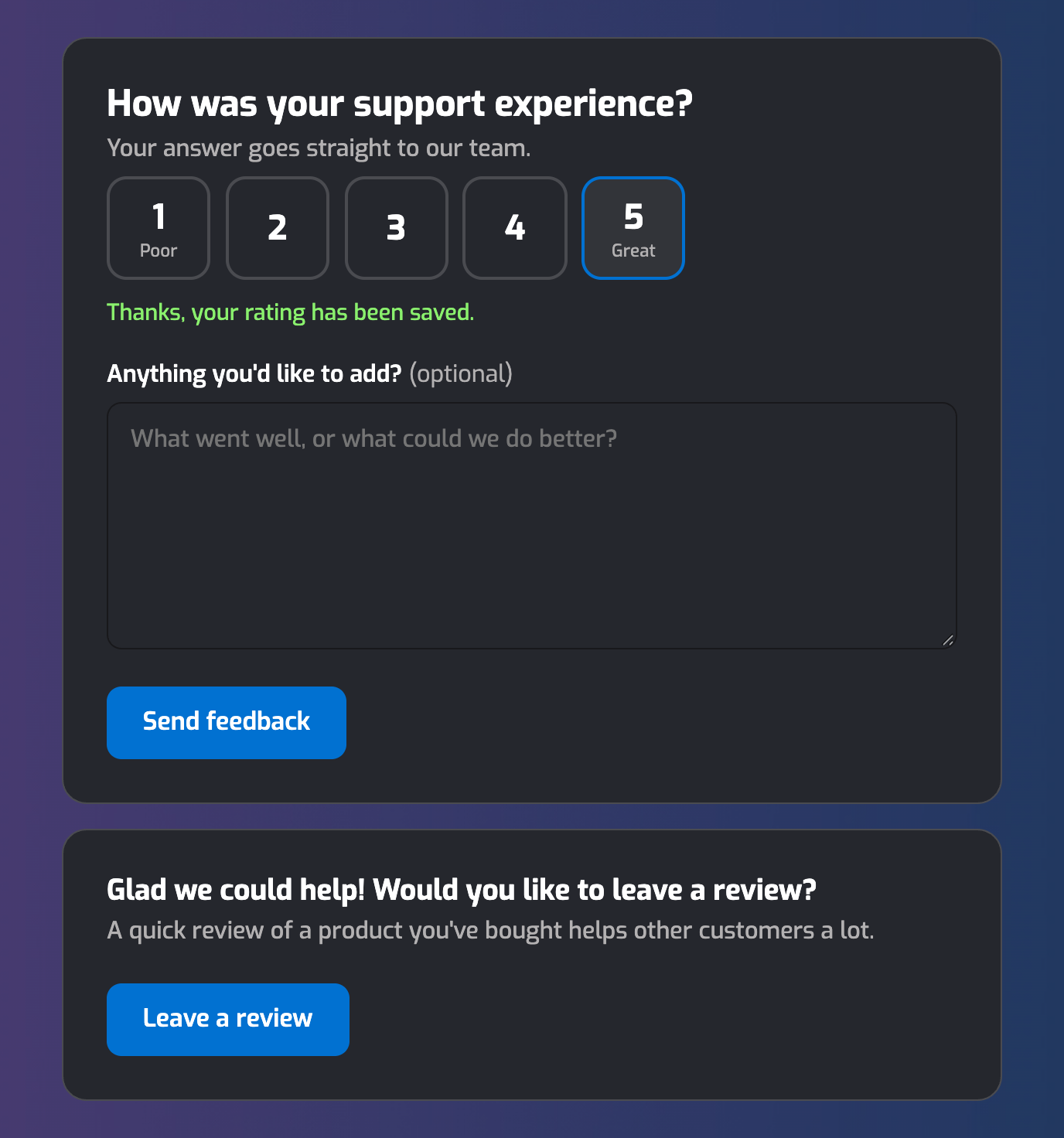
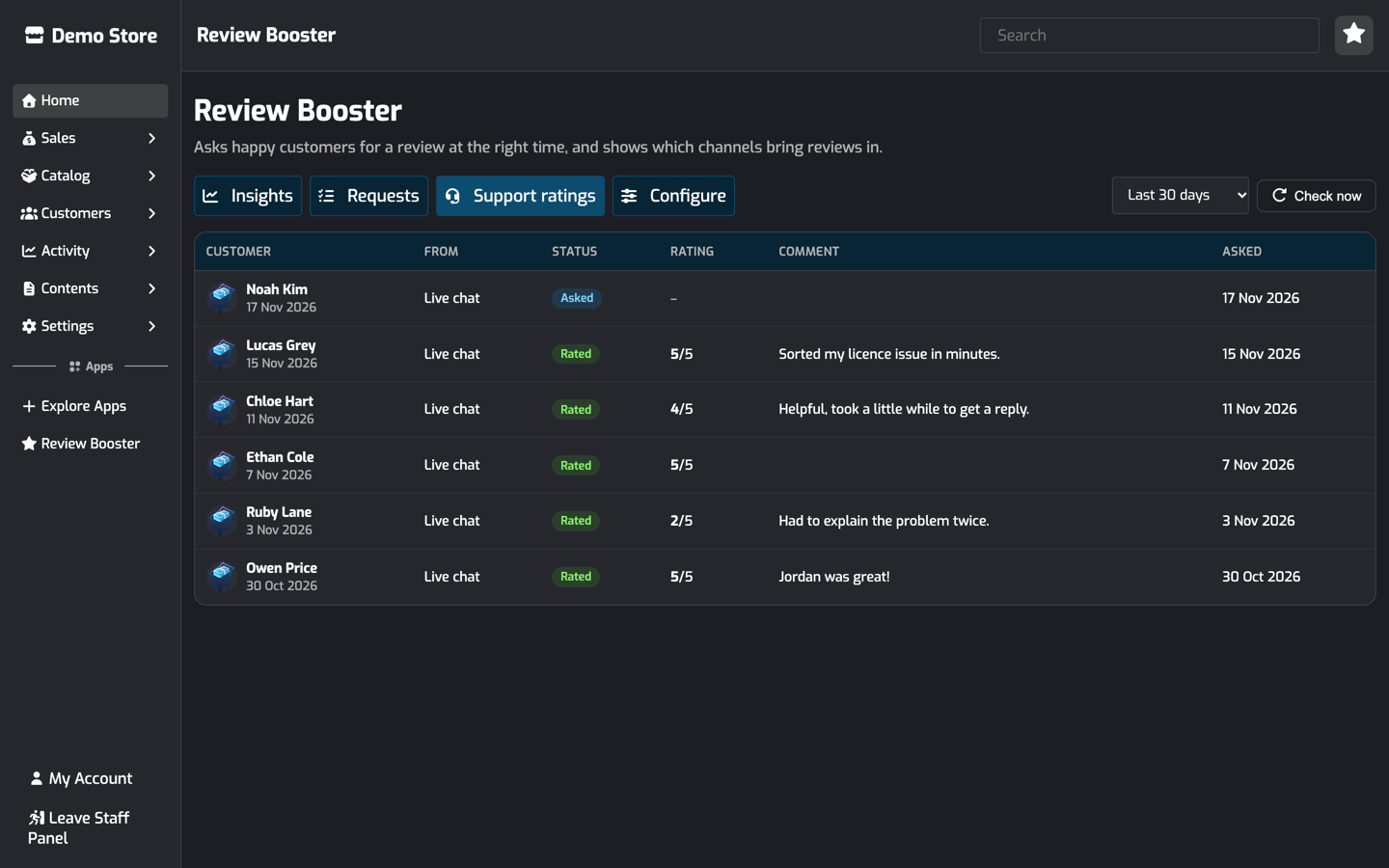
Each customer is asked at most once every 7 days. Ratings and comments are on the Support ratings tab, and the average shows as Support CSAT in Insights.
Support tickets will work the same way once the Support System is available.
Thank-you Coupons
Open Configure → Rewards & alerts. When this is on, customers who review after being asked, or from one of your QR codes, get a one-time discount code for their next order. It's shown on the thank-you page and emailed to them.
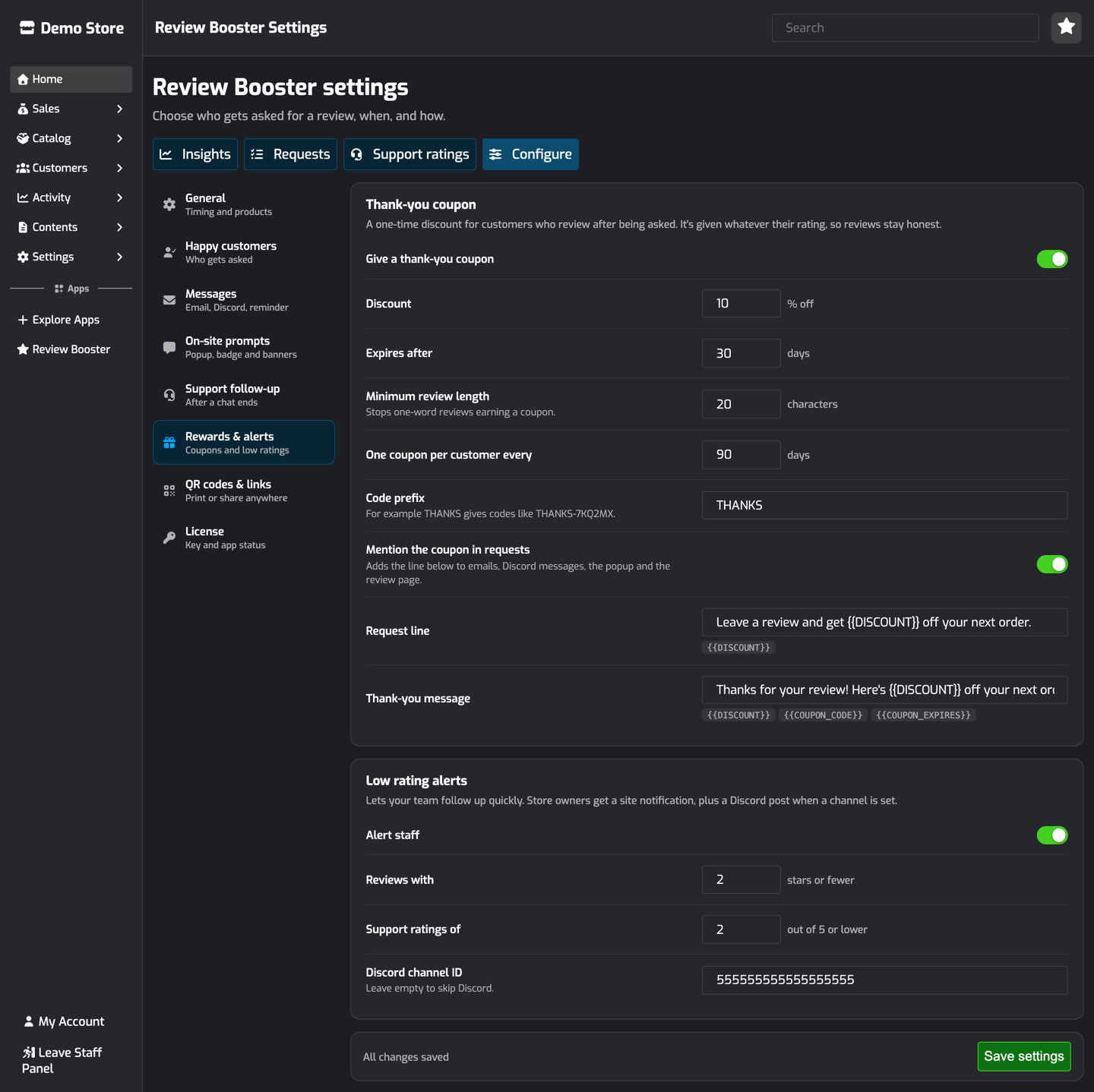
Setting | Default | |
|---|---|---|
Discount | 10% | |
Expires after | 30 days | |
Minimum review length | 30 characters | Stops one-word reviews earning a coupon. The review page tells the customer how long it needs to be. |
One coupon per customer every | 90 days | |
Code prefix | THANKS | Codes look like |
Mention the coupon in requests | On | Adds "Leave a review and get 10% off your next order." to emails, Discord messages, the popup and the review page. |
The coupon is given whatever the rating, so it rewards honest feedback rather than only good reviews. Codes are locked to the customer and can only be used once. They show in Promotions like any other code.
Low Rating Alerts
Also on Rewards & alerts. When a review of 2 stars or fewer comes in, or a customer rates their support 2 or lower, store owners get a site notification so your team can follow up quickly. Add a Discord channel ID to post the alert there as well. Reviews are never hidden or held back.
QR Codes and Links
Open Configure → QR codes & links. Each code has its own link and is its own channel in Insights, so you can see which brings in the most reviews. Ideas: a packaging insert, invoices, your Discord server, a business card or social media.
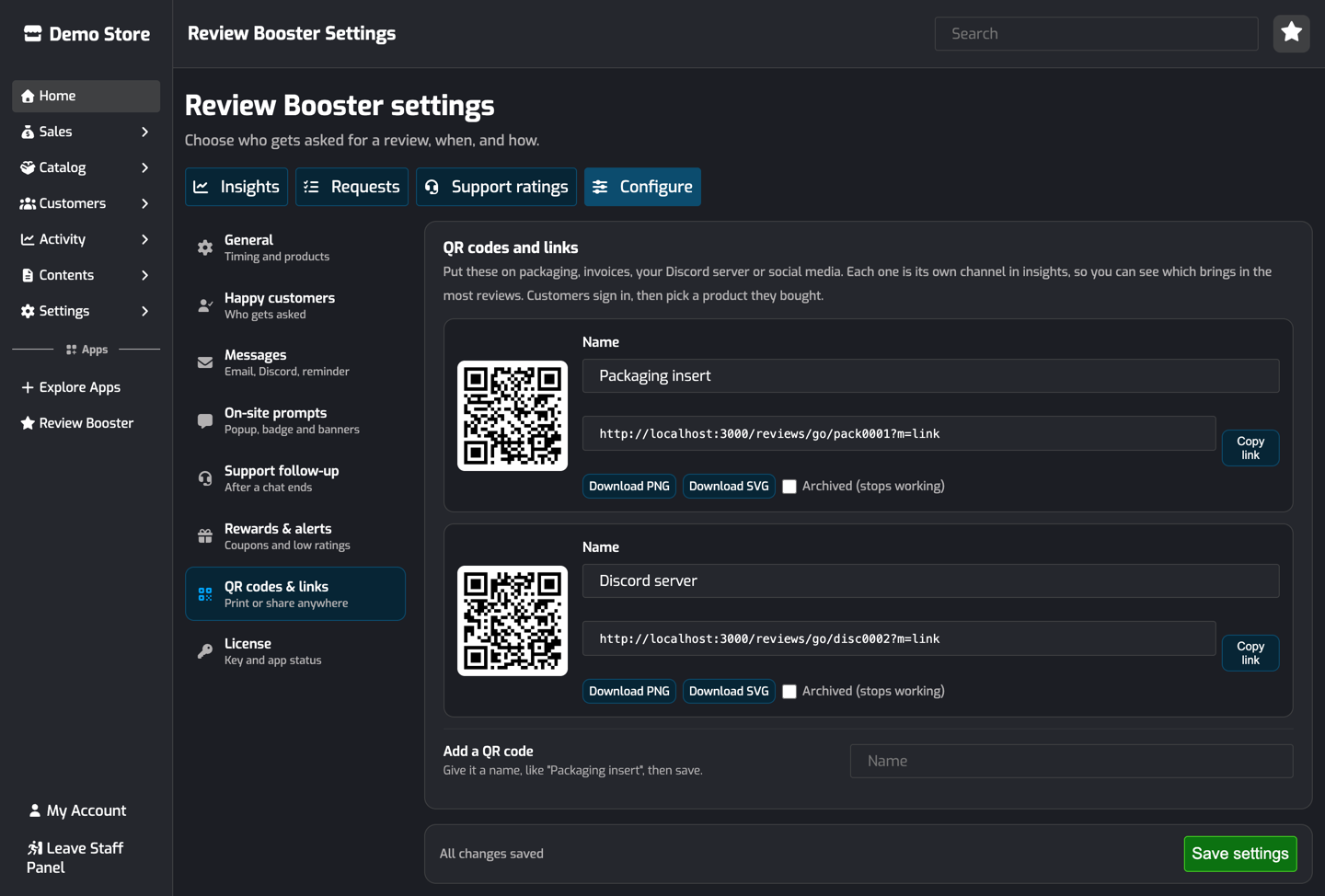
Add a QR code: type a name, like "Packaging insert", and save.
Copy link: a link you can share anywhere. Clicks and scans are counted the same way.
Download PNG / SVG: PNG for documents and emails, SVG for print.
Archived: stops the code working. Scans then go to your Reviews page.
Scanning a code asks the customer to sign in, then pick a product they've bought to review. A store comes with a General QR code to start with.
Insights
Open Review Booster in the staff panel, under Apps. You need the Manage Store permission. Pick a date range at the top.
Tile | What it shows |
|---|---|
Requests sent | Customers asked in this period, and how many are waiting to be checked. |
Click rate | Customers asked who clicked a message or prompt. |
Reviews from prompts | Reviews that came from Review Booster, with organic reviews for comparison. |
Follow-up success rate | Customers asked who went on to review the product. |
Conversion | Customers who clicked a message or prompt and then reviewed. |
Average rating | From prompts, compared with organic reviews. |
Support CSAT | The average support rating out of 5, and the share of customers who rated 4 or 5. |
Thank-you coupons | Coupons given out, and how many have been used. |
Reviews over time and Where reviews come from show every review in the period by channel. Channel performance compares the channels:
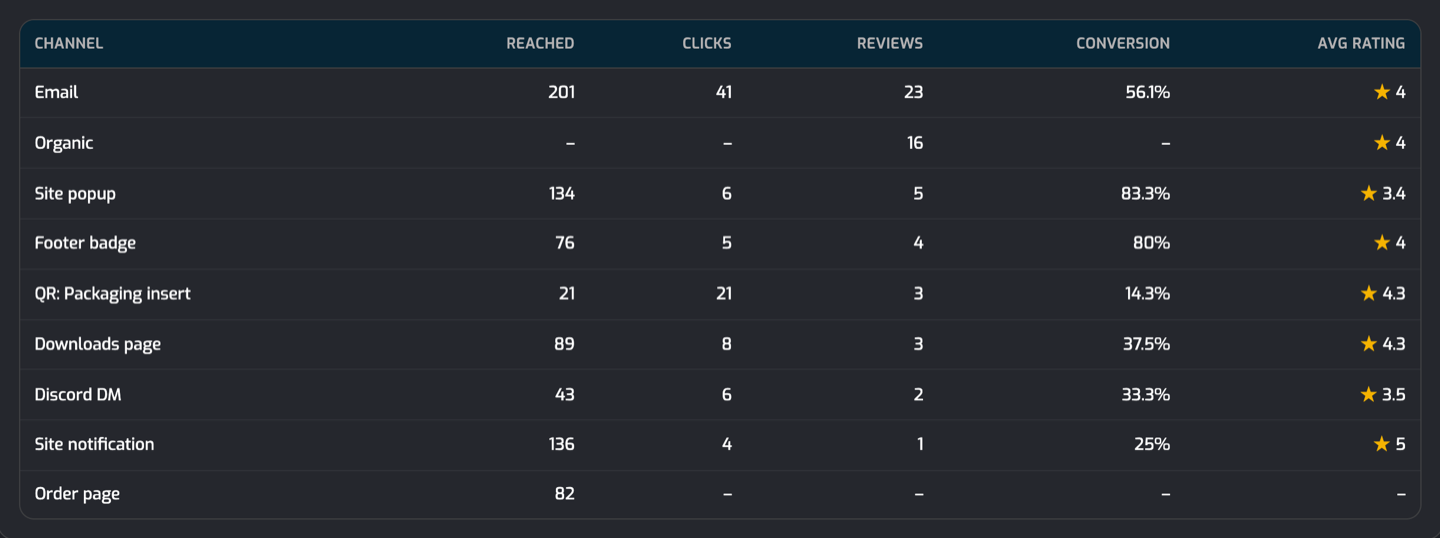
Reached: for messages, how many were delivered. For on-site prompts, how many times they were seen. For QR codes, how many times they were scanned or clicked.
Clicks: clicks on the channel's links, buttons and stars.
Reviews: reviews credited to the channel.
Conversion: reviews per click.
How reviews are credited
A review is credited to the last channel the customer clicked for that product. For example, a customer emailed who later clicks the popup counts as Site popup.
A customer who was asked, but went to your normal review form without clicking anything, counts as Asked, reviewed directly. That still counts as a success.
A review from a QR code or link counts as that code, for example QR: Packaging insert.
A review from someone who wasn't asked is Organic.
Reviews only count towards a request for 30 days after it was sent. You can change this with Keep asking for on the General tab.
Requests and Support Ratings
The Requests tab lists every customer Review Booster has looked at, with their happiness score, which checks they passed, when and how they were asked, and their review.
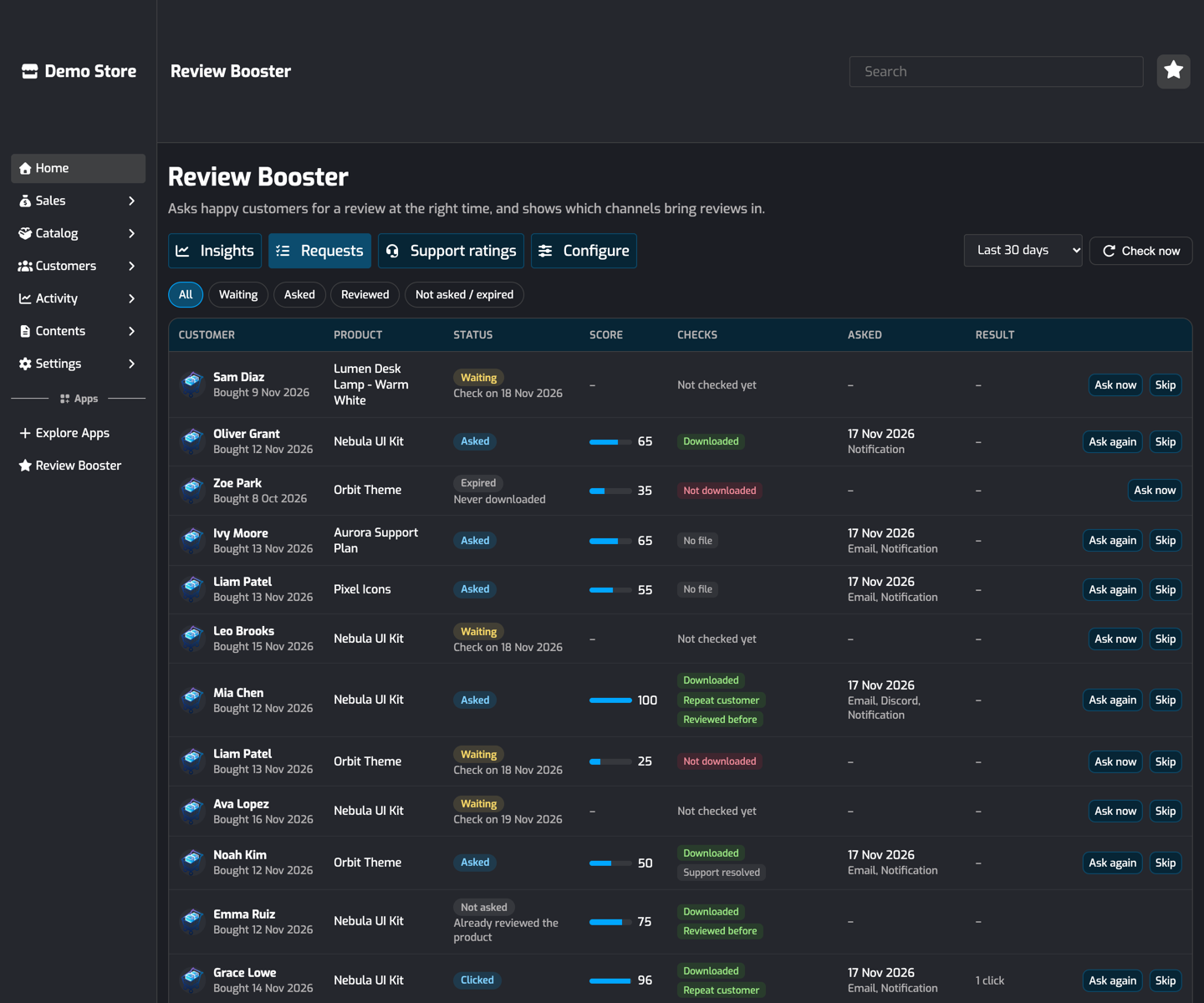
Ask now: asks a customer straight away, without waiting for the checks. Not shown for customers who have already reviewed, opted out, or were refunded.
Ask again: sends a customer's request again.
Skip: stops asking this customer about this product.
The Support ratings tab lists each support follow-up with the customer's rating and comment.
General Settings
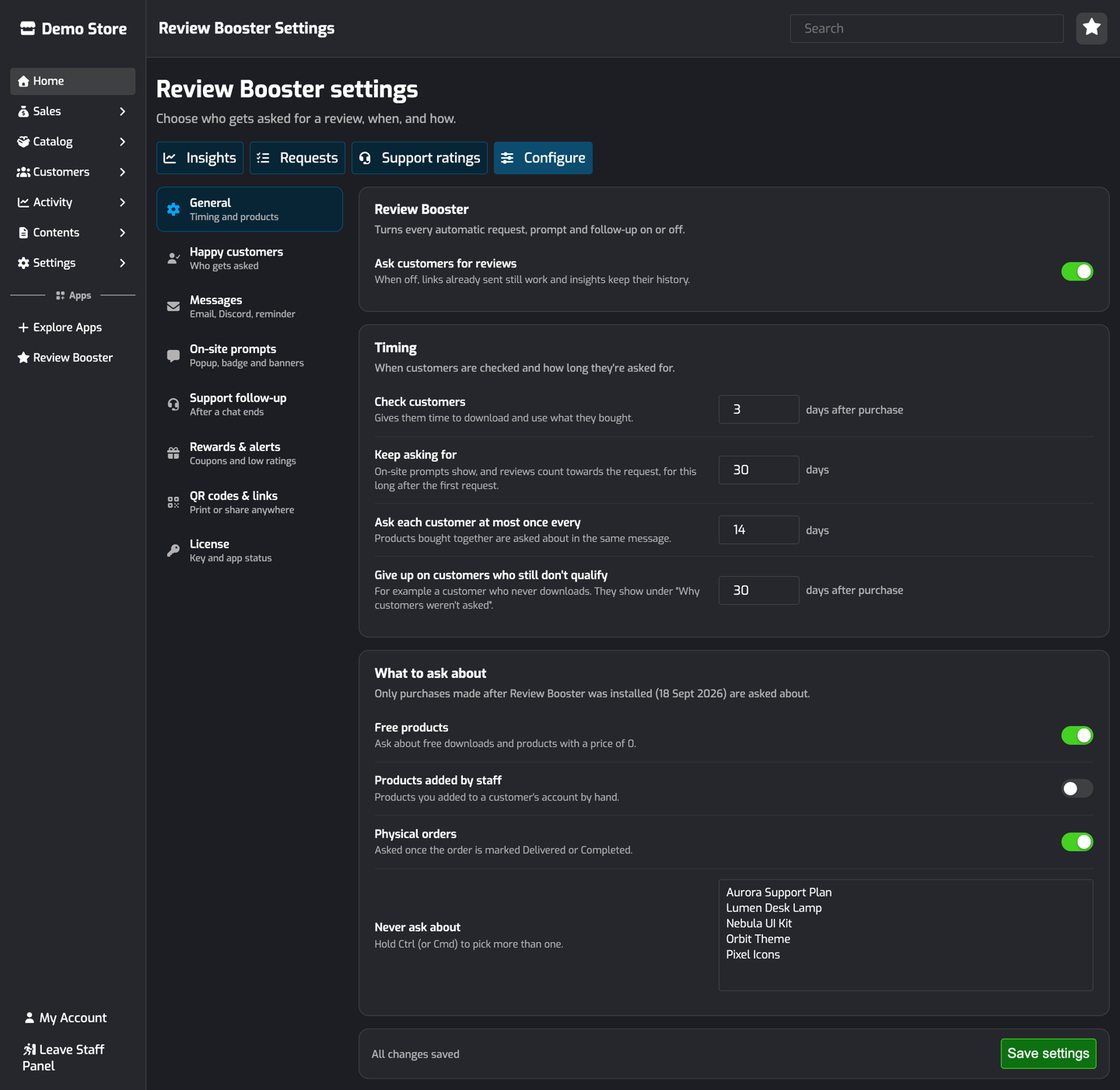
Open Configure → General.
Setting | Default | |
|---|---|---|
Ask customers for reviews | On | Turns everything off. Links already sent keep working. |
Check customers | 3 days after purchase | |
Keep asking for | 30 days | How long on-site prompts show, and how long reviews count towards a request. |
Ask each customer at most once every | 14 days | Spaces out requests for customers who buy often. |
Give up on customers who still don't qualify | 30 days after purchase | |
Free products | On | |
Products added by staff | Off | Products you added to a customer's account by hand. |
Physical orders | On | Asked once the order is Delivered or Completed. |
Never ask about | None | Products that are never asked about. |
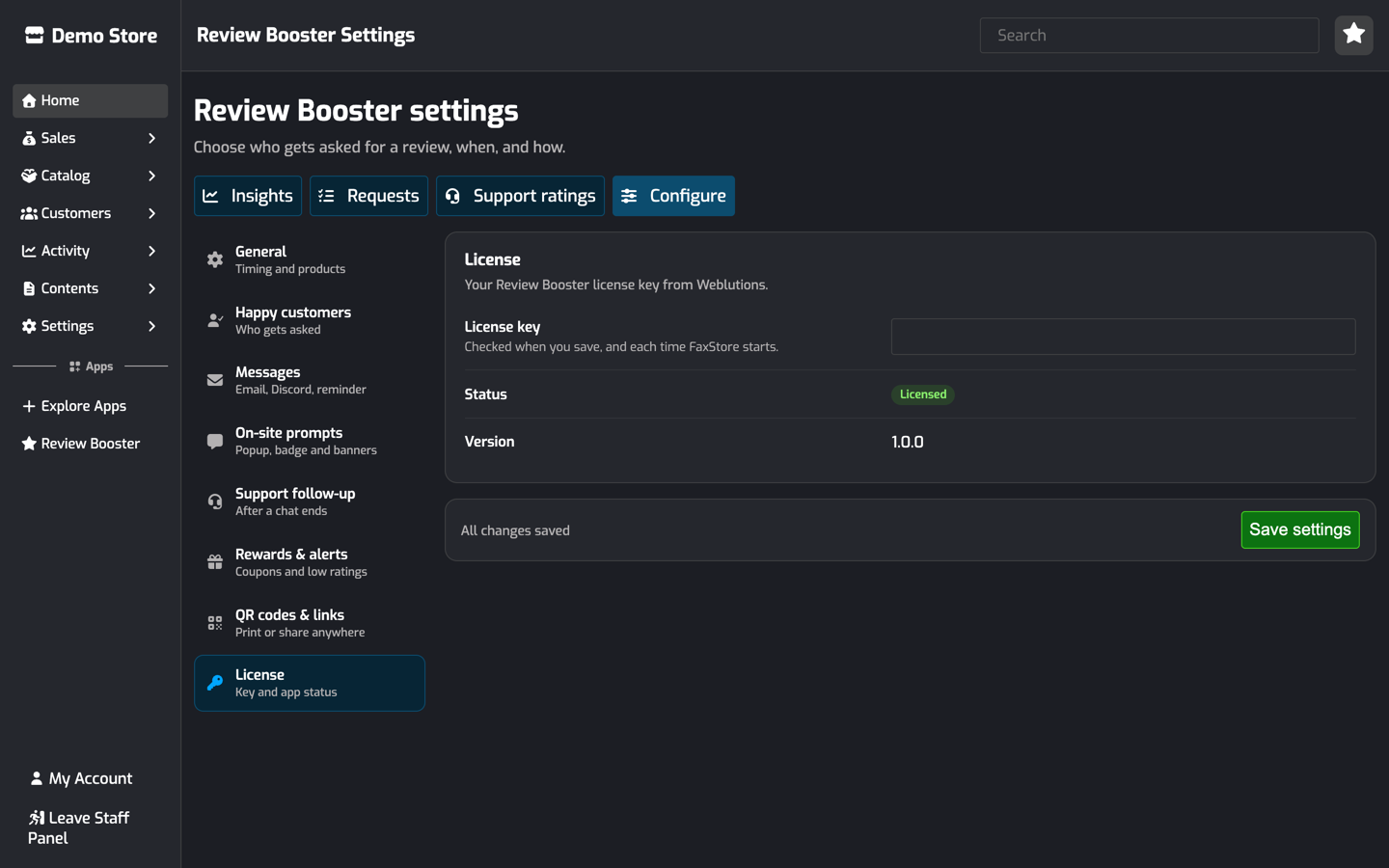
The License tab shows your key, whether it's verified, and the app version.
Email Preferences and Opting Out
Review request emails belong to the Feedback / Survey email category. Customers who turned that category off in their email preferences aren't emailed, but they can still be asked by Discord, site notification and on-site prompts.
Every email and Discord DM has a link to stop review requests. The customer confirms on a page on your store, then gets no more review requests or support follow-ups from Review Booster in any channel, including on-site prompts. They can still leave reviews themselves.
Troubleshooting
Nobody is being asked. Check the License tab shows Licensed, and that Ask customers for reviews is on. Only purchases made after Review Booster was installed are asked about. Customers are first checked 3 days after they buy.
A customer is still Waiting. The Requests tab shows which check they haven't passed, usually Not downloaded. They'll be asked as soon as they qualify, or closed once you give up on them.
Emails aren't sent. Check your email integration, and that the customer hasn't turned off feedback emails. The Requests tab shows which channels each customer was asked by.
Discord DMs aren't sent. The customer must have signed in with Discord, share a server with your bot, and allow DMs from server members.
On-site prompts don't show. They only show to the signed-in customer who was asked, and only until they review. Once the popup has been shown or closed, it waits 3 days before showing again.