 FaxStore
Discord Linked Roles
FaxStore 2.5 and later includes support for Discord Connections and Linked Roles. This integration allows customers to connect their Discord account to the store and display store-related data inside Discord servers where Linked Roles are enabled.
When configured, Linked Roles can be used to surface connection information on a user’s Discord profile and support role-based experiences within the guild.
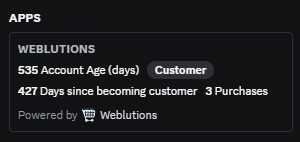
This is how Linked Roles appear on a user’s Discord profile under their server roles.
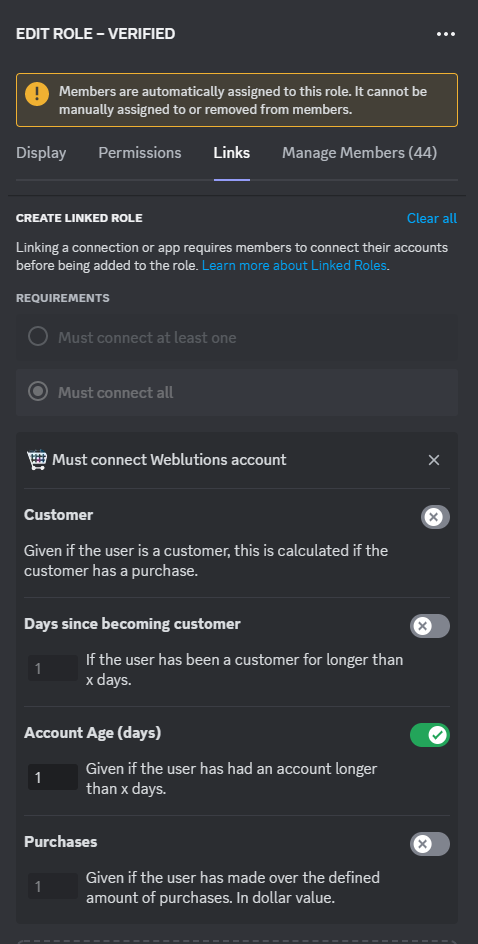
This is how the Linked Roles configuration appears in Discord guild settings.
How It Works
When a customer connects their Discord account to FaxStore, Discord can read the linked role metadata provided by the store. This allows the connected account to display relevant information through Discord’s Linked Roles system.
FaxStore can also automatically assign Discord roles to connected users when Discord integration settings are configured for the store.
Setting up Linked Roles
Setting up Linked Roles in FaxStore is straightforward.
Add the Discord bot token and guild ID to the store’s Discord configuration in the FaxStore settings.
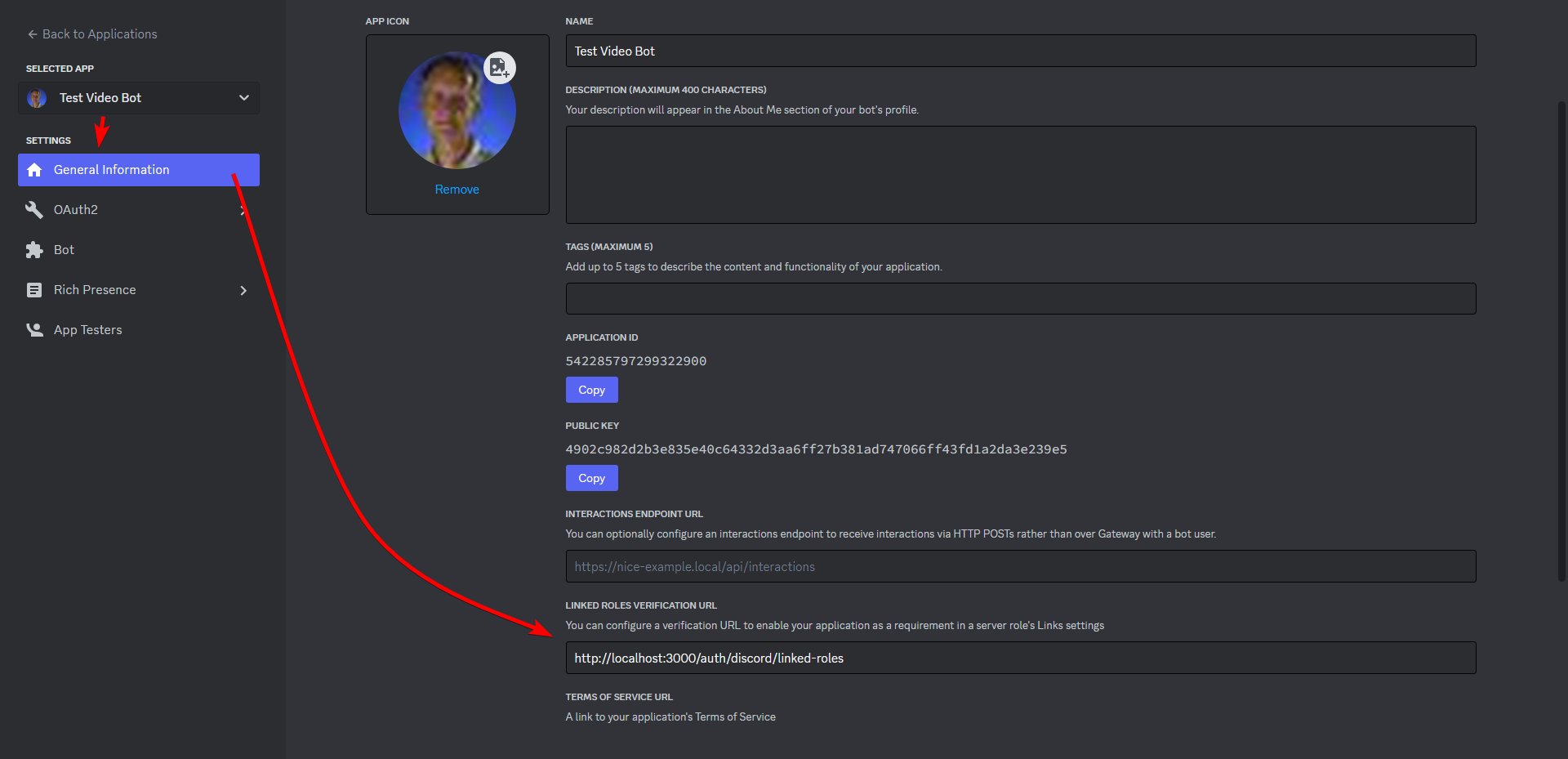
After that, open the Discord Developer Portal and set the Linked Roles URL to:
http://example.com/auth/discord/linked-rolesReplace example.com with the full domain of the store
This is the location in the Discord Developer Portal where the Linked Roles URL is configured.
Once saved, restart FaxStore to ensure the Linked Roles configuration is loaded correctly.
After the restart, open the server dropdown in FaxStore and click Linked Roles.
Linked Roles should now be operational