 FaxStore
Live Chat
Live Chat is a FaxStore app that adds a real-time chat bubble to every page of your store. Customers answer a few startup questions, then chat with your team either as a guest (with their name and email) or as their logged in account. Staff answer from the Live Chat inbox in the staff panel, and chats nobody answers in time are followed up by email.
The bubble is added to your pages automatically. There's no need to edit your header or footer files, and it works with custom themes.
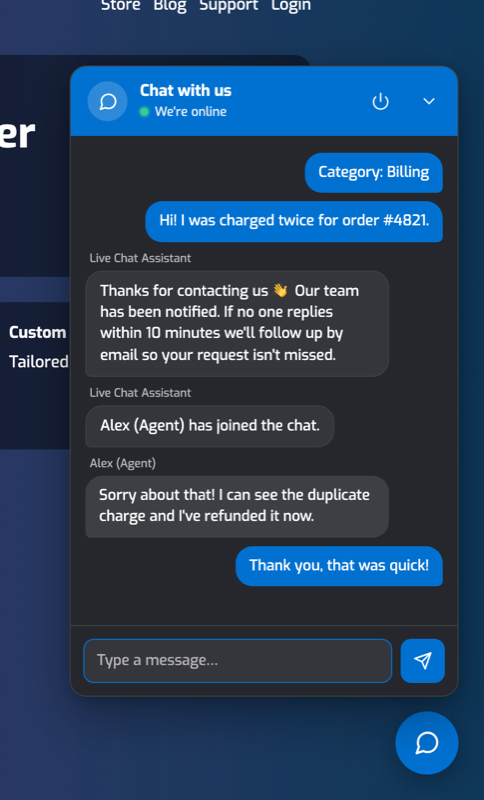
Table of Contents
For answering chats, alerts and troubleshooting, see Live Chat for Staff.
Installing Live Chat
Live Chat requires FaxStore 3.4.0 or higher, which can install apps that come with their own folders and packages. Missed chat and transcript emails use your existing SendGrid or SMTP email integration, and Discord alerts use your Discord Integration bot.
In the staff panel open Apps, find Live Chat and click install.
FaxStore downloads the app and installs the
socket.iopackage it needs for real-time chat. On Linux servers FaxStore then restarts by itself. On other systems the message says Restart FaxStore to load it, so restart it yourself.When FaxStore starts, Live Chat:
Creates the
wlc_chatsandwlc_messagesdatabase tables if they don't exist, and applies any table updates.Writes its settings file to
apps/configs/web-livechat.json.Downloads the chat bubble and staff panel scripts.
Adds Live Chat to the Apps section of the staff sidebar.
Open Live Chat → Configure → License, enter your license key and click Save changes.
Live Chat for FaxStore is a paid app from the Weblutions store - https://weblutions.com/store/faxstore-livechat
The bubble appears on your store as soon as the license is verified. Settings changes apply straight away without a restart.
If the install message says a package failed to install, run npm install socket.io@4 in your FaxStore folder, then restart FaxStore.
How Chats Work
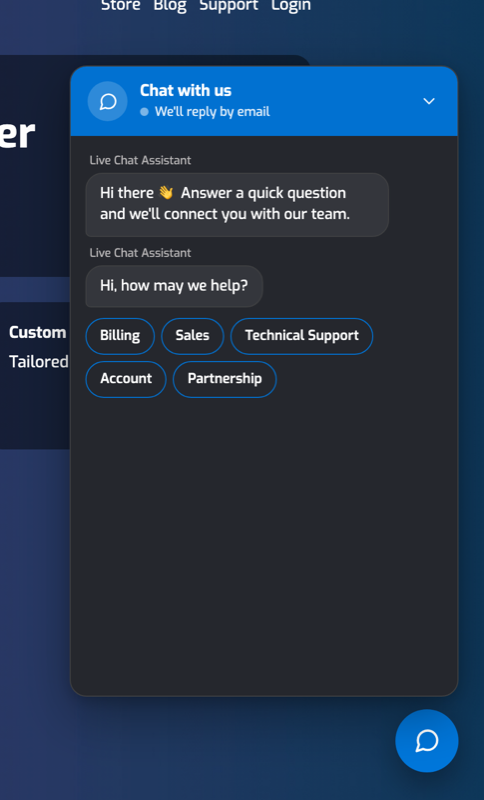
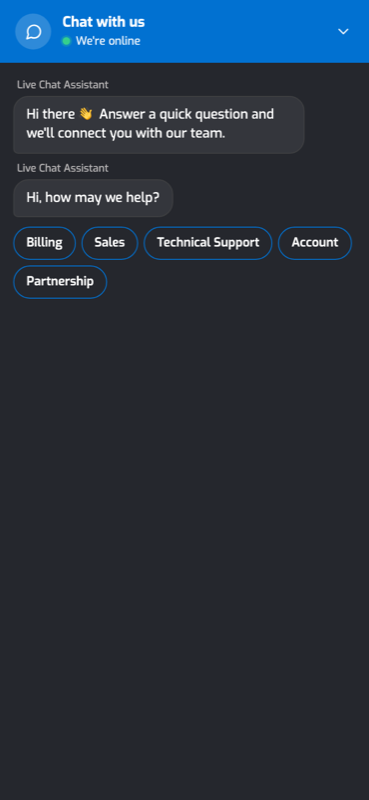
A customer clicks the bubble. The chat window opens with your welcome message and the first startup question.
The customer taps an answer for each question. Optional questions also show a Skip button.
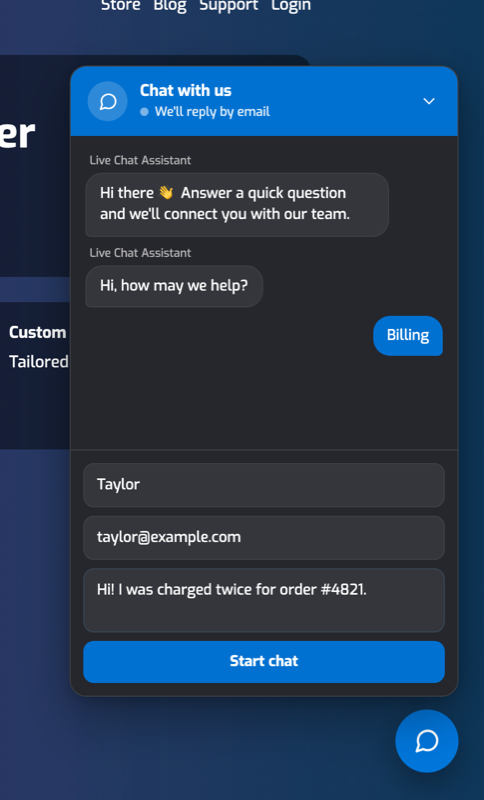
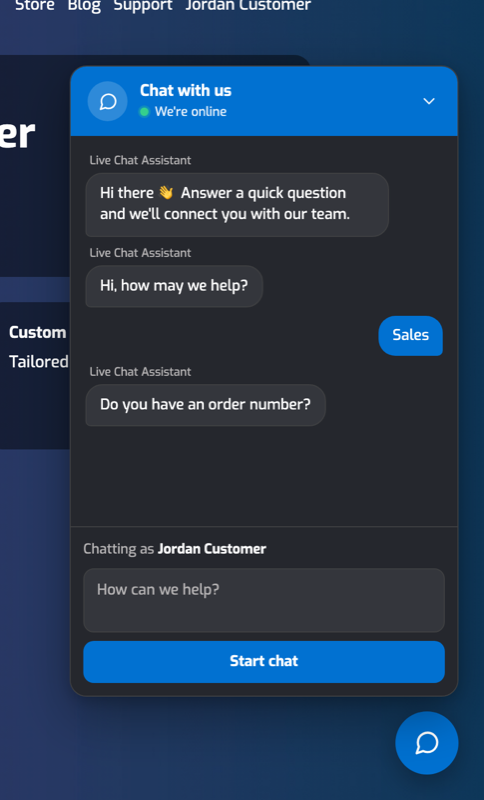
Guests enter their name and email. Logged in customers see Chatting as with their username instead, and their account name and email are used.
The customer writes their message and clicks Start chat. Your team is alerted and the customer gets an automatic greeting.
Staff reply from the inbox. Messages, typing indicators and status changes appear instantly on both sides.
The chat ends when a staff member closes it or the customer clicks the End chat button. The customer can then start a new chat.
Each chat has a status:
Status | Meaning |
|---|---|
Waiting | Started, but no staff member has replied yet. |
Active | A staff member has claimed the chat or replied. |
Missed | Nobody replied within the missed chat time. The customer has been emailed. |
Closed | The chat has ended. It stays in History. |
Guests are remembered with a secure cookie for 30 days, so their chat carries on across pages and visits. If a guest logs in during a chat, the chat continues and is linked to their account.
Configuring Live Chat
Open Live Chat → Configure in the staff panel. Only store owners can open this page. Settings are grouped into tabs down the left side, and each tab is split into sections.
When you change anything, the bar at the bottom of the page shows You have unsaved changes. Click Save changes to apply them straight away, or Discard changes to undo them. If you try to leave the page with unsaved changes, your browser asks you to confirm. Settings are saved to apps/configs/web-livechat.json and each save is recorded in the audit log.
The Startup questions, Appearance and Messages tabs show a Live preview of the chat on the right, which updates as you type. Click Chat window open above it to switch between the open chat and the bubble on its own.
General
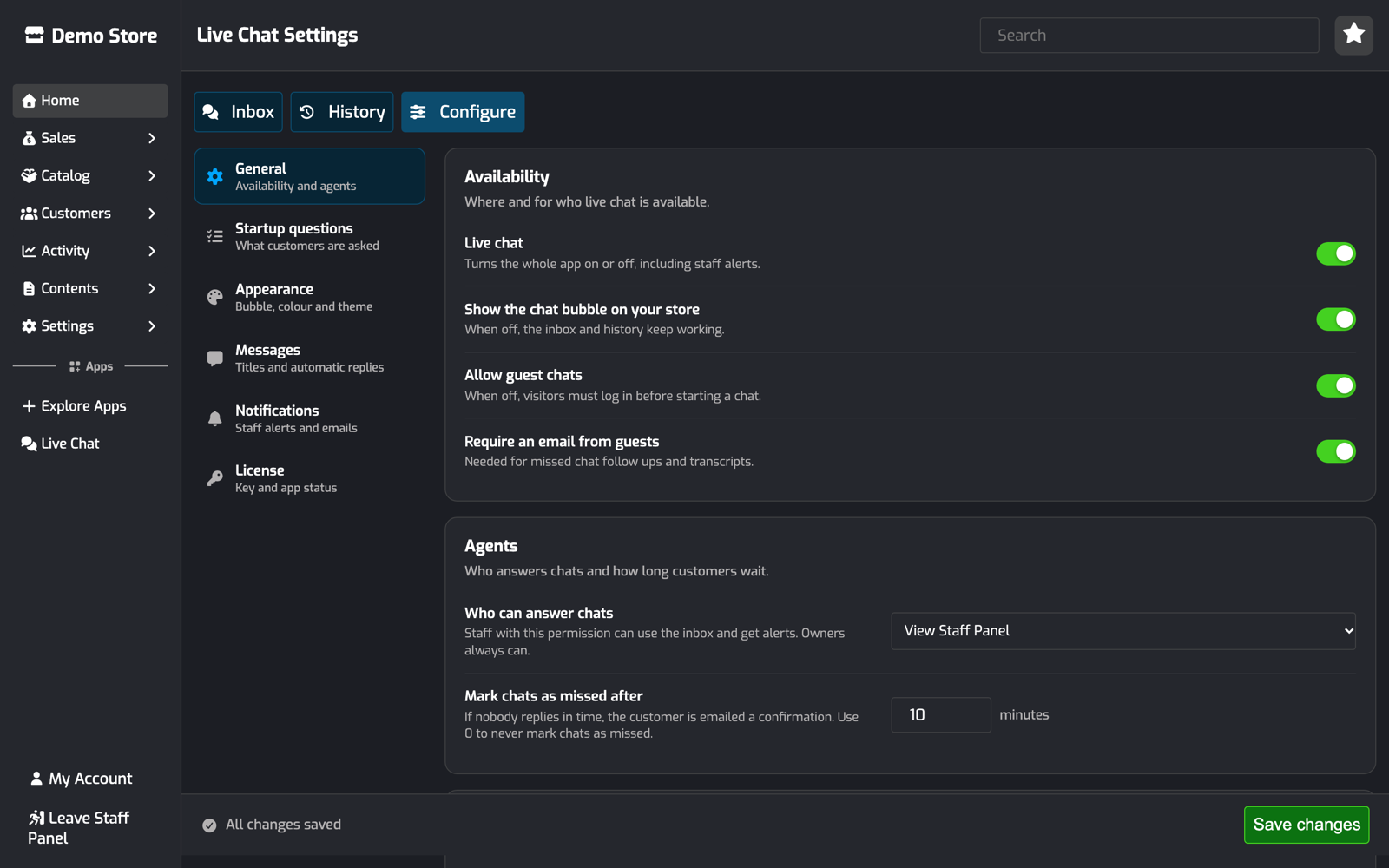
Availability
Live chat turns the whole app on or off, including the staff alerts.
Show the chat bubble on your store shows or hides the bubble. The inbox and history keep working while the bubble is hidden.
Allow guest chats: when off, visitors must log in before they can start a chat.
Require an email from guests makes the email field required. Missed chat follow ups and transcripts need an email address.
Agents
Who can answer chats is the staff permission that gives access to the inbox and alerts. Owners always have access. The default is View Staff Panel.
Mark chats as missed after is how many minutes a chat can wait without a staff reply before it's marked as missed. Use
0to never mark chats as missed.
Hidden pages
One path per line. The bubble isn't shown on these pages.
/checkoutalso hides/checkout/..., and a path ending in*matches any path starting with it. Staff and backend pages never show the bubble.
Startup Questions
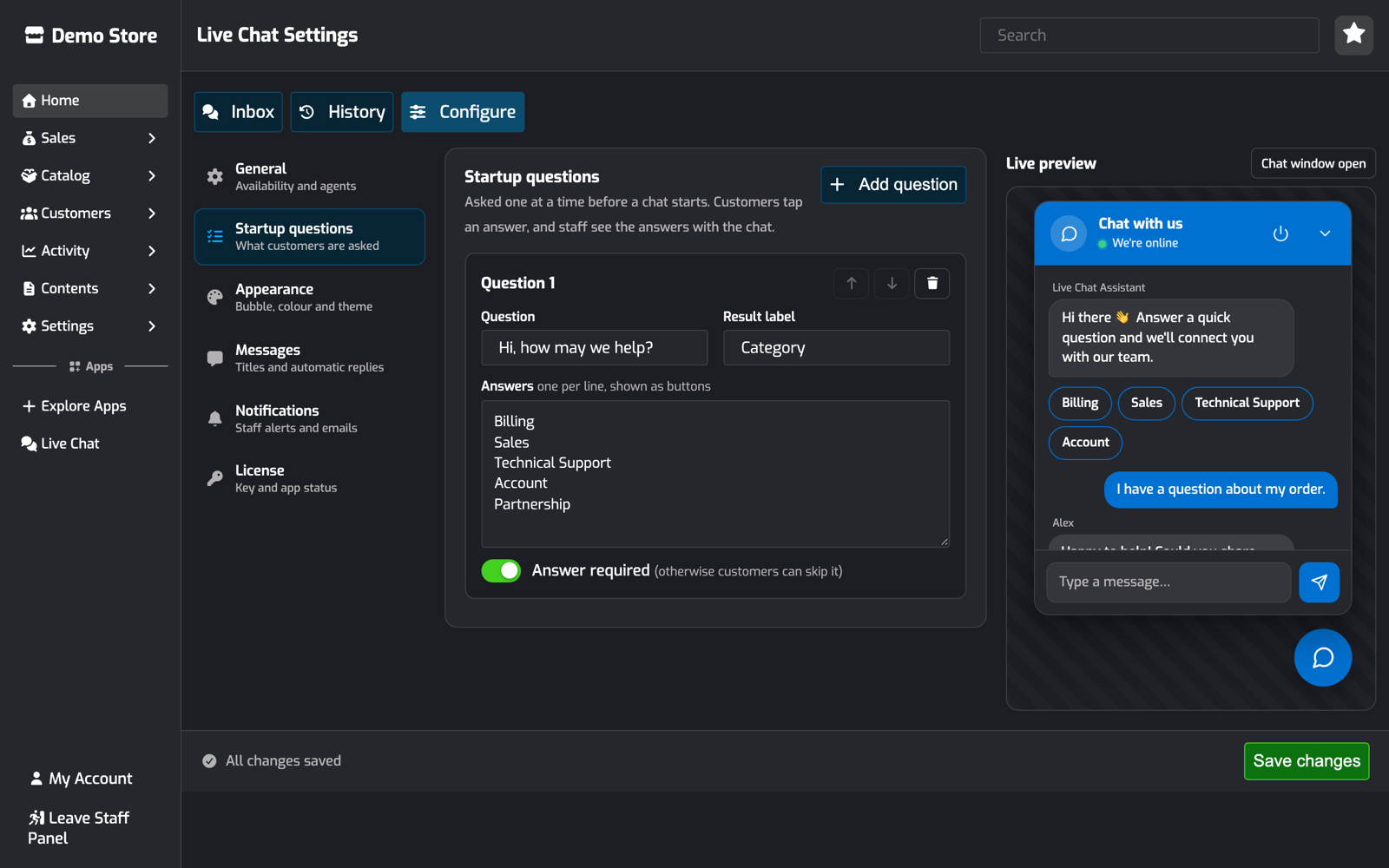
Questions are asked one at a time before a chat starts. Each question has:
Question: the text shown to the customer.
Result label: shown to staff next to the answer, for example Category: Billing.
Answers: one per line, shown as buttons.
Answer required: when off, customers also get a Skip button.
Use Add question to add one. The arrow buttons on each question change the order it's asked in, and the bin button removes it. Questions without any answers are ignored when saving.
Appearance
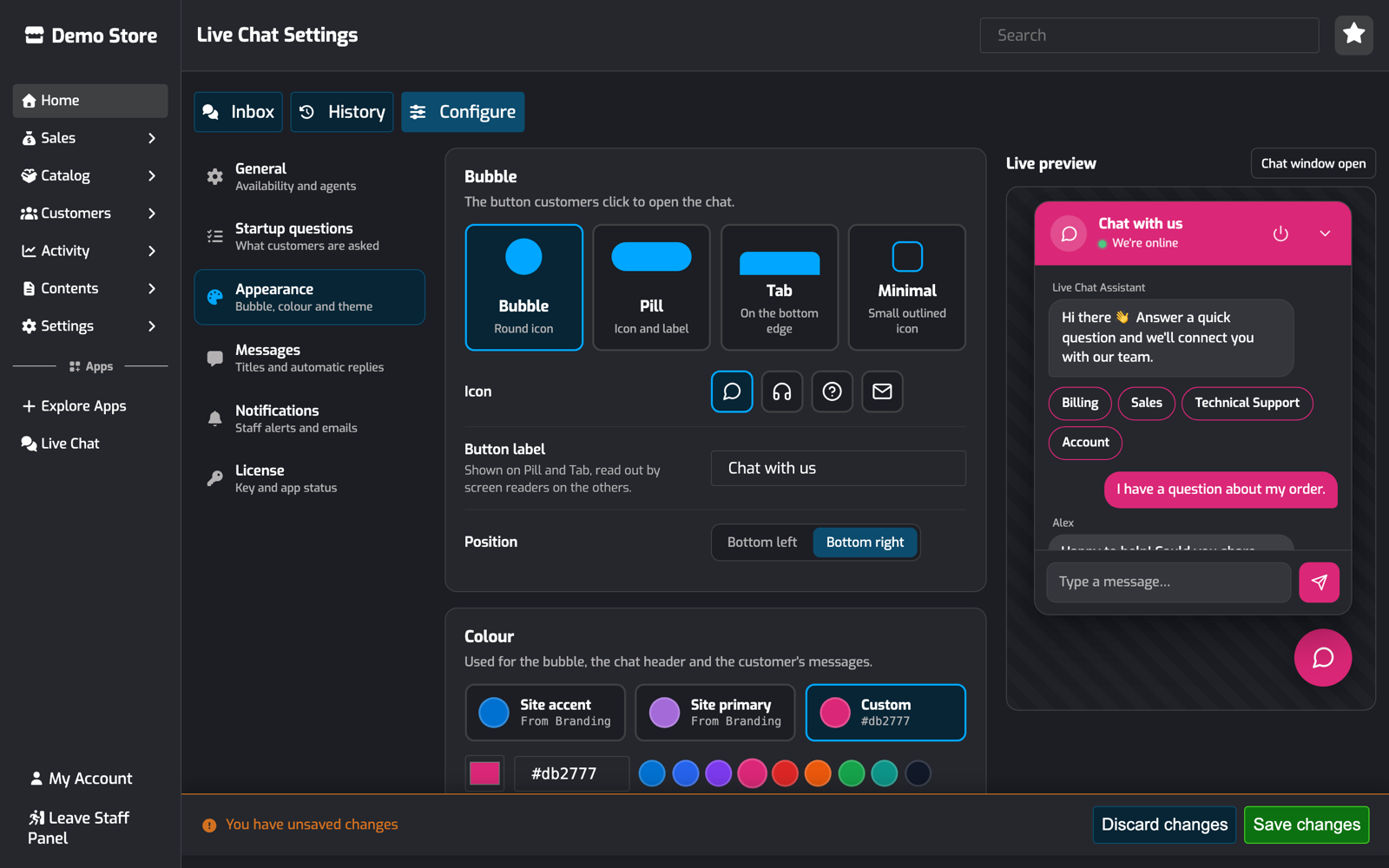
Bubble
Bubble design: see Bubble Designs.
Icon: chat bubble, headset, question mark or envelope.
Button label: shown on the Pill and Tab designs, and read out by screen readers on the others.
Position: bottom left or bottom right.
Colour
The colour is used for the bubble, the chat header and the customer's messages. Choose one of:
Site accent or Site primary: your store colours from Branding. The bubble updates automatically when you change your branding.
Custom: any colour. Use the colour picker, type a hex code such as
#db2777, or click one of the preset colours. Picking a colour switches to Custom for you.
Text on a custom colour turns dark or light automatically so it stays readable.
Chat window
Theme: Match site follows your store's colour scheme. Dark and Light use fixed colours.
Distance from the screen edge: the Side and Bottom gap in pixels.
Hide on phones hides the bubble on small screens. On phones the chat otherwise opens full screen.
Messages
Chat window
Title: shown at the top of the chat.
Assistant name: shown on automatic messages and questions.
Welcome message: shown above the first startup question.
Answer prefix: optional text added before each startup answer in the chat.
Automatic messages
Greeting when agents are online and Greeting when no agents are online: sent when a chat starts.
When a chat is missed: sent when a chat is marked as missed.
When a chat ends: sent when a chat is closed.
Leave a message empty to skip it. Click a placeholder button to add it where your cursor is: {name} is the customer's name and {minutes} is the missed chat time. {site} is your store name and works in the greetings only.
Notifications
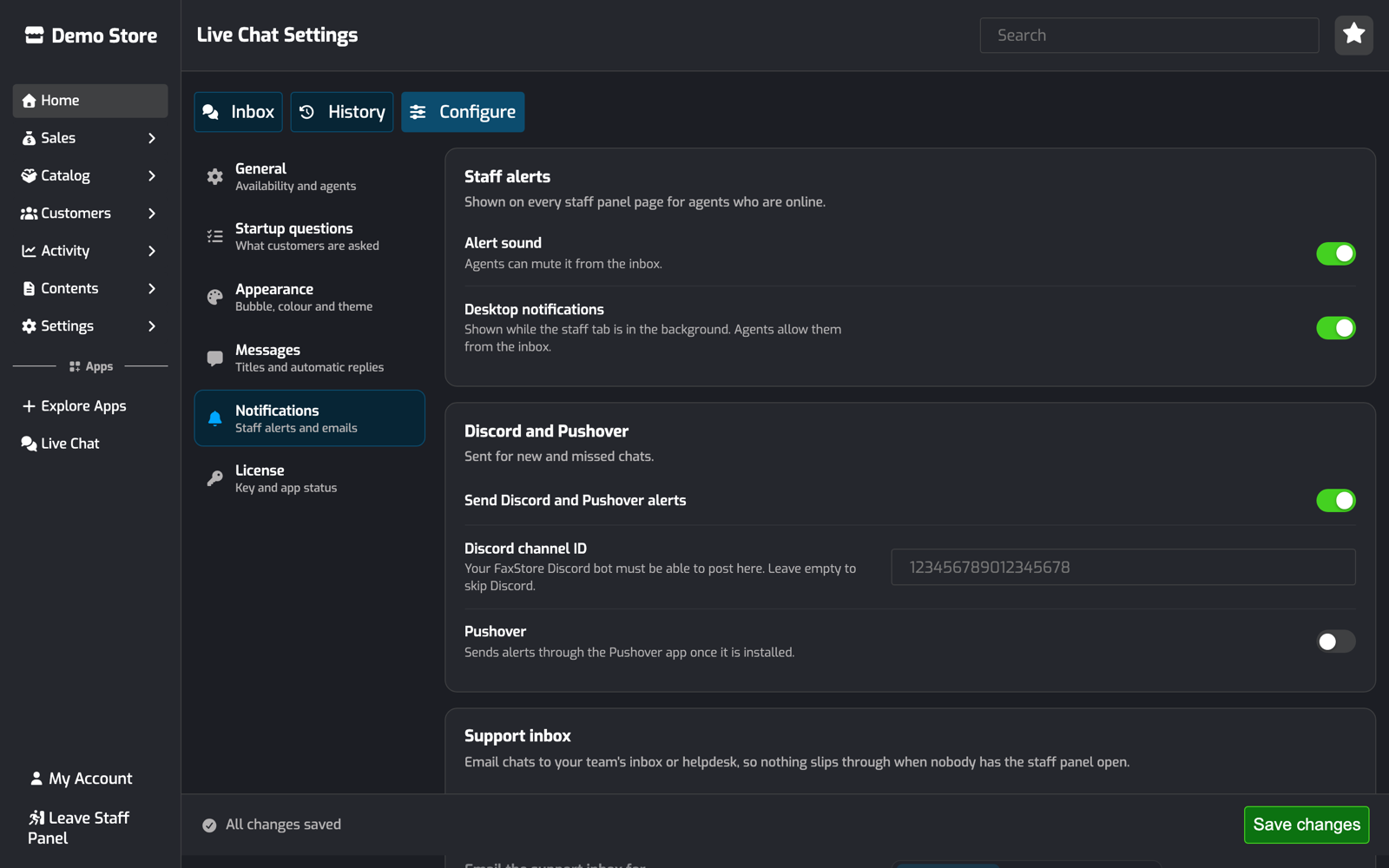
Staff alerts
Alert sound and Desktop notifications: alerts in the staff panel. See Live Chat for Staff.
Discord and Pushover
Send Discord and Pushover alerts: alerts for new and missed chats outside FaxStore.
Discord channel ID: the channel your FaxStore Discord bot posts alerts to. Leave it empty to skip Discord.
Pushover: sends alerts through the Pushover app once it's installed.
Support inbox
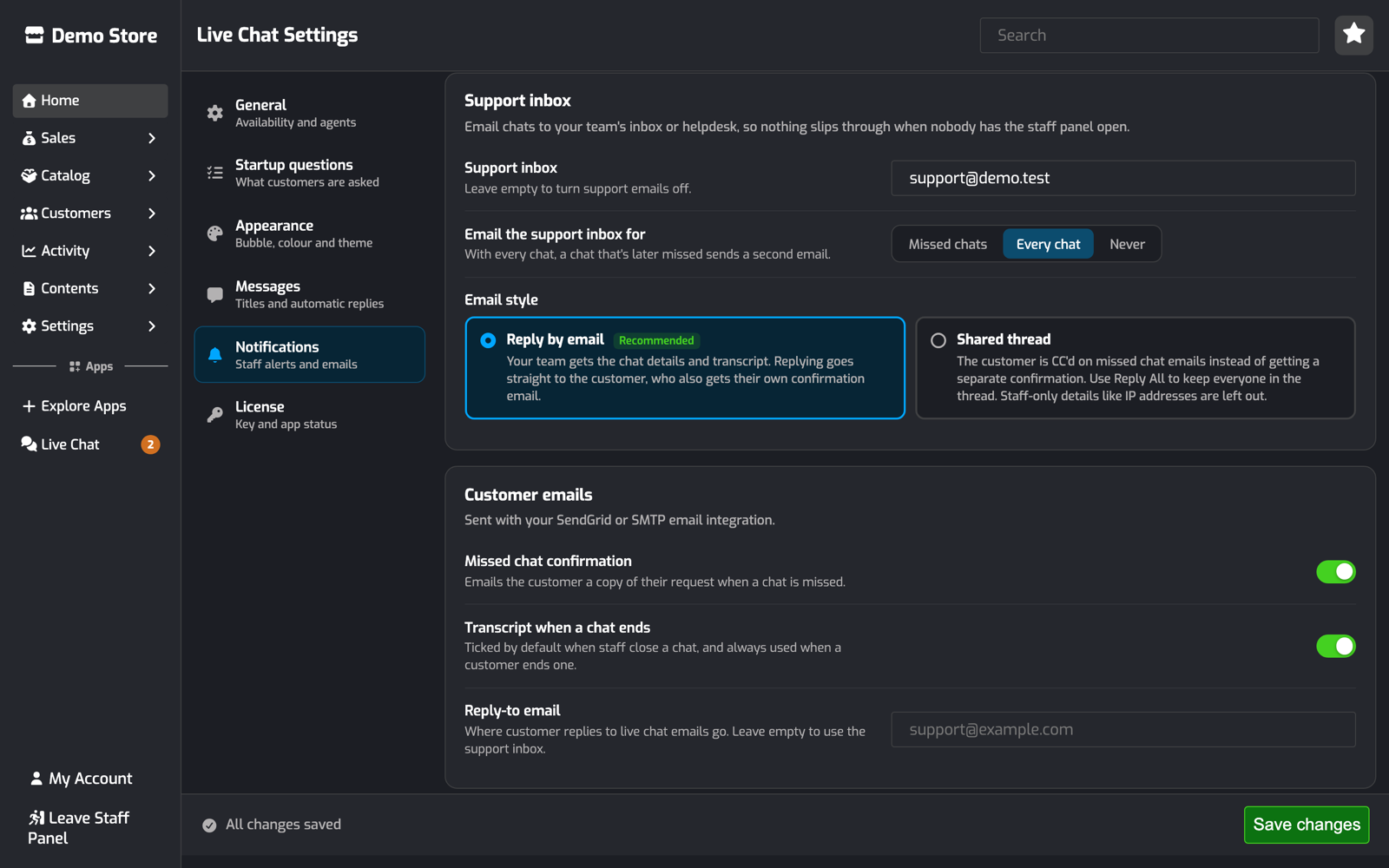
Emails chats to your team's inbox or helpdesk, so nothing slips through when nobody has the staff panel open.
Support inbox: the address to email. Leave it empty to turn support emails off.
Email the support inbox for: Missed chats, Every chat or Never. With Every chat, a chat that's later missed sends a second email.
Email style:
Reply by email (recommended): the email has the customer's details, startup answers, transcript and a link to the chat. It's sent with the customer as the reply-to address, so clicking Reply answers them directly. The customer still gets their own confirmation email.
Shared thread: missed chat emails are sent to the support inbox with the customer CC'd, and replies go to the support inbox. Use Reply All to keep everyone in the conversation. The email is written for the customer to read, so staff-only details like IP addresses and staff panel links are left out, and the customer doesn't get a separate confirmation. New chat emails with Every chat are never CC'd.
Customer emails
Missed chat confirmation: emails the customer a copy of their request when a chat is missed.
Transcript when a chat ends: the default for the transcript checkbox when staff close a chat. It's always used when a customer ends a chat.
Reply-to email: where customer replies to live chat emails are sent. Leave it empty to use the support inbox.
An invalid support inbox or reply-to address isn't saved, and the page tells you which one to fix.
License
Enter your Weblutions license key and click Save changes. The key is hidden while you type, so click Show to check it. Saving checks the license again. Without a valid license the bubble is hidden from your store, but the inbox and history still work.
App status shows whether each of the app's scripts and styles loaded.
Bubble Designs
Live Chat comes with four bubble designs:

Bubble: a round icon button.
Pill: an icon with your button label.
Tab: a tab attached to the bottom edge of the screen.
Minimal: a small outlined icon.
All designs use your chosen colour and icon. On phones the chat window opens full screen.
Missed Chats and Emails
If nobody replies within the missed chat time, the chat is marked as Missed. FaxStore checks every 30 seconds and this keeps working after a restart. When a chat is missed:
The Missed chat message is posted in the chat.
The support inbox is emailed, if one is set. See Support inbox.
The customer is emailed a copy of their request, if Missed chat confirmation is on and they gave an email. With the Shared thread email style, they're CC'd on the support inbox email instead.
A Discord and Pushover alert is sent, if enabled.
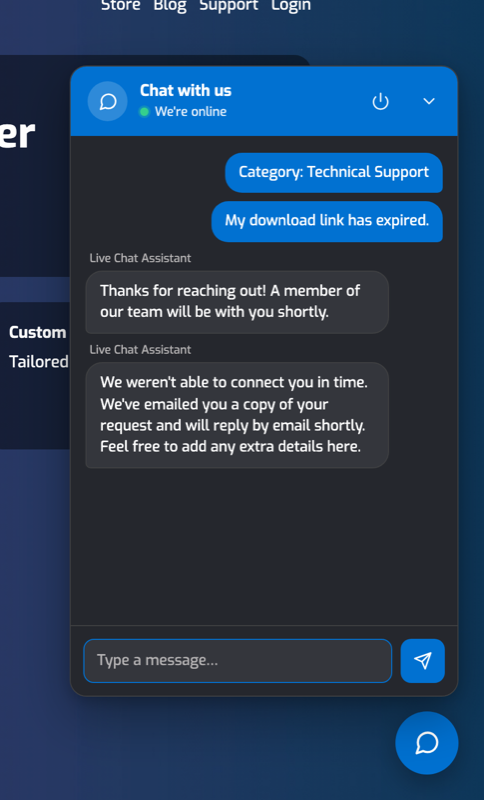
Customers can keep adding details to a missed chat. When a staff member replies, the chat becomes Active again.
If the customer has left the website when a staff member replies, the reply is emailed to them as well. Replies sent within 30 seconds of each other are grouped into a single email. When the customer replies to that email, it goes to the Reply-to email address, or the support inbox if that's empty. Email replies don't appear in the chat.
Live Chat sends these emails:
Sent to | When | |
|---|---|---|
New chat #id from name | Support inbox | A chat starts, with Every chat selected. |
Missed chat #id from name | Support inbox | A chat is missed, with the Reply by email style. |
Your chat with store (#id) | Support inbox, customer CC'd | A chat is missed, with the Shared thread style. |
We've received your message | Customer | A chat is missed, unless the customer was CC'd above. |
New reply to your chat | Customer | Staff reply while the customer isn't on the website. |
Your chat transcript | Customer | A chat is closed with a transcript. Internal notes are never included. |
Customer emails are sent with the Reply-to email (or the support inbox) as the reply-to address. Reply-to addresses work with both SendGrid and SMTP.
Routes Reference
All routes are added by the app. Every POST route on the chat API expects a JSON body and the header X-Requested-With: wlc. Requests without the header get 400, which blocks cross-site form posts.
Responses are JSON in the form {"success": true, ...}. Errors are {"success": false, "error": "..."} with one of these status codes: 400 invalid input, 401 login required, 403 not allowed, 404 not found, 429 rate limited, or 503 live chat unavailable.
Customer chat API
The customer's chat is always found from their login session or guest cookie, so these routes never take a chat ID.
Method | Path | Description |
|---|---|---|
GET |
| The customer's open chat and its messages, whether staff are online, and who the customer is logged in as. |
POST |
| Starts a chat, or returns the customer's open chat if they already have one. Body: |
GET |
| Messages after the given message ID. The widget uses this to catch up after a reconnect. |
POST |
| Sends a customer message. Body: |
POST |
| Ends the customer's chat. Body: |
Staff pages
Method | Path | Access | Description |
|---|---|---|---|
GET |
| Agents | The live inbox. Add |
GET |
| Agents | All chats, newest first. |
GET |
| Owners | Settings. Add |
POST |
| Owners | Saves settings from the configure form. |
POST |
| Owners | Permanently deletes a chat and its messages. |
"Agents" means staff with the Who can answer chats permission. Owners always count as agents.
Staff API
All staff API routes require an agent session.
Method | Path | Description |
|---|---|---|
GET |
| Open chats with each one's last message, the count for each status, and the agents online. Add |
GET |
| One chat with all of its messages, including internal notes. |
POST |
| Sends a reply. Body: |
POST |
| Assigns the chat to you and posts "name has joined the chat". |
POST |
| Closes the chat. Body: |
Real-time Events
Live Chat uses socket.io on the same domain as your store, at /socket.io. The client script is served from /socket.io/socket.io.min.js, and connections from other websites are refused.
Each socket's identity comes from the FaxStore login session or the guest cookie. A socket can't choose which chat it joins: customers are placed in their own chat automatically. Staff connect with auth: {scope: 'staff', online: true|false}, and the server checks they have the agent permission before sending any staff events.
Customer sockets
Event | Direction | Payload | Description |
|---|---|---|---|
| To server | none | Re-checks and joins the customer's open chat, for example just after starting one. |
| To server |
| The customer is typing. Sent to agents. |
| To customer |
| A new message. Internal notes are never sent. |
| To customer |
| The chat's status changed. |
| To customer |
| A staff member is typing. |
| To customer |
| Whether any agent is available. |
Staff sockets
Event | Direction | Payload | Description |
|---|---|---|---|
| To server |
| Sets you as online or away. |
| To server |
| You're typing in a chat. Sent to the customer. |
| To staff |
| The agents connected and whether any are available. |
| To staff | chat object | A new chat started. |
| To staff | chat object | A chat changed: status, assignment, a new reply or deletion ( |
| To staff | message object | A new message, including internal notes. |
| To staff |
| A customer is typing. |
Message types are customer, staff, system and internal.
App Events
Live Chat emits events on the faxstore object, so other apps can react to chats:
Event | Payload |
|---|---|
|
|
|
|
|
|
|
|
faxstore.on('livechat:started', function({chat, preview}) {
    console.log(`New chat #${chat.id} from ${chat.name}: ${preview}`);
});
The chat object has the chat's id, account (empty for guests), name, email, status, answers, pageUrl, assignedTo and timestamps.
When Pushover is switched on, new and missed chats are also sent to the app registered with the id pushover. Live Chat calls faxstore.apps.get('pushover').api.send({title, message, url}), and skips it if no Pushover app is installed. Live Chat registers itself with the id livechat. See Using Other Apps in App Manifest & Packaging.
Database Tables
The tables are created and updated by the app when FaxStore starts. They're not part of installme.sql.
wlc_chats
id: chat ID (snowflake)account: user ID for logged in customers, empty for guestsguestToken: SHA-256 hash of the guest's cookie. The cookie value itself is never stored.name,email,ip,userAgent,pageUrlanswers: startup answers as JSON,[{label, value}]status:waiting,active,missedorclosedassignedTo,closedBy: staff user IDssolution: the staff-only close summarylastCustomerReplyAt,lastStaffReplyAt,createdAt,closedAt: timestamps in milliseconds
wlc_messages
id: message ID (snowflake)chat: the chat the message belongs toaccount: the sender's user ID, if logged inauthor: the name shown with the messagetype:customer,staff,systemorinternalcontent,createdAt
Files
File | Purpose |
|---|---|
| Start up, settings, license check, table set up, adding the bubble to pages, app registration |
| Chat logic, notifications, emails and the socket.io server |
| Customer API, staff pages and staff API |
| Settings |
| Staff pages |
| Chat bubble script and styles |
| Staff panel script and styles |