 FaxStore
2. Installing Files & Database
In order to create the FaxStore database, the files need to be uploaded to the server to have the installation commands and steps work.
Download, Extract & Upload FaxStore
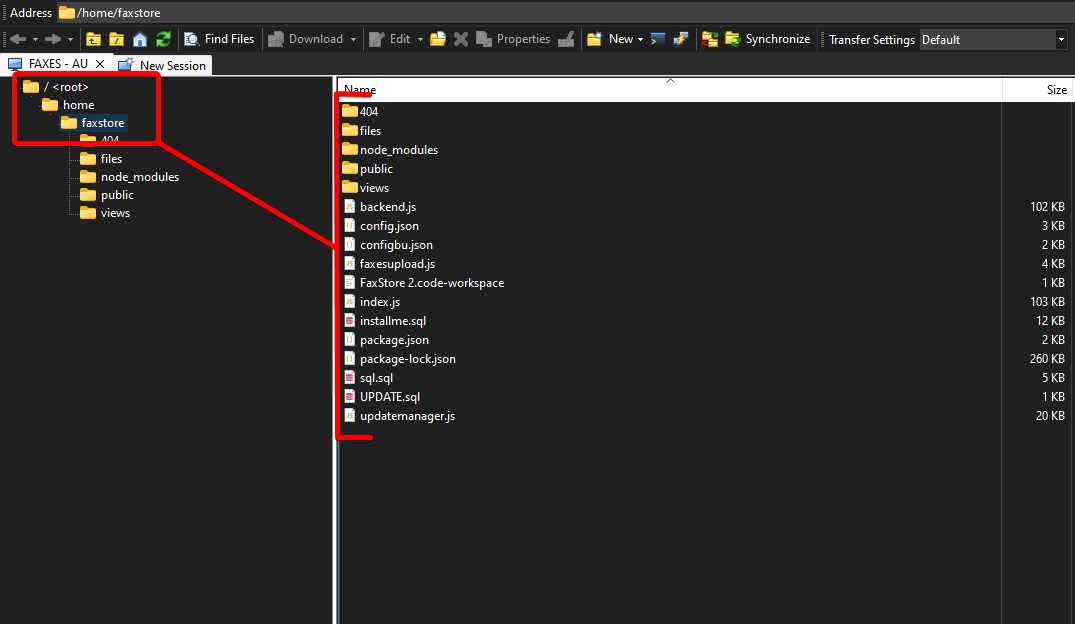
Download FaxStore from the Downloads section on Weblutions.com and extract the contents onto a fresh Ubuntu server. We recommend it being installed into the below location, the faxstore folder will need to be created.
Download the latest version of FaxStore from weblutions.com/account
Extract the RAR file
Upload all contents into the FaxStore folder on the server
/home/faxstoreRecommended file path on Ubuntu
Database Installation
Now the files have been uploaded, the initial database can be uploaded and executed on the server.
Login to MySQL by using the below MySQL command, enter the previously set password when prompted
mysql -u root -pOn most Linux servers when entering a password it wont be visible, even when pasted.
In many terminal applications, right-clicking will paste content.
Once logged in, run the source command to install the database
source /home/faxstore/installme.sqlIf a different FaxStore installation directory is used, be sure to change the file path.
Use
exitto leave the MySQL terminal
Step two has been completed