 FaxStore
Live Chat for Staff
This page covers how staff answer live chats in FaxStore and how the staff side of Live Chat works: the inbox, availability, alerts, missed chats and troubleshooting. For installing and configuring the app, and the full routes reference, see Live Chat.
Table of Contents
Who Can Answer Chats
Staff with the permission set in Live Chat → Configure → General → Who can answer chats are agents. The default permission is View Staff Panel, and owners are always agents. Agents can use the inbox and history and receive alerts. Only owners can open Configure and delete chats.
Permission changes take effect within a minute, because each agent's access is re-checked at least once a minute. Banned and disabled accounts never have access.
The Inbox
Open Live Chat from the Apps section of the staff sidebar.
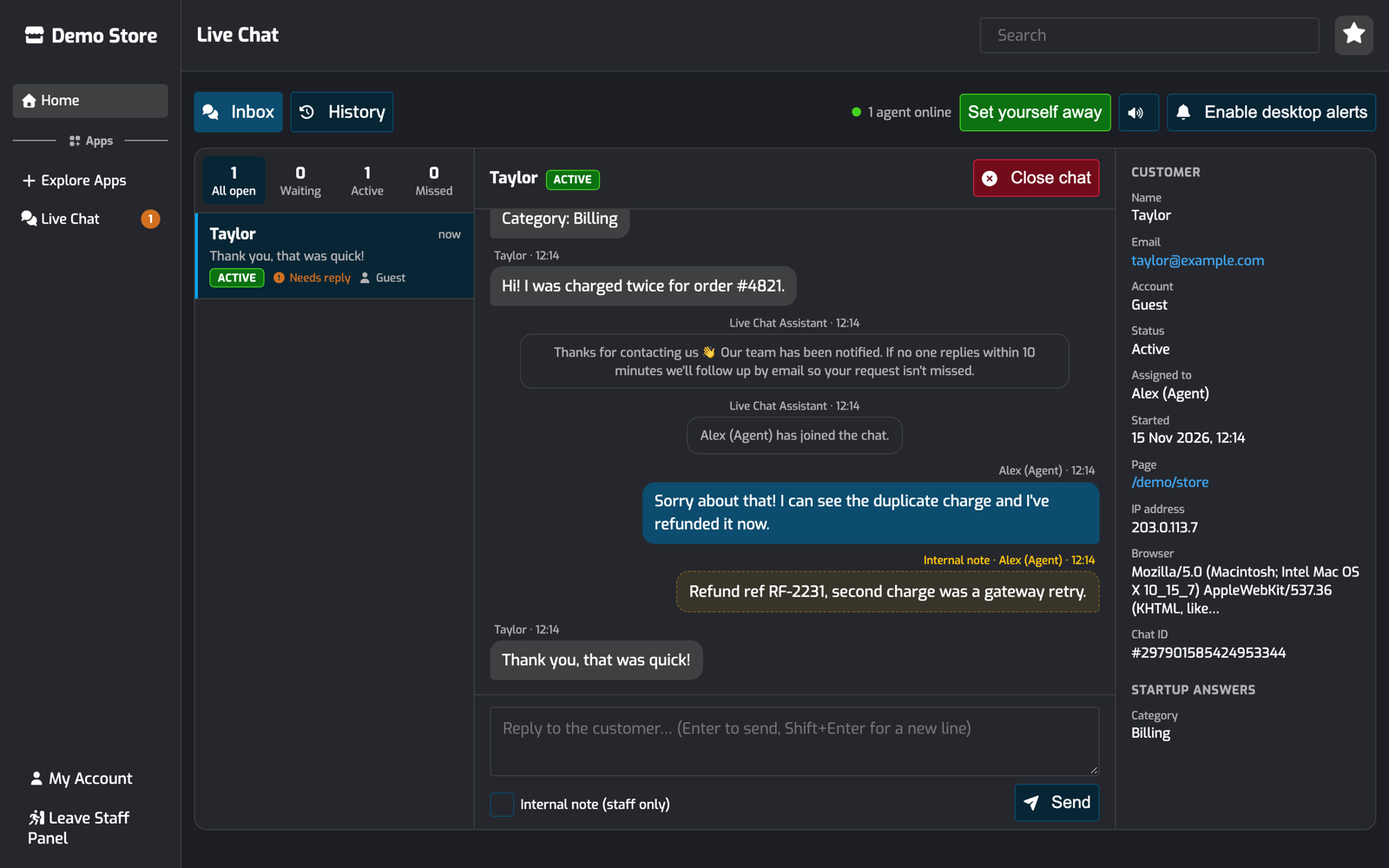
Chat list (left): open chats, most recent activity first. The tabs at the top filter by status and show counts. Needs reply marks chats where the customer is waiting on your team, and Guest marks customers who aren't logged in.
Conversation (middle): the full chat, including system messages and internal notes. The customer's typing shows below the messages.
Customer (right): name, email, a link to the customer's profile for logged in customers, status, assigned staff member, start time, the page they started on, IP address, browser and chat ID. Their startup answers are listed below. On smaller screens, use the i button to show this panel.
The list updates in real time. You can link straight to a chat with /staff/livechat?chat=<id>, which is also the link used in alerts.
Chats move through these statuses:
Status | Meaning | Changes when |
|---|---|---|
Waiting | No staff reply yet | A staff member claims or replies (Active), or the missed chat time passes (Missed) |
Active | Being handled | The chat is closed |
Missed | Nobody replied in time, and the customer was emailed | A staff member replies (Active) |
Closed | Ended | Final. The chat stays in History |
Replying, Internal Notes and Claiming
Type in the reply box and press Enter to send. Use Shift+Enter for a new line. Messages can be up to 2000 characters.
Tick Internal note (staff only) to leave a note for your team. Notes are highlighted in yellow and are never sent to the customer or included in transcripts.
Claim assigns the chat to you, marks it Active and tells the customer "name has joined the chat". Replying to an unassigned chat claims it automatically.
The customer sees when you're typing. Internal notes don't show a typing indicator.
Customer messages are always shown as plain text. Links are shown but nothing in a message can run code.
Closing Chats
Click Close chat to end a chat.
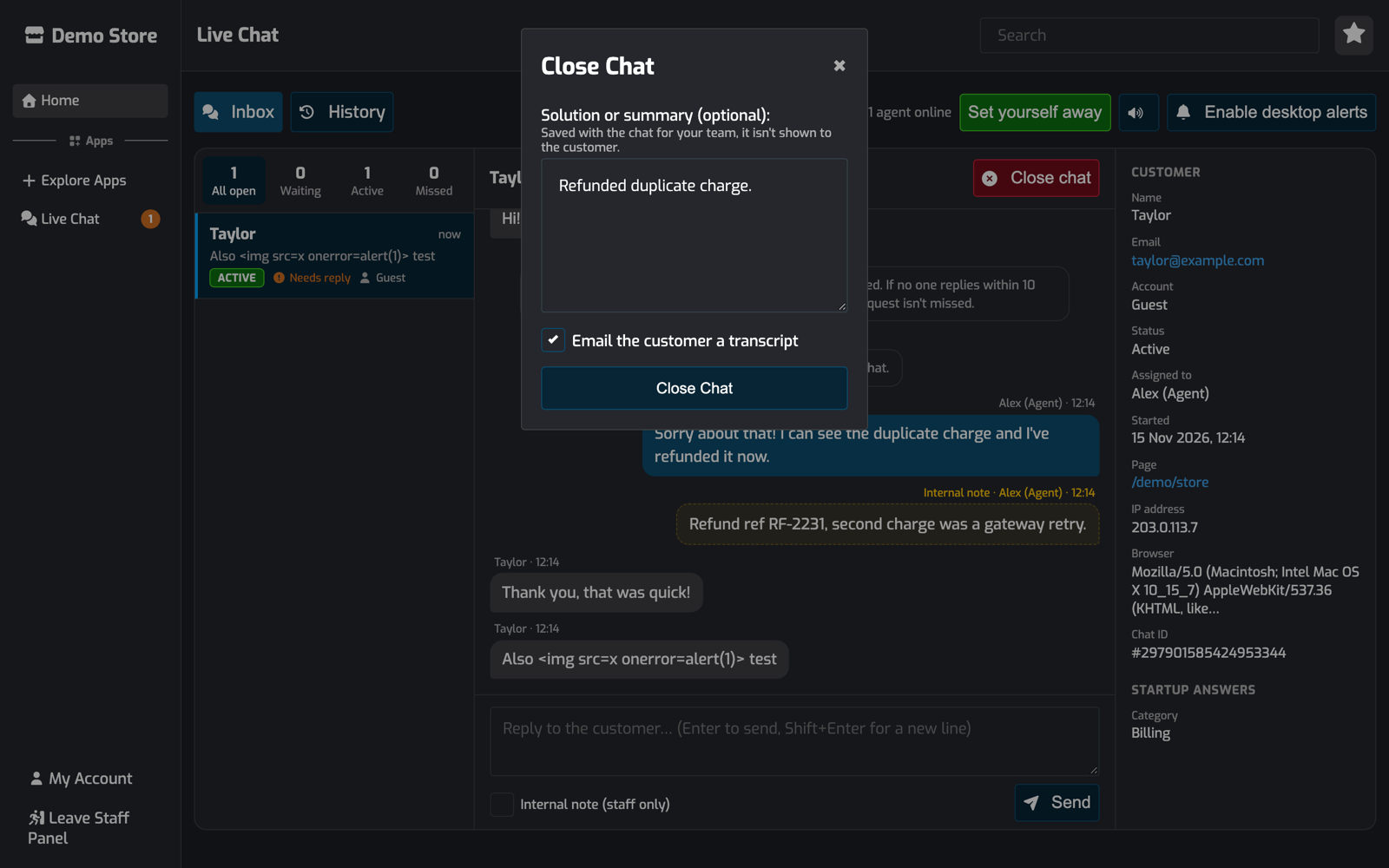
Solution or summary is saved with the chat for your team. The customer doesn't see it.
Email the customer a transcript sends the full conversation, without internal notes, to the customer's email. It's ticked by default if Transcript when a chat ends is enabled in settings.
The customer sees the Chat ended message and a Start a new chat button. Closing is recorded in the audit log.
Customers can also end a chat themselves with the End chat button in the chat window. When they do, a transcript is sent if Transcript when a chat ends is enabled.
Availability
Customers see We're online when at least one agent is available, and We'll reply by email when none are. The greeting a new chat gets depends on this too.
You count as available when:
you have any staff panel page open, not just the inbox, and
your status is online.
Use Set yourself away and Go online in the inbox toolbar to change your status. The choice is remembered in your browser and applies to all of your staff tabs. The toolbar shows how many agents are online.
Availability updates the moment agents connect, disconnect or change status. If you close the staff panel, you stop counting as available straight away.
Alerts
The Live Chat staff script runs on every staff panel page, so alerts arrive whatever you're working on.
Alert | When | Notes |
|---|---|---|
Sidebar badge | Always | The orange count next to Live Chat is the number of chats waiting on your team. In the inbox it's also shown in the browser tab title. |
Toast | New chats and customer messages | Includes an Open chat link. Not shown for the chat you're viewing. |
Sound | New chats and customer messages | Mute it with the speaker button in the inbox toolbar. Browsers only play sounds after you've clicked somewhere on the page. |
Desktop notification | New chats and customer messages while the staff tab is in the background | Click Enable desktop alerts in the inbox toolbar once to allow them. |
Discord | New and missed chats | Posted to the channel set in Notifications, with a link to the chat. |
Pushover | New and missed chats | Sent through the Pushover app once it's installed. |
Support inbox email | Missed chats, or every chat | Sent to the Support inbox set in Notifications, with the transcript and a link to the chat. With the Reply by email style, clicking Reply answers the customer directly. |
Agents set to away still get the sidebar badge, but no toasts, sounds or desktop notifications. Owners can turn sound and desktop notifications off for everyone in Configure → Notifications.
Missed Chats
A chat is marked Missed when nobody has replied within the time set in General → Mark chats as missed after. FaxStore checks every 30 seconds and keeps checking after a restart, so no chat is skipped.
When a chat is missed, the customer gets the Missed chat message in the chat and a confirmation email with their request. If a support inbox is set, your team is emailed too. Missed chats stay in the inbox under the Missed tab until someone replies or closes them.
You can answer a missed chat from the inbox or by email:
From the inbox: the reply shows in the chat, and is emailed to the customer if they've left the website.
By email: reply to the support inbox email. With the Reply by email style your reply goes straight to the customer. With Shared thread, use Reply All. Email replies aren't added to the chat, so close the chat in the inbox with a short summary once it's handled.
When you reply to a missed chat:
the chat becomes Active
if the customer isn't on the website, your reply is emailed to them. Replies sent within 30 seconds of each other are grouped into one email.
replies to that email go to the Reply-to email set in settings, or the support inbox if that's empty, not back into the chat
Chat History
History lists every chat, newest first, with its status, assigned staff member and start time.
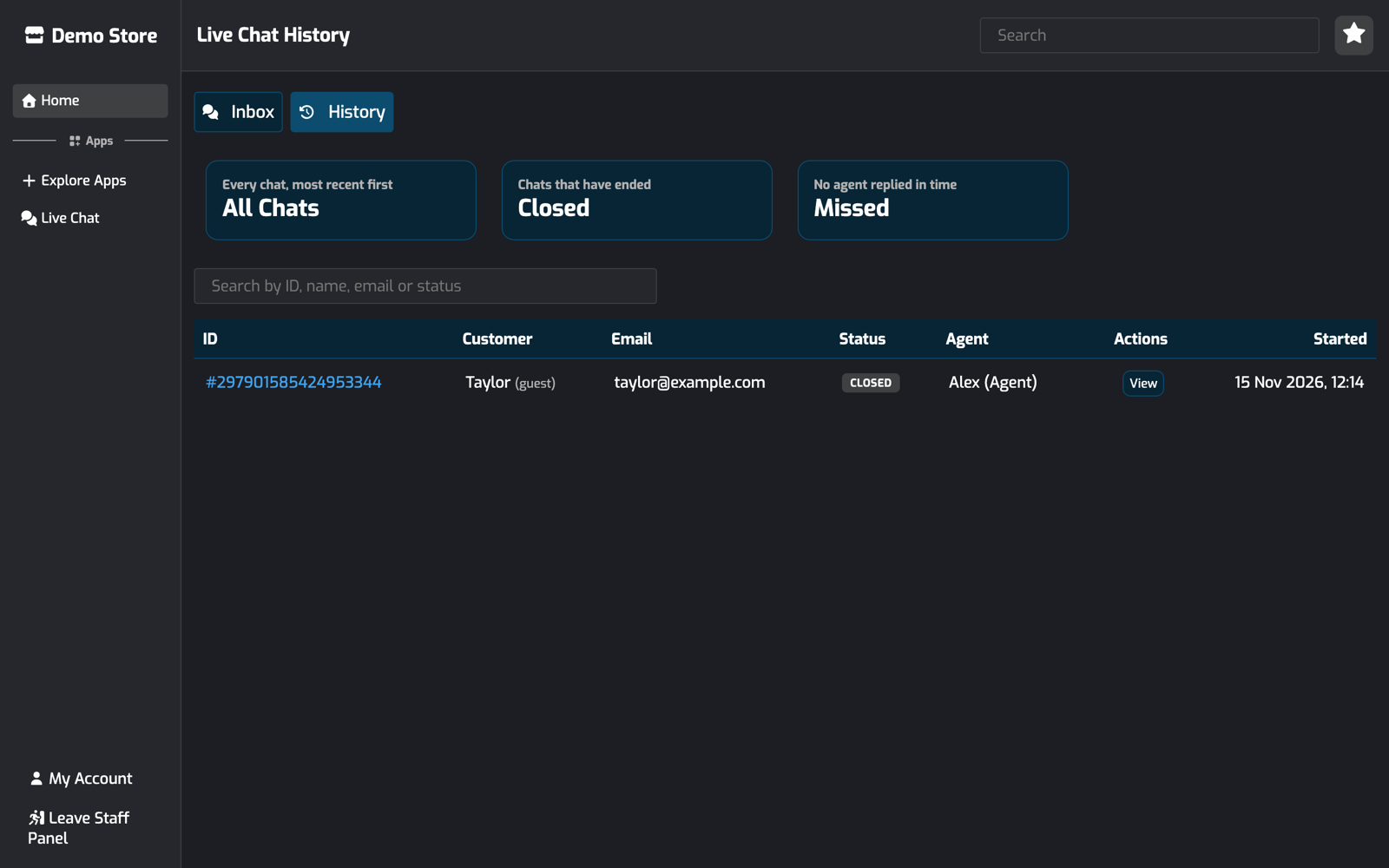
Use the tiles to filter All Chats, Closed or Missed, or search by ID, name, email or status.
View opens the chat in the inbox as read only, showing who closed it and the solution.
Delete (owners only) permanently removes the chat and its messages after you confirm. It's recorded in the audit log.
Security and Privacy
Identity. Who a customer or staff member is always comes from the FaxStore login session or a server-issued guest cookie, never from data the browser sends. Customers can only see their own chat.
Guest cookie.
wlc_gtis anHttpOnly,SameSite=Laxcookie that lasts 30 days. Only a SHA-256 hash of it is stored in the database.Staff access. Staff pages, the staff API and staff socket events all check for the agent permission.
Socket connections. Connections are only accepted from your own domain. Customers can't join other chats or receive staff events.
Internal notes and staff data. Internal notes, the close solution, IP addresses and the guest cookie hash are never sent to customers.
Abuse limits. Starting chats is limited to 8 requests per hour per IP address, and sending messages to 20 per minute per customer. Requests to the chat API from other websites are refused.
Troubleshooting
The bubble doesn't show on my store
Check Configure → License shows Licensed, and that everything under App status shows Loaded. If something is Missing, restart FaxStore so it can download it again.
Check that Live chat and Show the chat bubble on your store are switched on in Configure → General.
Check the page isn't listed under Hidden pages. Staff and backend pages never show the bubble.
The bubble is added to pages FaxStore renders that have a
</body>tag. Pages served as static files or plain HTML, like files inpublic/, don't get it.
Customers see "We'll reply by email" while I'm in the staff panel
Make sure your status is online in the inbox toolbar.
Check your account has the Who can answer chats permission.
If FaxStore runs behind a proxy like nginx, make sure
/socket.io/is proxied to FaxStore. Live Chat falls back to polling when WebSockets are blocked, but the path must still reach FaxStore. An nginx example that also allows WebSockets:
location /socket.io/ {
    proxy_pass http://127.0.0.1:3000;
    proxy_http_version 1.1;
    proxy_set_header Upgrade $http_upgrade;
    proxy_set_header Connection "upgrade";
    proxy_set_header Host $host;
    proxy_set_header X-Forwarded-For $proxy_add_x_forwarded_for;
}
Change 3000 to the processPort in your config.json.
No alert sound
Browsers block sounds until you've clicked on the page once. Also check the speaker button in the inbox isn't muted and that Alert sound is enabled in settings.
No desktop notifications
Click Enable desktop alerts in the inbox toolbar and allow notifications when your browser asks. If you blocked them before, allow notifications for your store in your browser's site settings. They only show while the staff tab is in the background.
No Discord alerts
Check Send Discord and Pushover alerts is switched on, the Discord channel ID is correct, and your FaxStore Discord bot can post in that channel. See Discord Integration.
Customers aren't getting emails
Check your SendGrid or SMTP integration is working. Guests who didn't give an email can't be emailed, so turn on Require an email from guests if you rely on email follow ups.
The support inbox isn't getting emails
Check Support inbox is a valid address and Email the support inbox for isn't set to Never. Missed chat emails only send once a chat is marked as missed, so check Mark chats as missed after isn't 0. If your helpdesk files emails by the sender, note they come from your store's email address, with the customer as the reply-to address.