 FaxStore
Abandoned Carts
Abandoned Carts shows you customers who added products to their cart but didn't check out, and helps you win them back:
Reminders: up to three reminders by email or Discord DM. A reminder can include a one-off discount code, and asks customers who aren't ready to buy what stopped them.
Exit offer: shown when a customer is about to leave the cart page.
On-site reminder: customers who come back to your store see what's still in their cart.
Browse reminders: for products customers kept looking at but didn't add to their cart.
Guest carts: visitors can fill a cart before they sign in.
You can see how many carts were left, how many came back, how each reminder performs, and how much recovered carts were worth.
Table of Contents
How a Cart Becomes Abandoned
Signed-in customers' carts are tracked automatically. Visitors who aren't signed in can have a cart too (see Guest Carts). They're only tracked as abandoned if they give their email and ask for reminders.
FaxStore notes the time whenever a customer changes their cart. A cart counts as abandoned once it has been left alone for an hour (you can change this in Settings). If the customer started checkout but didn't pay, for example they left PayPal or Stripe without finishing, the cart is marked Reached checkout. FaxStore checks for abandoned carts every 10 minutes.
If the customer comes back and changes the cart, the cart in the list is updated to match. If they empty their cart, it's marked Emptied. When they check out, it's marked Recovered or Came back (see How Recovered Carts Are Counted).
Carts from before this update. Carts customers already had when you updated FaxStore don't show when they were last used. They're listed as Older carts. FaxStore never emails them automatically, but you can email them yourself from the table. If one of those customers changes their cart later, it's treated like any other cart.
Opening Abandoned Carts
Go to Staff Panel → Sales → Abandoned Carts. You need the Manage Store or Manage Owned Items permission to see the page. To email customers you also need Email Users, and to change the settings you need Manage Store.
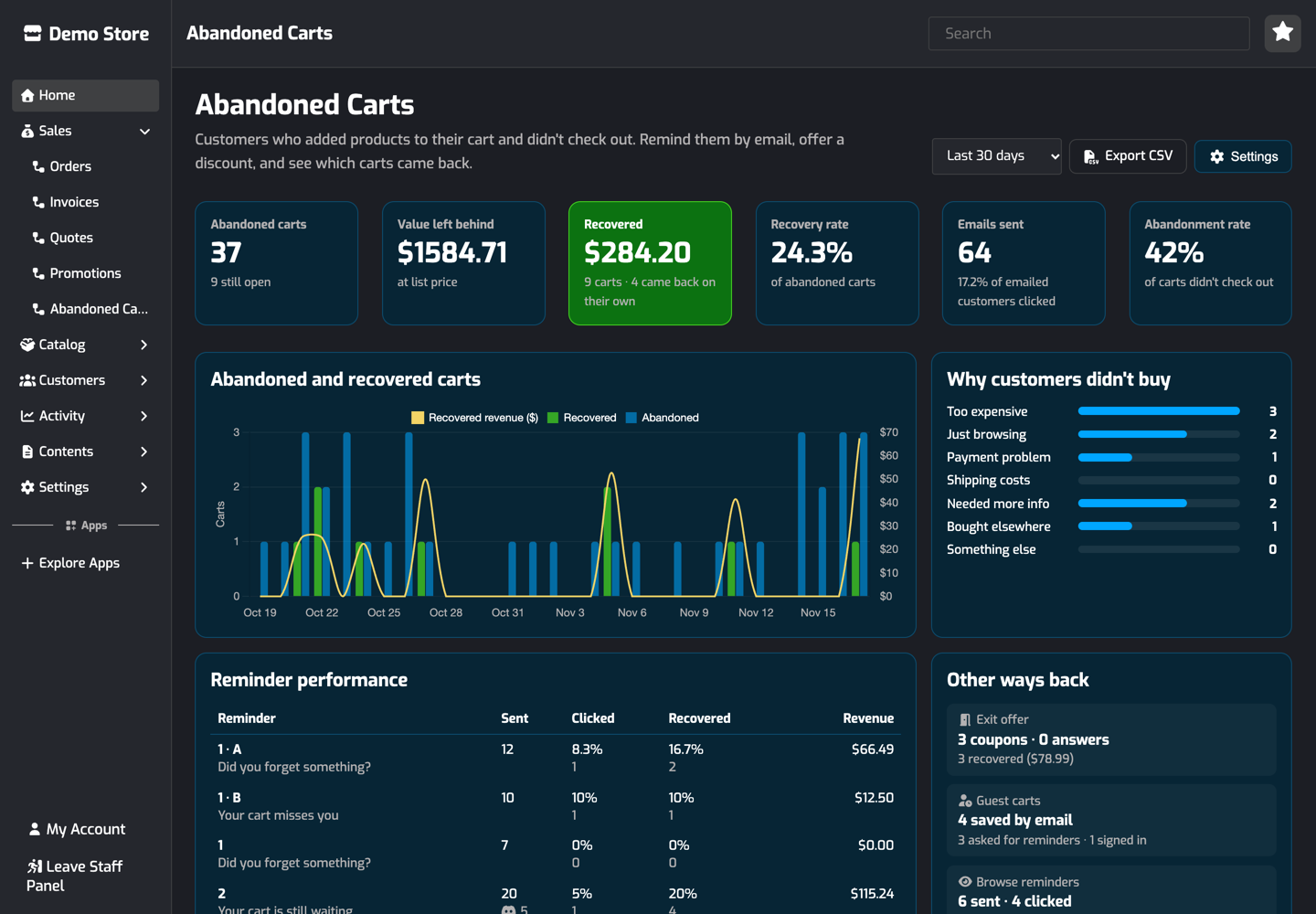
The tiles at the top cover the date range you pick in the top right (the last 7, 30 or 90 days, the last 12 months, or all time):
Tile | What it shows |
|---|---|
Abandoned carts | Carts left in the date range, and how many are still open. |
Value left behind | What those carts were worth at their listed prices. |
Recovered | What customers paid when a reminder email or the on-site reminder brought them back, and how many came back on their own. |
Recovery rate | The share of abandoned carts that were recovered. |
Emails sent | Reminder emails sent, and the share of emailed customers who clicked through to their cart. |
Abandonment rate | The share of carts that weren't checked out straight away. |
Below the tiles, the chart shows abandoned and recovered carts for each day, and the revenue from recovered carts. Why customers didn't buy counts the answers to the feedback survey.
Under those, two more panels:
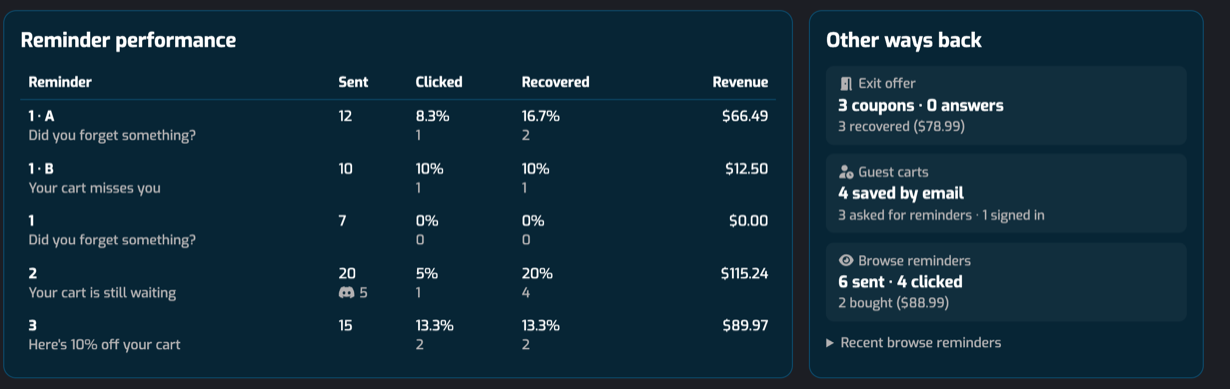
Reminder performance shows how each reminder is doing. See Reminder Performance and A/B Tests.
Other ways back sums up:
the exit offer: coupons taken, answers, and carts it recovered;
guest carts: carts saved by email, and guests who asked for reminders or signed in;
browse reminders: sent, clicked and bought.
Open Recent browse reminders to see who got one.
Click Export CSV to download the carts as a spreadsheet (see Exporting).
If email isn't set up for your store, or automatic reminders are off, a message at the top says so.
The Carts Table
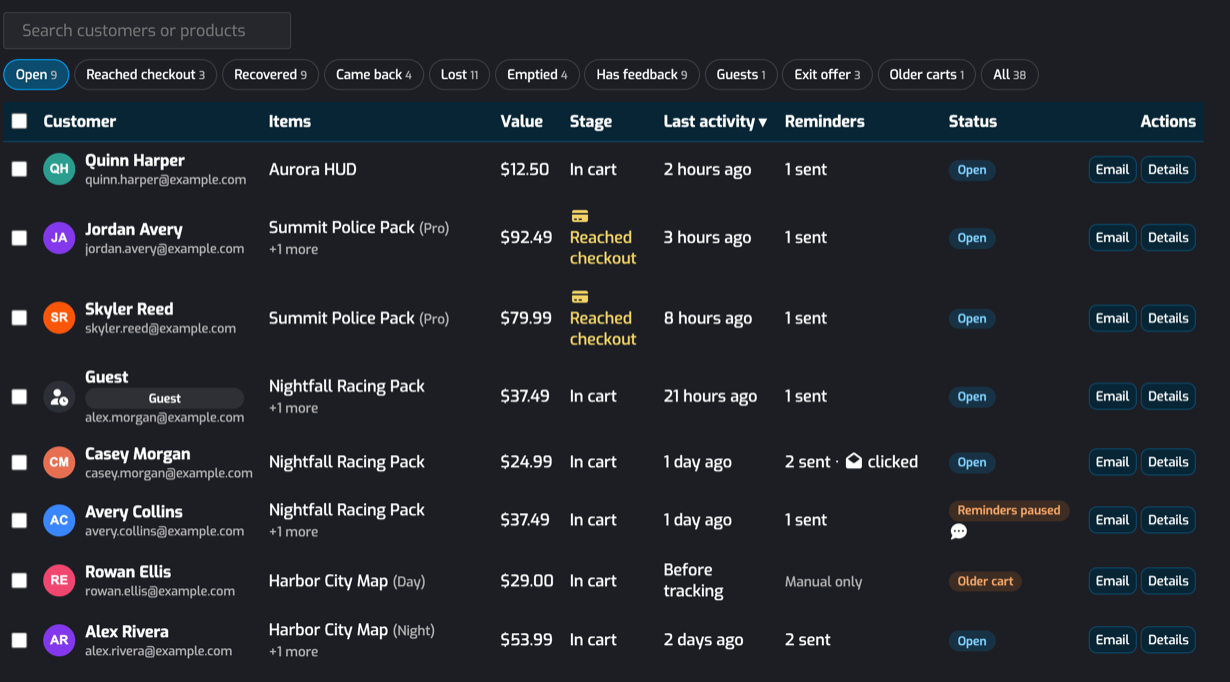
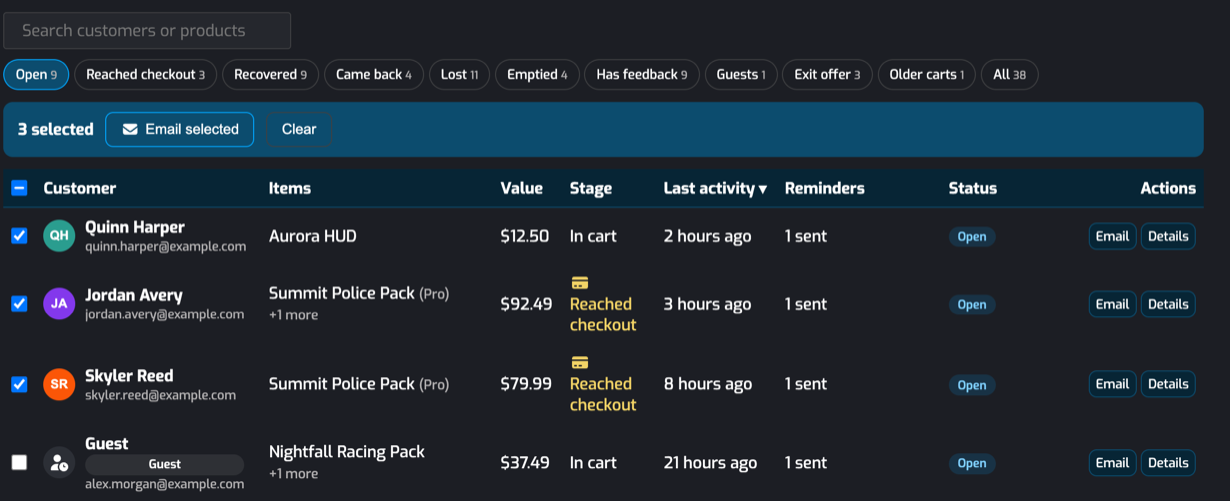
Each row shows the customer, the products in their cart, the cart's value, whether they reached checkout, when they last used their cart, the reminders sent (and whether they clicked one), any coupon, and the cart's status. Click a column heading to sort by it, or search by customer name, email or product.
Use the filters above the table to narrow the list:
Filter | Shows |
|---|---|
Open | Carts that haven't been checked out, emptied, lost or dismissed. This is the default. |
Reached checkout | Open carts where the customer started checking out. These customers were close to buying, so they're often worth a personal email. |
Recovered | Carts that a reminder email or the on-site reminder brought back. |
Came back | Carts the customer checked out later without any reminder. |
Lost | Carts left for longer than the Mark a cart lost after setting (14 days unless you change it). |
Emptied | Carts the customer emptied. |
Has feedback | Carts where the customer answered the survey. |
Guests | Carts from guests who gave their email. This filter only shows when there are some. |
Exit offer | Carts where the customer used the exit offer. This filter only shows when there are some. |
Older carts | Carts from before this update. This filter only shows when there are some. |
All | Every cart in the date range. |
A cart's status is one of:
Status | Meaning |
|---|---|
Open | Abandoned and not checked out yet. Reminders go out if they're turned on. |
Reminders paused | Still open, but no more automatic reminders will be sent. This happens when a staff member pauses them, the customer answers the survey, or the customer has turned off cart reminder emails. |
Older cart | A cart from before this update. It's only emailed if you send the email yourself. |
Recovered | The customer checked out after a reminder email, its link or the on-site reminder. |
Came back | The customer checked out on their own. |
Lost | The cart wasn't used for longer than the Mark a cart lost after setting. |
Emptied | The customer removed everything from their cart. |
Dismissed | A staff member dismissed it. |
Emailing Customers
Click Email on a row to send that customer a reminder. To email several customers at once, tick their rows and click Email selected.
In the email window:
Pick a Template: one of your three reminders, or Custom email to write your own. FaxStore suggests the next reminder the customer hasn't had.
Choose Send by: Email, Discord DM, or Email and Discord DM (see Discord DM Reminders).
Change the Subject and Message if you like.
Tick Include a coupon to add a single-use discount for this customer. This only shows when recovery coupons are turned on. Guests can't use coupons.
Check the preview on the right, which shows the email as the customer will see it, with their own cart.
Click Send.
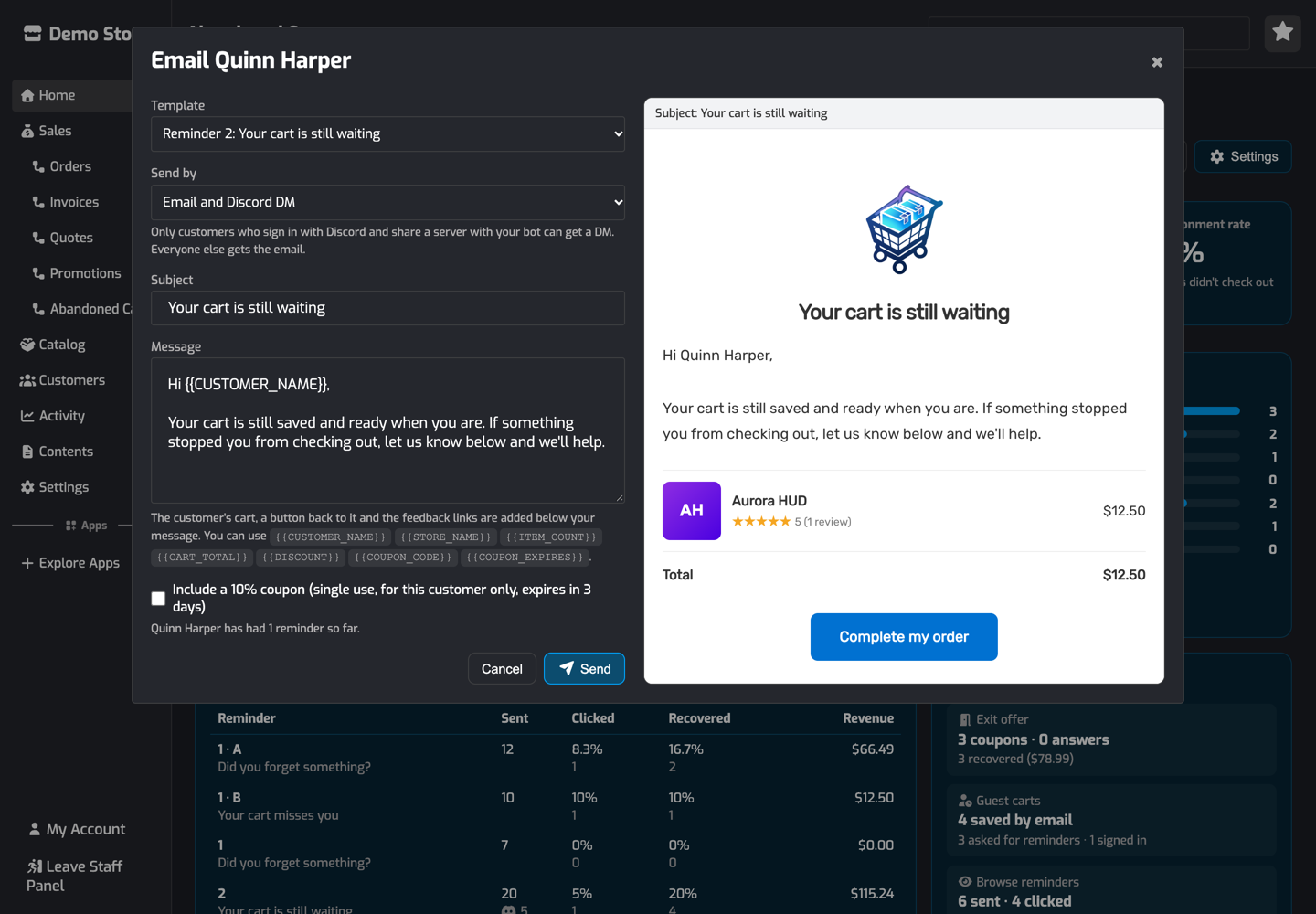
The customer's products, the total, a Complete my order button and the feedback links are added below your message. You can use these placeholders in the subject and message:
Placeholder | Becomes |
|---|---|
| The customer's name |
| Your store's name |
| The number of items, like "2 items" |
| The cart's total, like "$54.49" |
| The coupon's discount, like "10%" |
| The coupon code |
| The date the coupon expires |
If an email is sent without a coupon, any line of the message that mentions the coupon is left out. A subject that mentions it changes to "Your cart is still waiting".
When you email several customers, each one gets their own cart and link. Customers who have turned off cart reminder emails are skipped, and FaxStore tells you how many were sent and skipped. Emails you send are added to the cart's timeline and the audit log. FaxStore waits 12 hours after your email before sending the next automatic reminder.
Cart Details
Click Details on any row to see the whole cart: its status, value, reminders, coupon, the customer's survey answer, every product with its price, and a timeline of everything that happened to it.
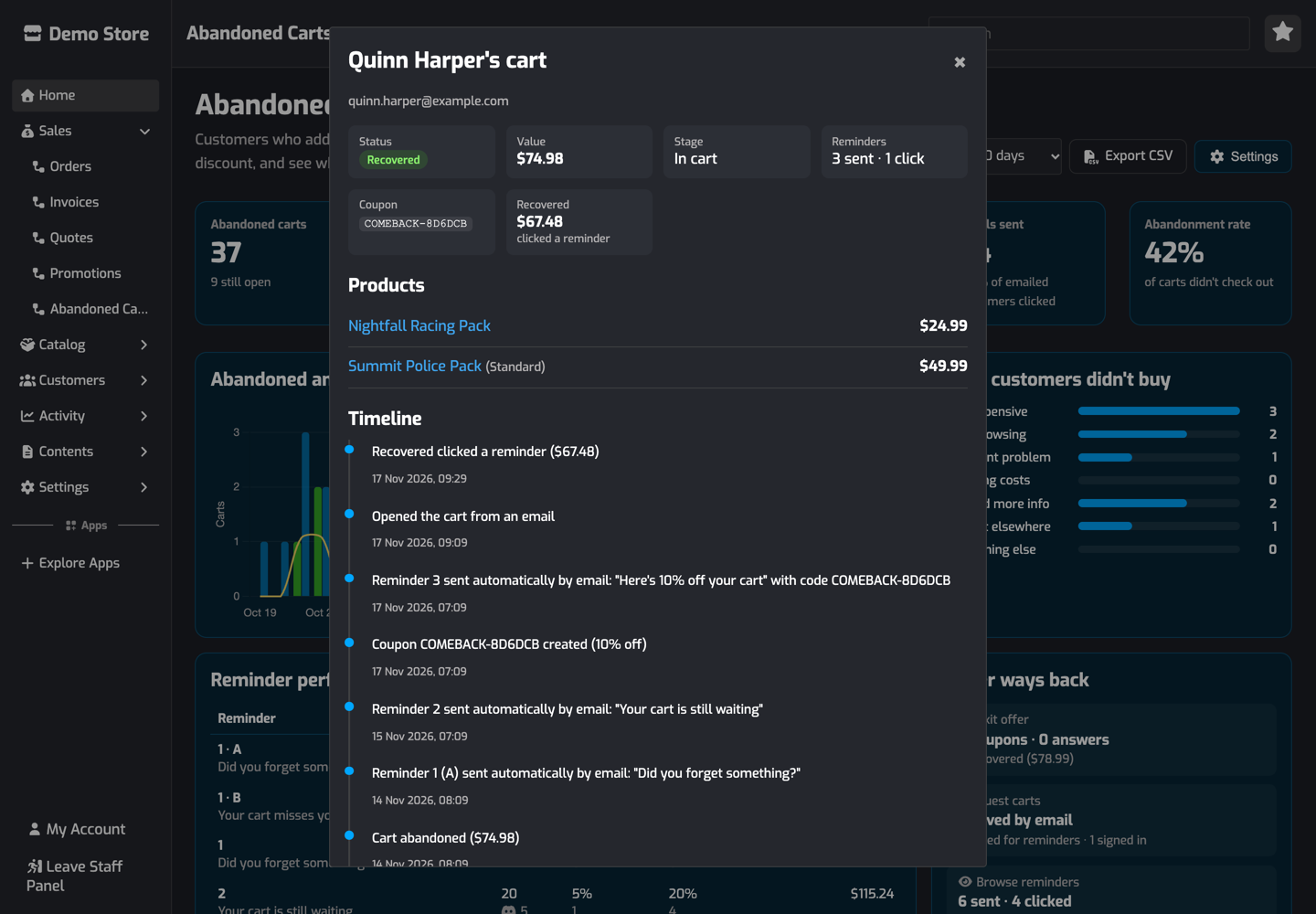
The timeline includes when the cart was abandoned, each reminder and who sent it, coupons, clicks, survey answers, and when it was recovered, emptied or lost.
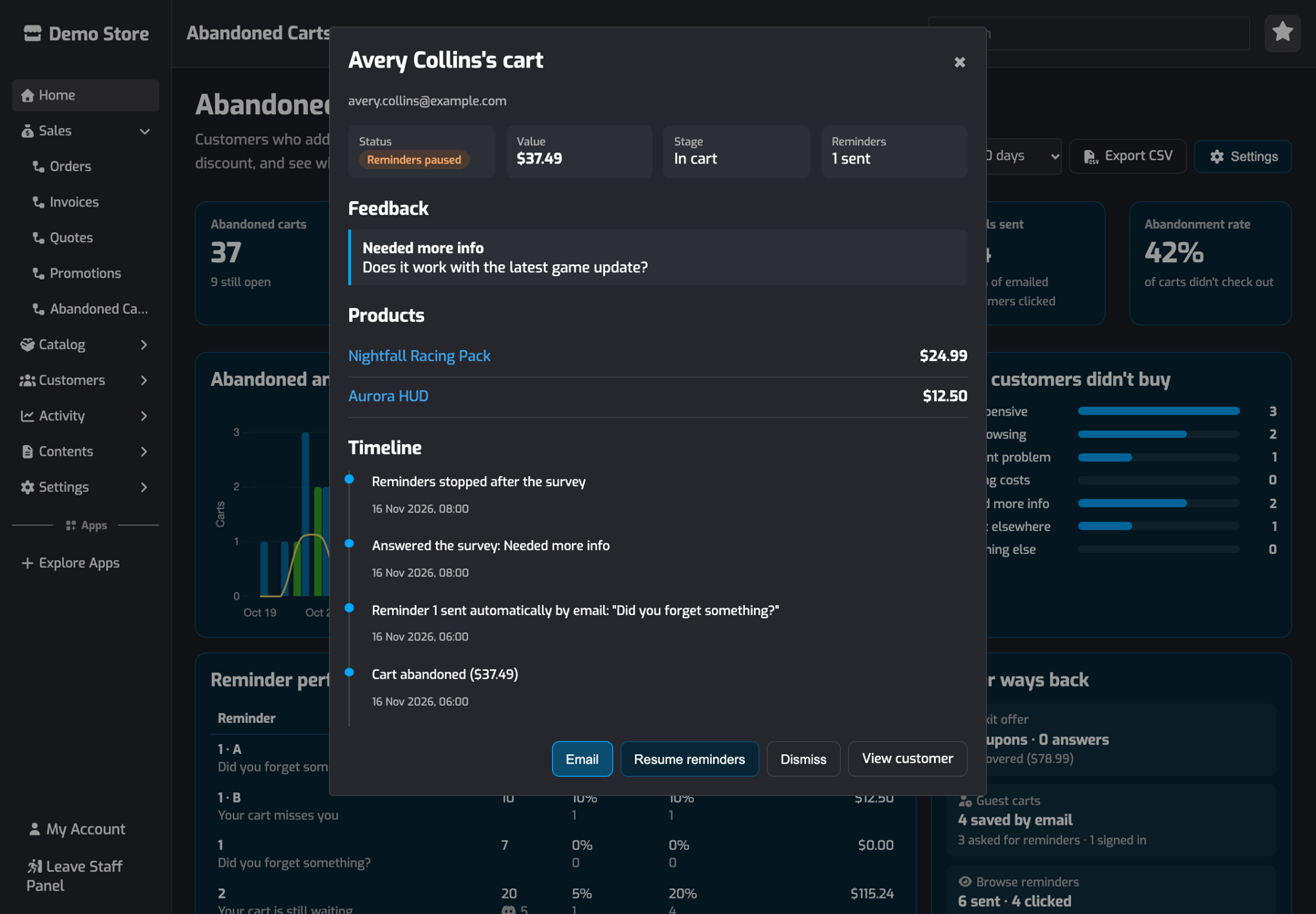
At the bottom of the window you can:
Email the customer.
Pause reminders to stop automatic emails for this cart, or Resume reminders to start them again.
Dismiss the cart. It's closed and no more reminders are sent. If the customer changes their cart later, it's tracked as a new cart.
Delete a closed cart from the list. Open carts need to be dismissed first.
View customer to open their profile.
Automatic Reminders
Click Settings on the Abandoned Carts page to set up automatic reminders. Automatic reminders are off until you turn them on.
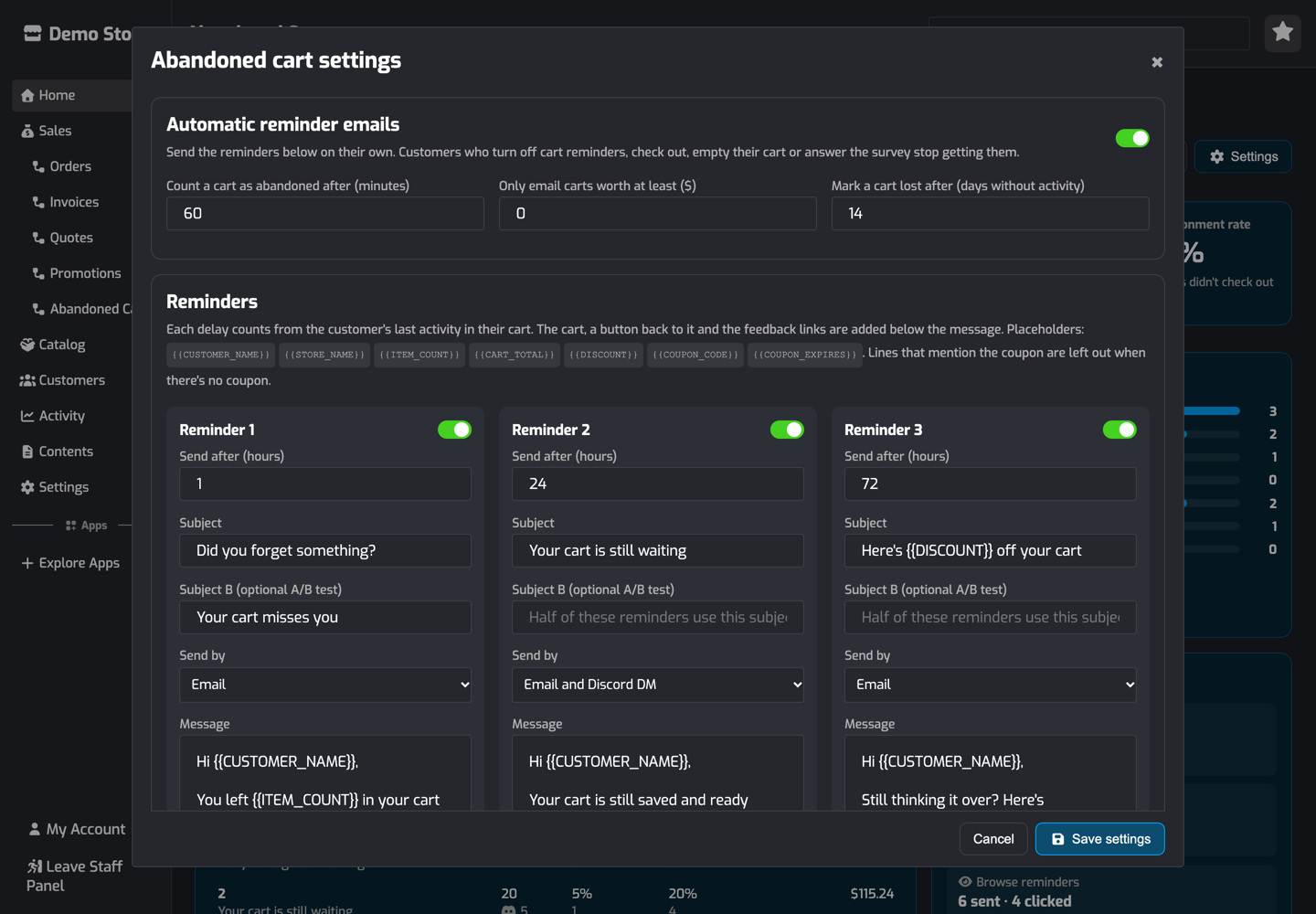
Setting | Default | What it does |
|---|---|---|
Automatic reminder emails | Off | Sends the reminders below on their own. |
Count a cart as abandoned after | 60 minutes | How long a cart has to be left before it's abandoned (15 minutes to 24 hours). |
Only email carts worth at least | 0 | Carts worth less than this aren't emailed automatically. You can still email them yourself. |
Mark a cart lost after | 14 days | Open carts left for this long become Lost, and no more reminders go out. |
Discord DM Reminders
Customers who sign in with Discord can get reminders as a Discord DM from your store's bot. Choose Send by for each reminder in Settings, or when you email customers from the table:
Send by | What happens |
|---|---|
The reminder goes by email. | |
Discord DM | The reminder goes as a DM. If it can't be delivered, it's emailed instead. |
Email and Discord DM | Both. |
The DM shows the reminder's subject and message, the products and prices, the total, and the coupon if there is one. It has three buttons: Complete my order, Tell us why (when the survey is on) and Stop reminders.
A DM can only be sent when:
your Discord bot is connected;
the customer signed in with Discord;
the customer shares a server with your bot;
the customer allows DMs from server members.
Customers who don't meet those get the email instead. Guests always get emails. The cart's timeline shows how each reminder was sent.
Reminder Performance and A/B Tests
The Reminder performance table on the Abandoned Carts page shows, for each automatic reminder:
Column | What it shows |
|---|---|
Sent | How many went out, with how many of those were Discord DMs. |
Clicked | The share whose customer opened their cart from it. |
Recovered | The share whose cart was recovered after it. |
Revenue | What those recovered carts were worth. |
Clicks and recoveries count toward the last reminder the customer was sent before them. Reminders staff send by hand aren't counted.
A/B testing a subject. Enter a Subject B on a reminder in Settings. Each time that reminder goes out, half the carts get Subject A and half get Subject B, and the table shows each version on its own row. Once both versions have been sent at least 20 times, the one recovering more carts is marked Leading. To finish the test, put the winning subject in Subject and clear Subject B.
Recovery Coupons
Turn on Recovery coupons in Settings to add a discount to reminders marked Include a coupon, and to the emails you send yourself.
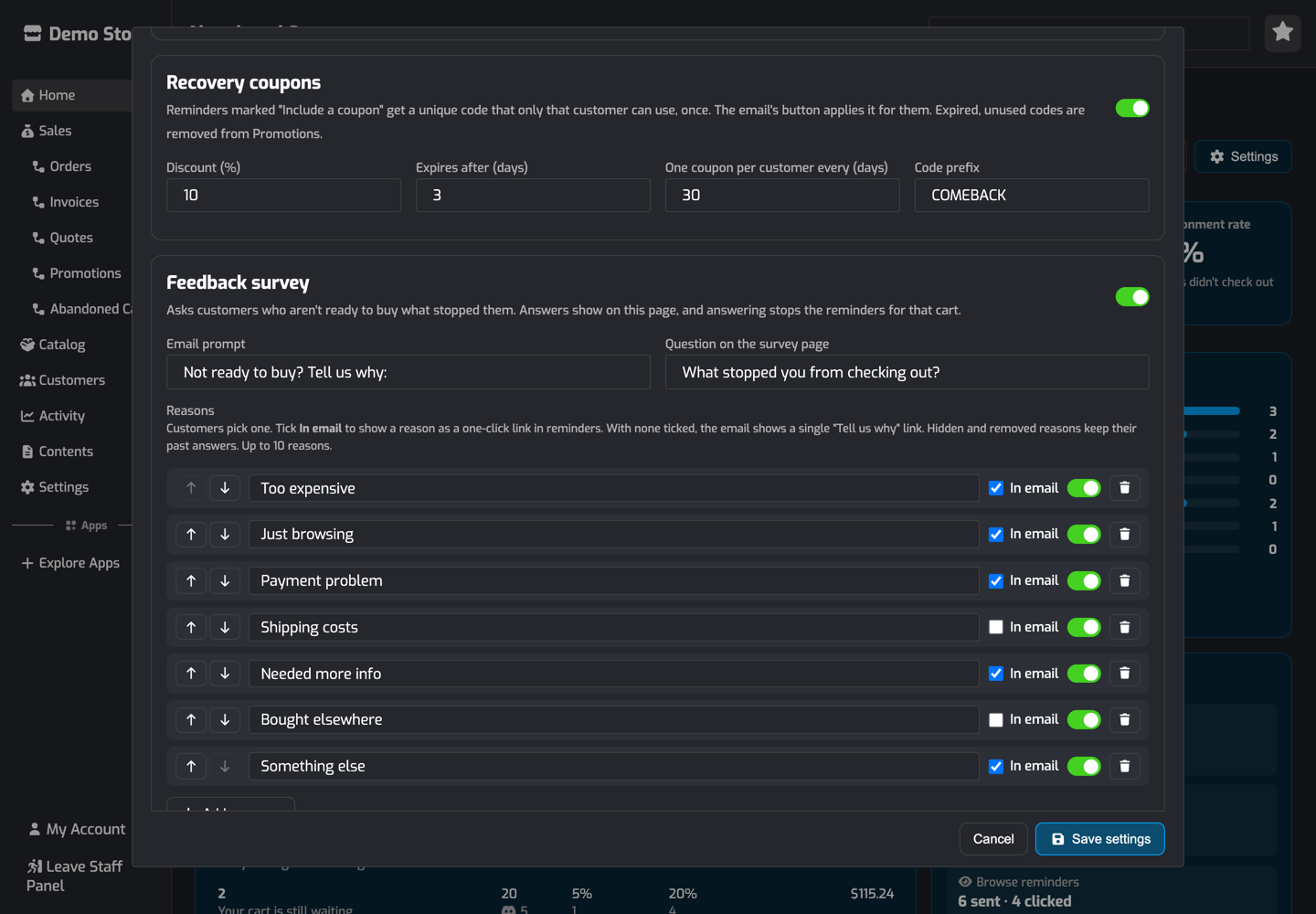
Setting | Default | What it does |
|---|---|---|
Discount | 10% | The percentage off. |
Expires after | 3 days | How long the code works for. |
One coupon per customer every | 30 days | A customer who got a coupon recently gets the reminder without one, so customers can't leave carts on purpose to collect codes. Use 0 to always include one. |
Code prefix | COMEBACK | The start of each code, like |
Each coupon is a new discount code that:
can be used once,
only by the customer it was made for,
expires after the number of days you set.
The Complete my order button in the email applies it to the customer's cart, so they don't need to type it. If another customer tries the code, they're told it isn't valid for their account.
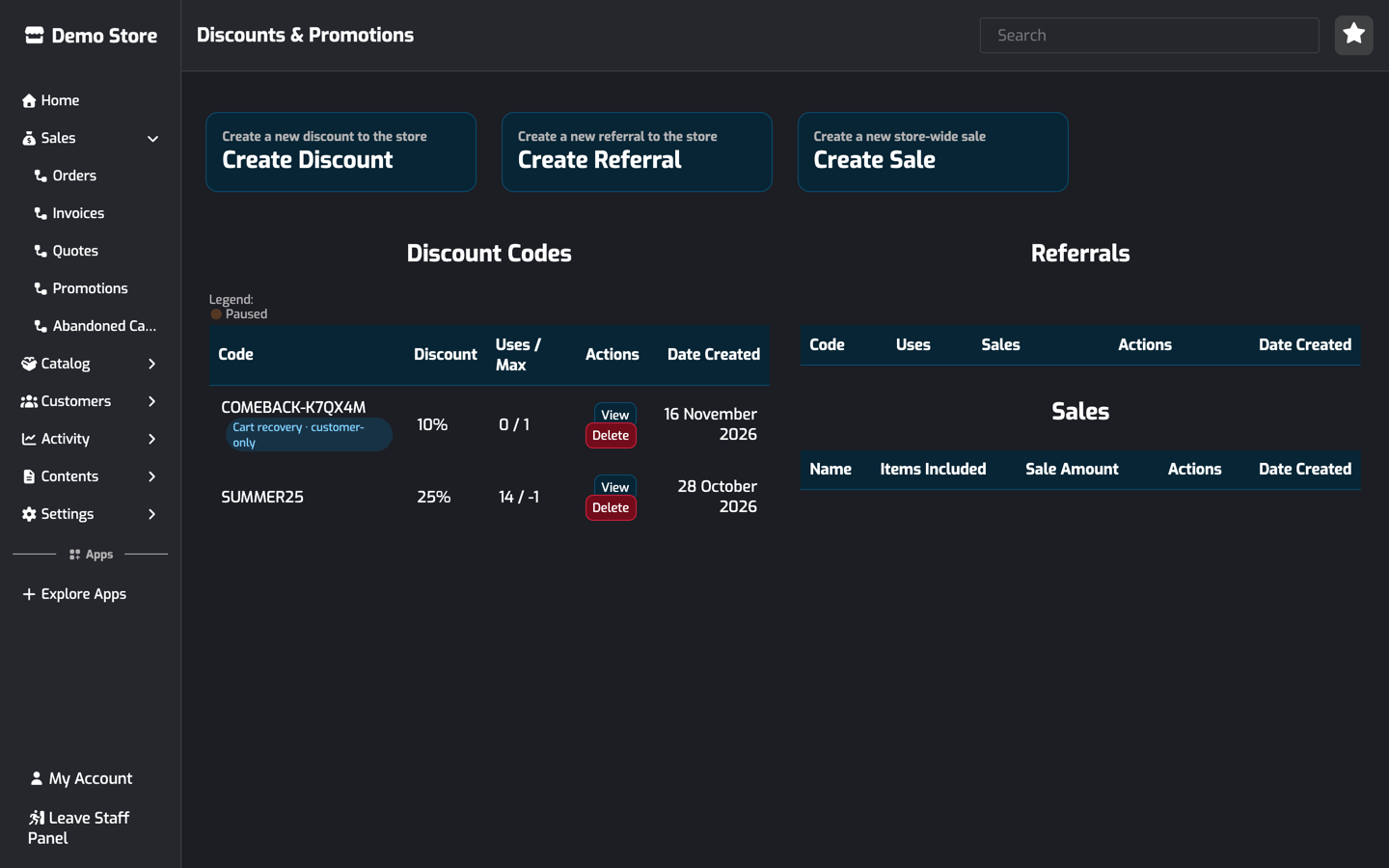
The codes appear under Sales → Promotions with a Cart recovery · customer-only label. Codes that expire without being used are removed for you.
What the Customer Sees
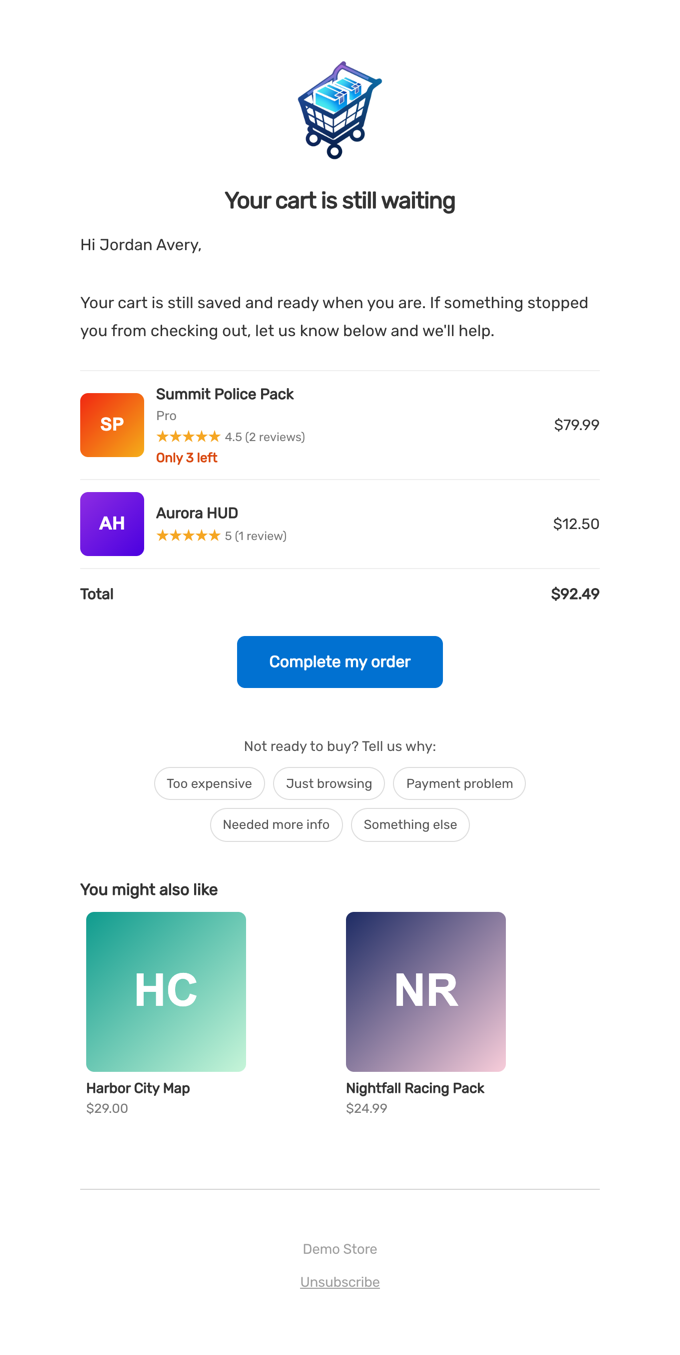
The email shows your message, the customer's products with their pictures and prices, the total, a Complete my order button, the coupon if there is one, and links to tell you why they didn't buy. It uses your store's logo and theme colour, and has an unsubscribe link at the bottom.
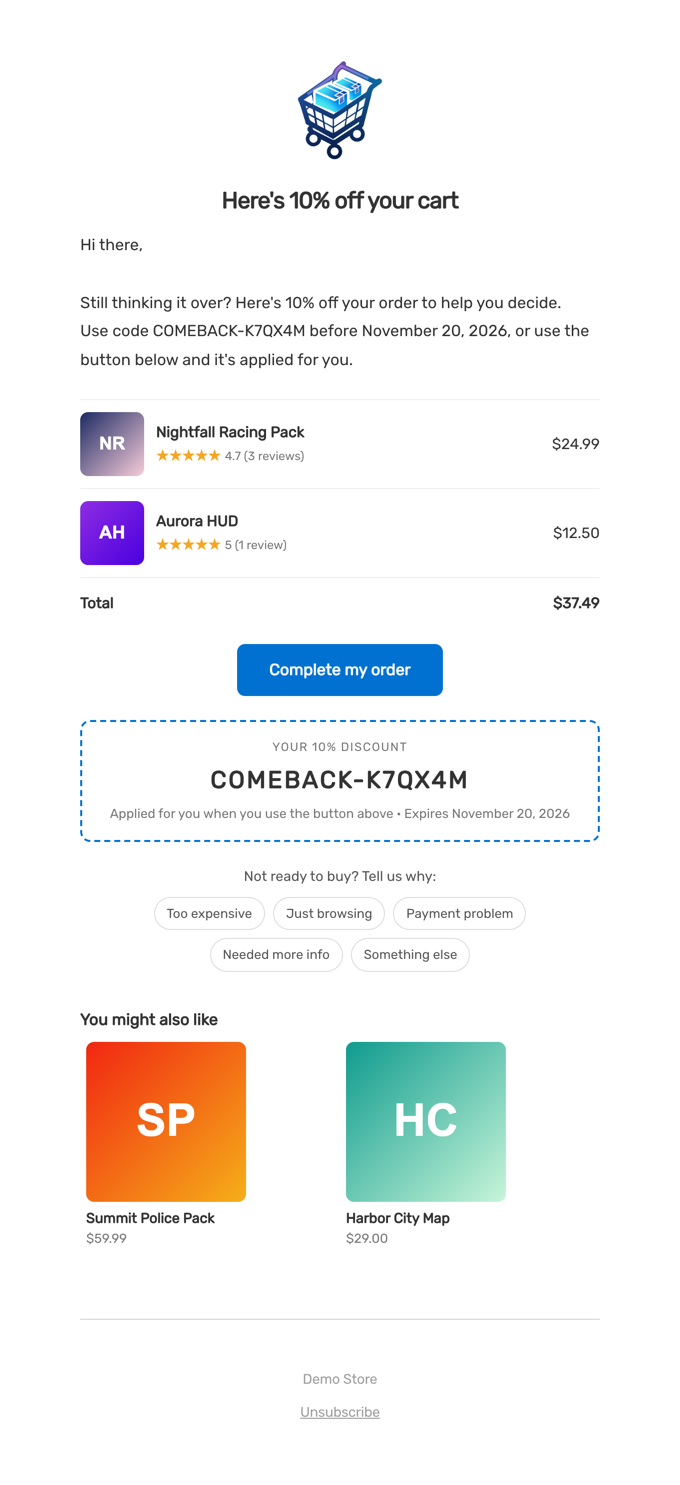
Complete my order takes the customer to their cart:
If they're signed out, they sign in first and then go straight to their cart.
If they've emptied their cart since, the products are put back, apart from any you've removed from the store or paused.
Their coupon is applied, and a message welcomes them back.
The link only works for the customer it was sent to. A guest's link opens their cart on whatever device they read the email on.
Email Extras
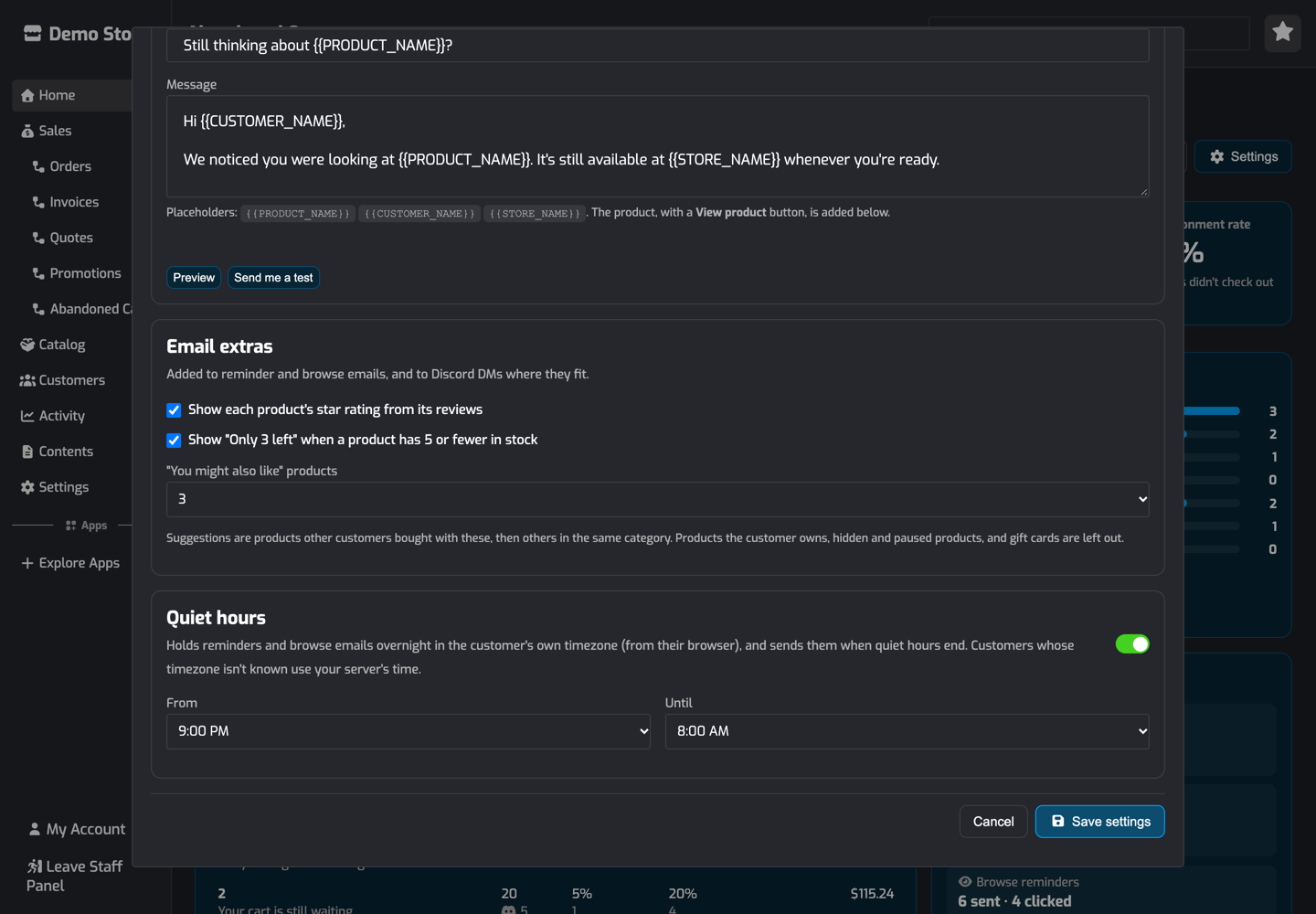
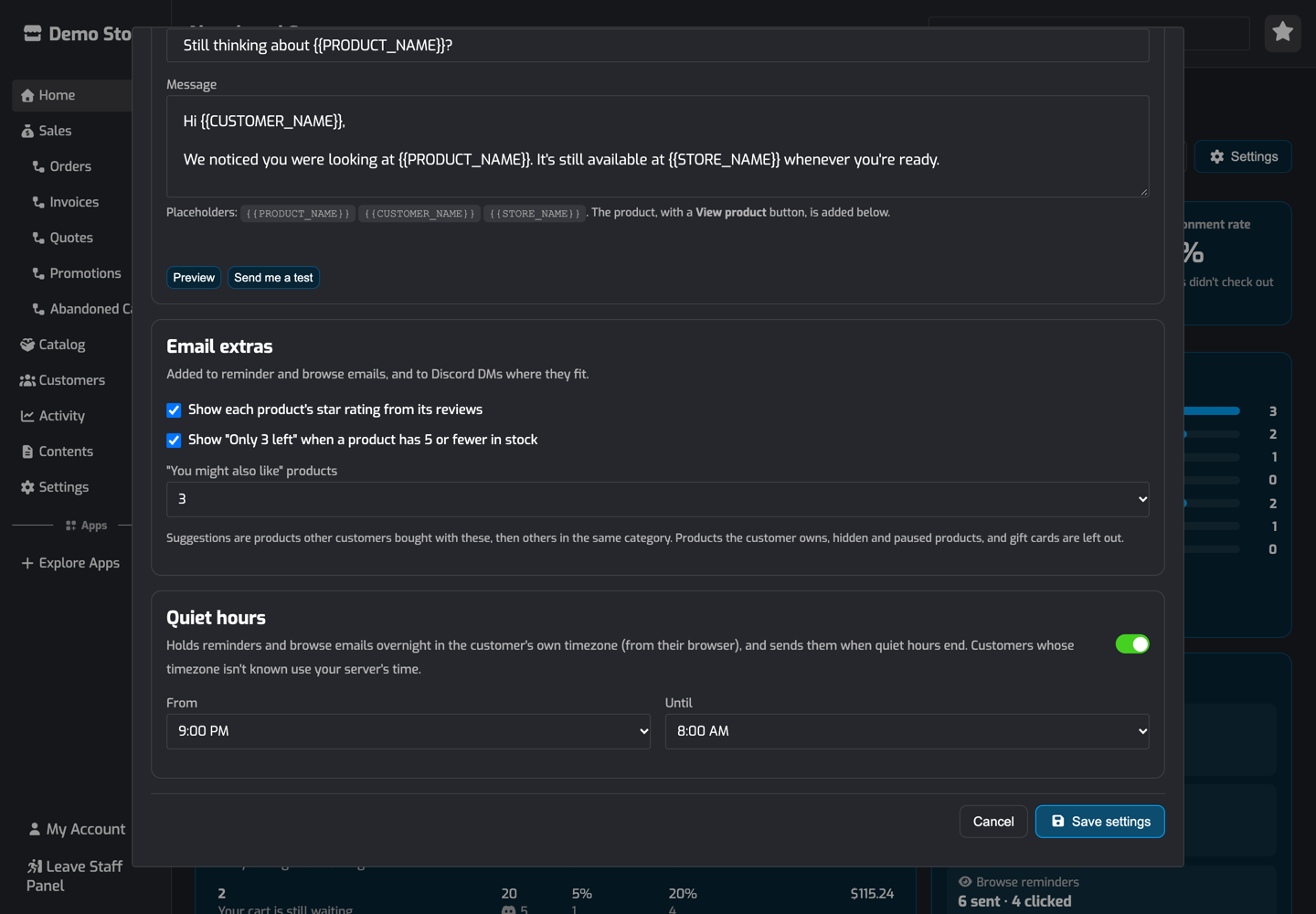
Turn these on under Email extras in Settings. They're added to reminder emails, browse reminders and the guest cart email:
Ratings: each product's star rating from its reviews.
Low stock: "Only 3 left" when a product has 5 or fewer in stock.
You might also like: up to 4 suggested products.
Picked from products other customers bought along with these, then other products in the same category.
Leaves out products the customer already owns, products already in the cart, hidden and paused products, and gift cards.
Quiet Hours
Turn on Quiet hours in Settings so reminders aren't sent in the middle of the night. Choose the From and Until times, for example 9:00 PM until 8:00 AM.
Whose time: quiet hours follow each customer's own timezone, which their browser tells your store when they visit. Customers whose timezone isn't known yet use your server's time.
Held, not skipped: a reminder due during quiet hours goes out on the first check after they end.
Browse reminders follow quiet hours too.
Feedback Survey
With Feedback survey on, reminders include a row of reasons under "Not ready to buy? Tell us why". Clicking one opens a short page on your store with that reason chosen, a box for an optional comment, and a Send feedback button. Customers don't need to sign in.
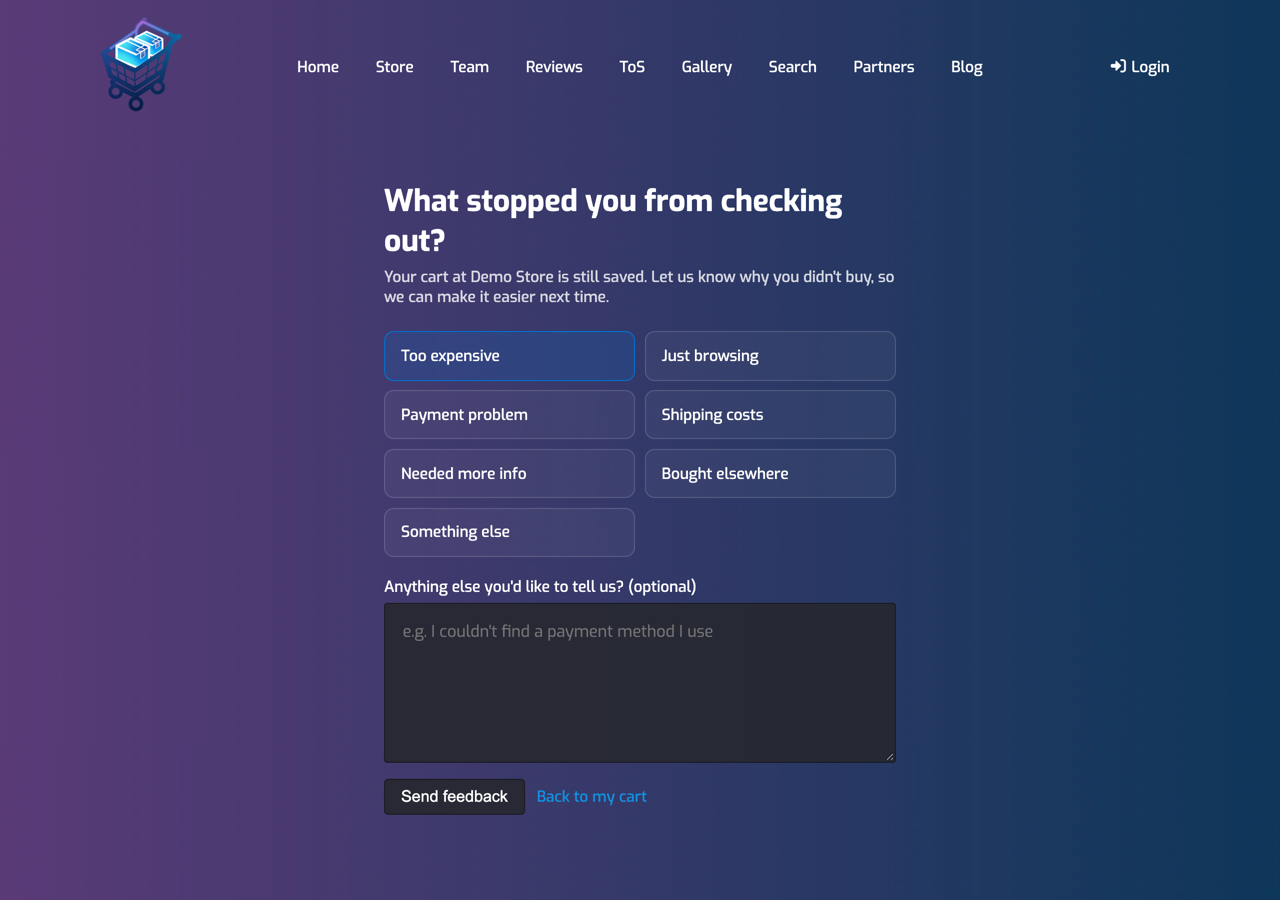
Answers appear in Why customers didn't buy on the Abandoned Carts page, on the cart's row, and in its details. Answering stops the reminders for that cart. The page also has a link back to the customer's cart.
Opening the page doesn't count as an answer. The customer has to click Send feedback, so email security scanners that open links can't answer for them.
Changing the Survey
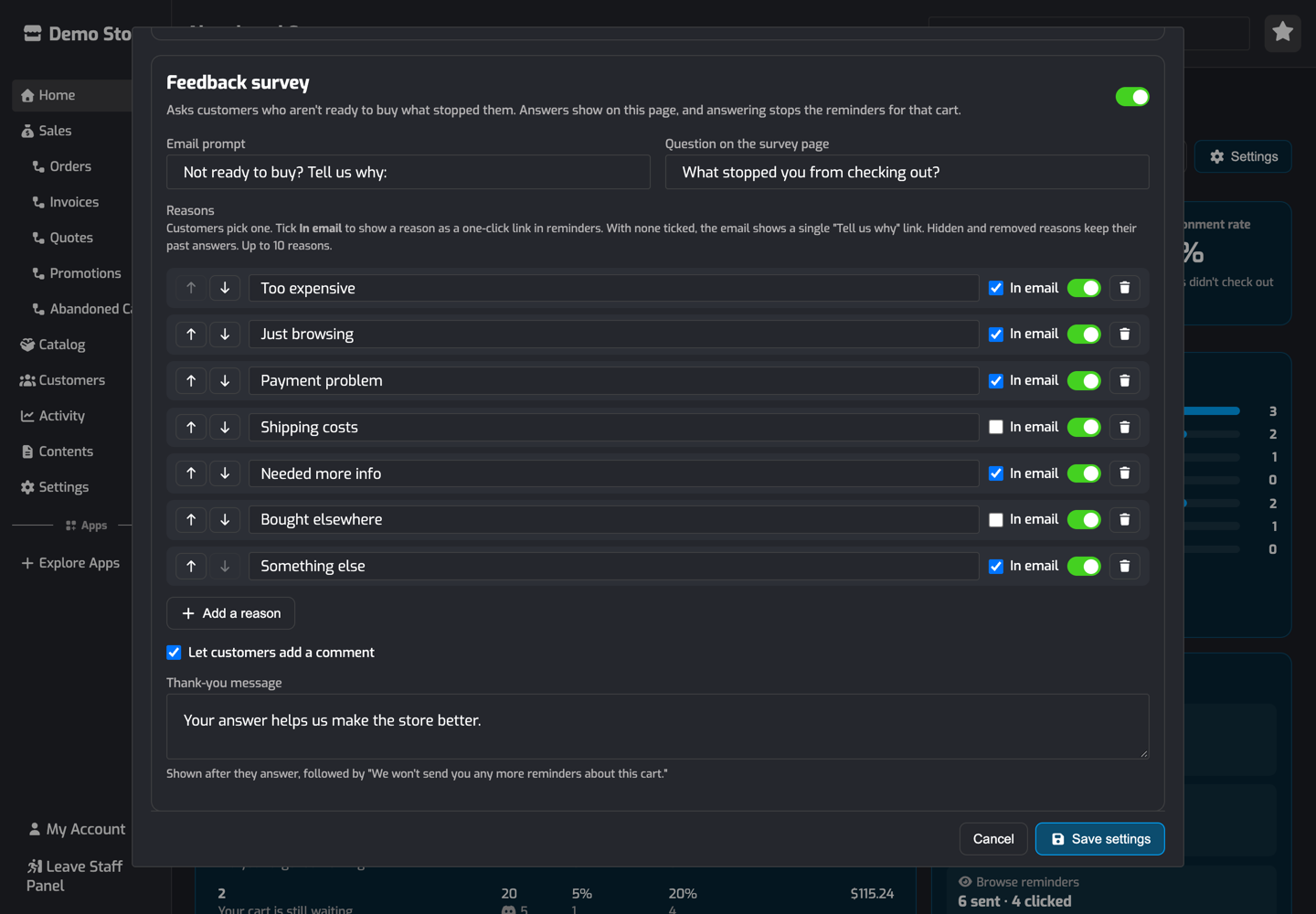
Change the survey under Feedback survey in Settings.
Setting | What it does |
|---|---|
Email prompt | The line above the reasons in reminder emails. |
Question on the survey page | The heading on the survey page. |
Reasons | The answers customers pick from, in the order shown. You can have up to 10. |
Let customers add a comment | Shows the comment box on the survey page. |
Thank-you message | Shown after the customer answers, followed by "We won't send you any more reminders about this cart." |
For each reason you can:
change its wording,
move it up or down with the arrows,
tick In email to show it as a one-click link in reminder emails,
hide it with its switch,
or remove it.
Click Add a reason to add your own, like "Shipping costs". The survey page lists every reason that's turned on, whether or not it's in the email. If no reasons are ticked In email, reminders show a single Tell us why link to the survey page instead. At least one reason needs to be turned on while the survey is on.
The reasons start as:
Reason | In email |
|---|---|
Too expensive | Yes |
Just browsing | Yes |
Payment problem | Yes |
Needed more info | Yes |
Bought elsewhere | No |
Something else | Yes |
Answers stay with their reason when you change it:
Rename a reason and its earlier answers are counted under the new wording.
Hide or remove a reason and customers can't choose it any more, but its earlier answers still show in Why customers didn't buy and on the carts that gave them.
Exit Offer
The exit offer catches customers as they're about to leave the cart page:
On a computer: it shows when the mouse leaves through the top of the window, toward the tabs or address bar.
On a phone: it shows after a set time on the cart page.
When it doesn't show: it never shows once they've clicked a checkout or sign-in button, and each customer sees it at most once a day.
Turn it on under Exit offer in Settings.
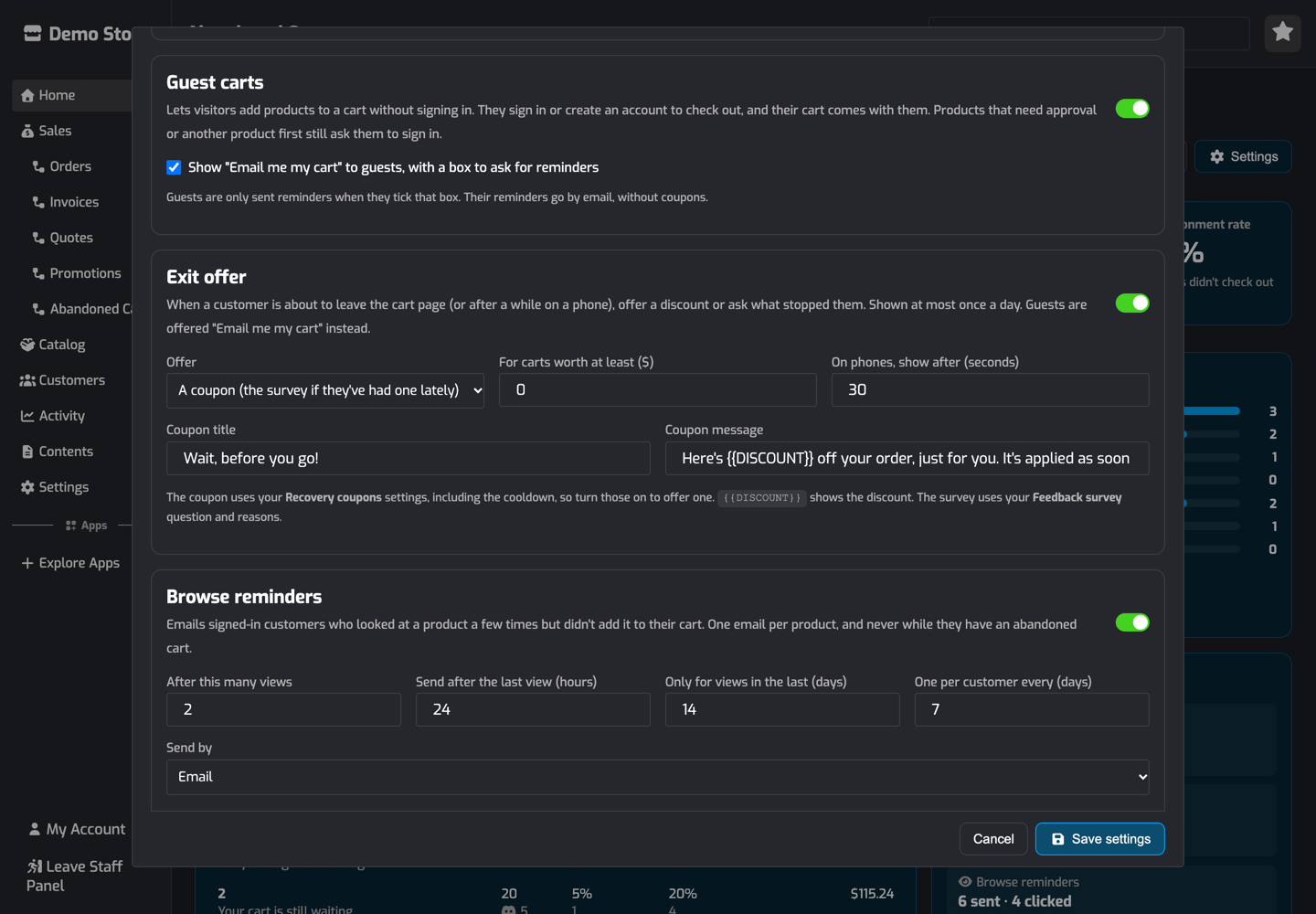
Setting | What it does |
|---|---|
Offer | A coupon (the survey if they've had one lately), A coupon only, or The survey only. |
For carts worth at least | Carts worth less than this don't get the offer. |
On phones, show after | Seconds on the cart page before it shows on a phone. |
Coupon title and Coupon message | The popup's wording. |
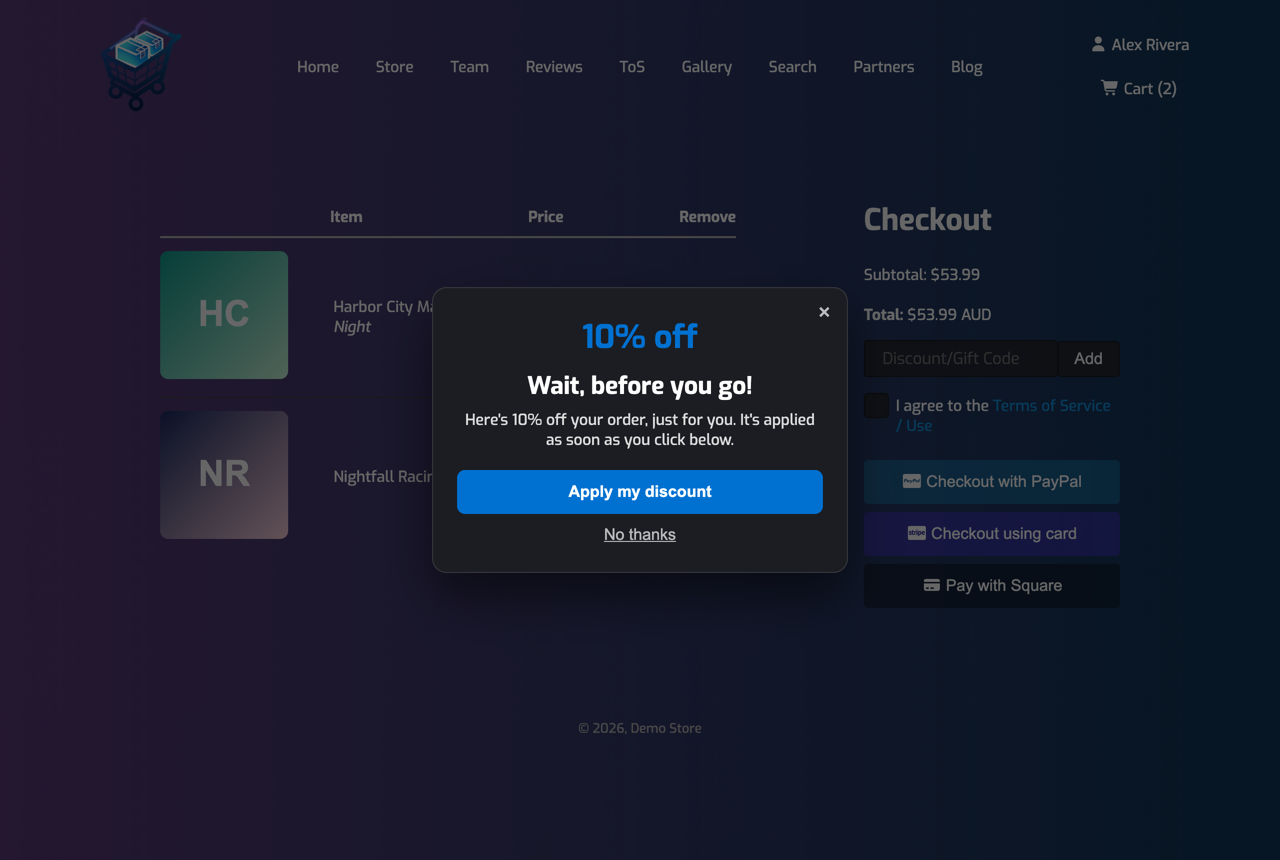
The coupon uses your recovery coupon settings: the discount, how long it lasts, and the cooldown. A customer who has had a coupon within the cooldown is shown the survey instead, or nothing if the offer is A coupon only. Apply my discount adds the code to their cart straight away.
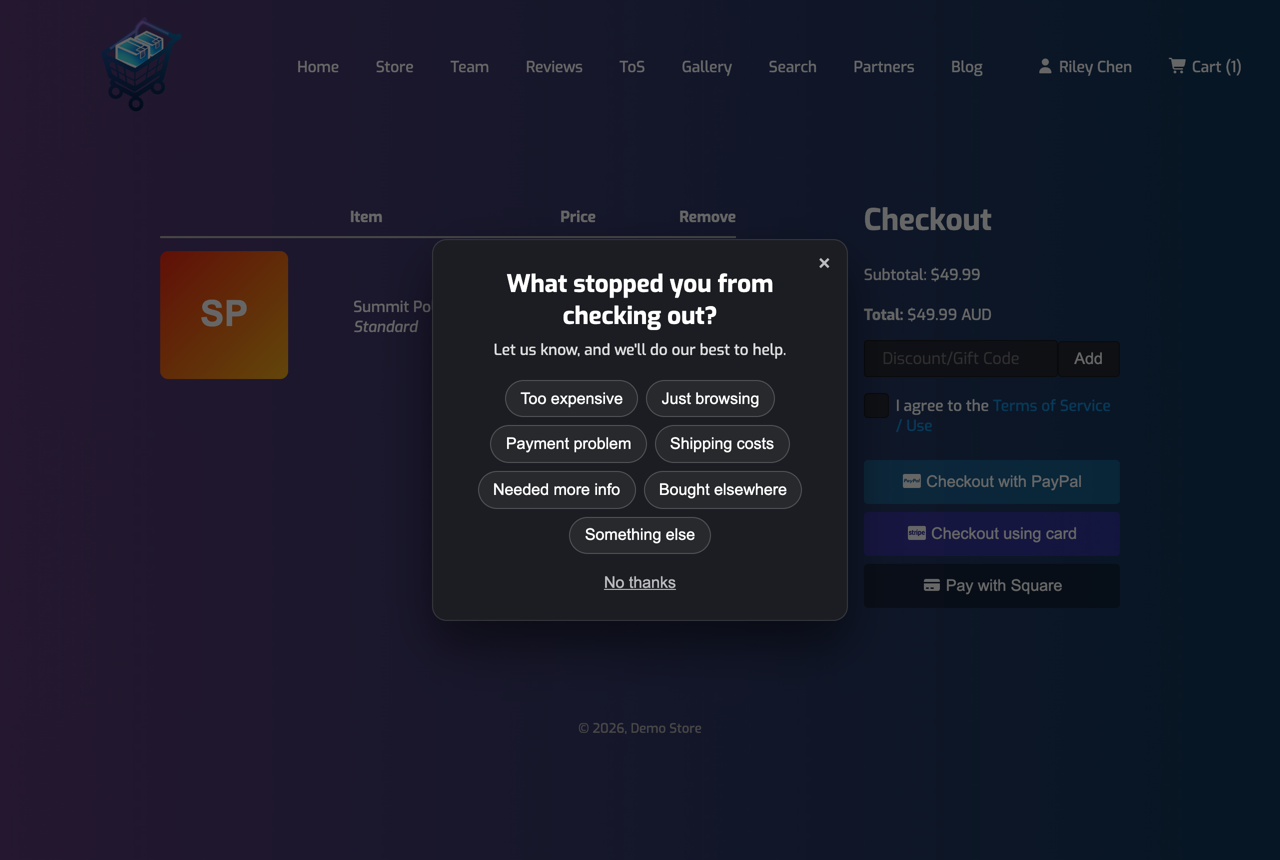
The survey asks your feedback survey question with its reasons. Answers count in Why customers didn't buy. Because the customer is still on your store, answering here doesn't stop their reminders.
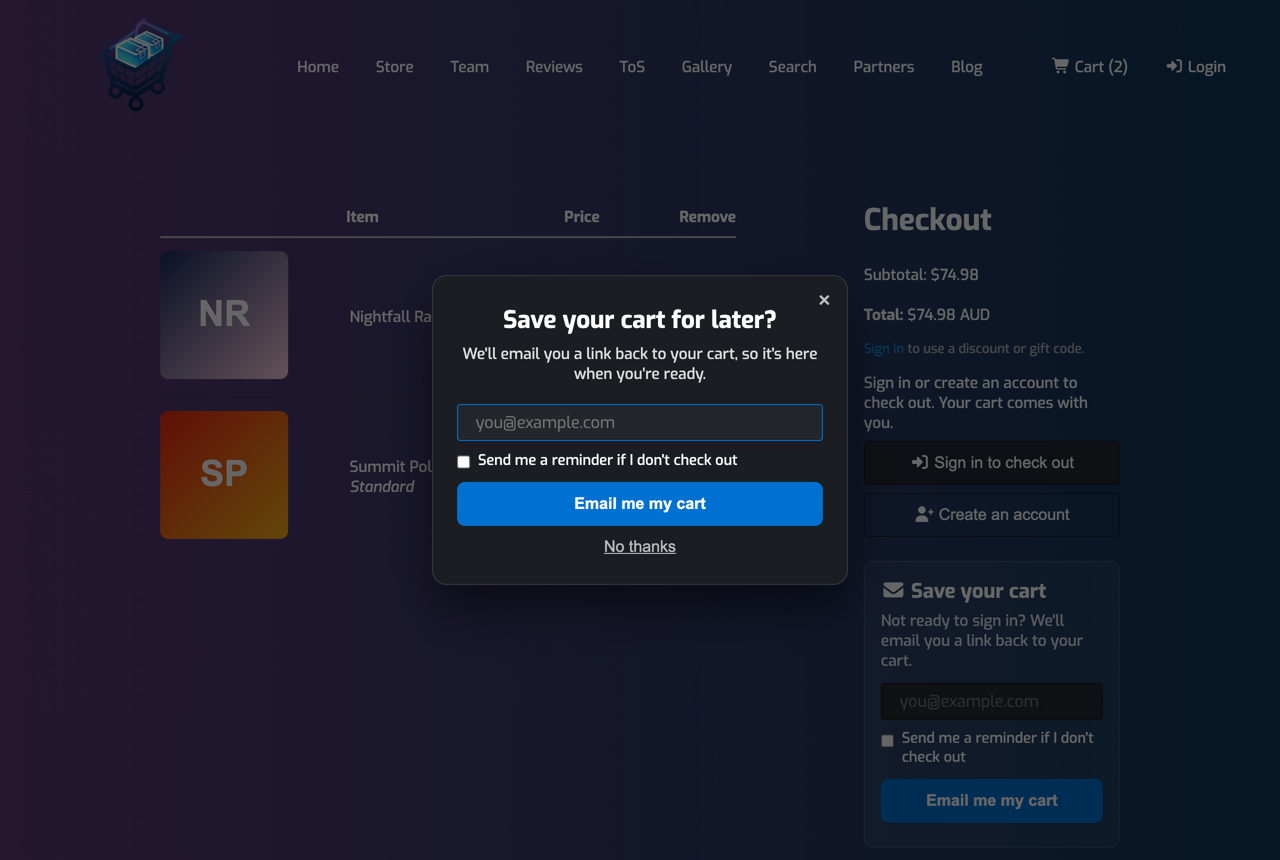
Guests are offered Save your cart for later? instead (see Guest Carts).
A cart becomes Recovered if the customer checks out after using the exit offer.
Cart Reminder on Your Site
When a customer with items in their cart comes back to your store, a bar at the top of every page says how many items they left, with a Complete checkout link. It shows once the cart has been left for the time you set (60 minutes unless you change it). It doesn't show on the cart page or during checkout.
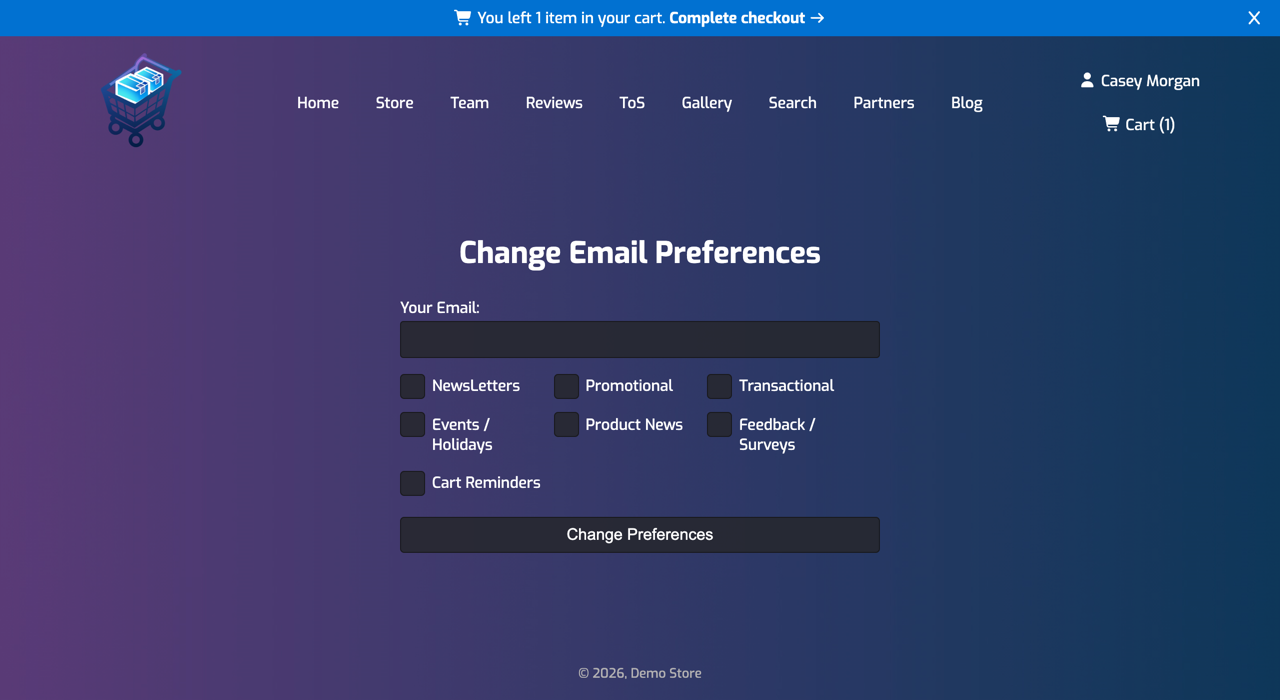
The customer can close the bar, which hides it for a day. If the bar brings them back and they check out, the cart counts as Recovered. Turn it off under Cart reminder on your site in Settings.
Browse Reminders
Browse reminders email signed-in customers who looked at a product a few times but didn't add it to their cart. The email shows the product with its price (and rating, stock and suggestions if email extras are on), and a View product button.
Turn them on under Browse reminders in Settings.
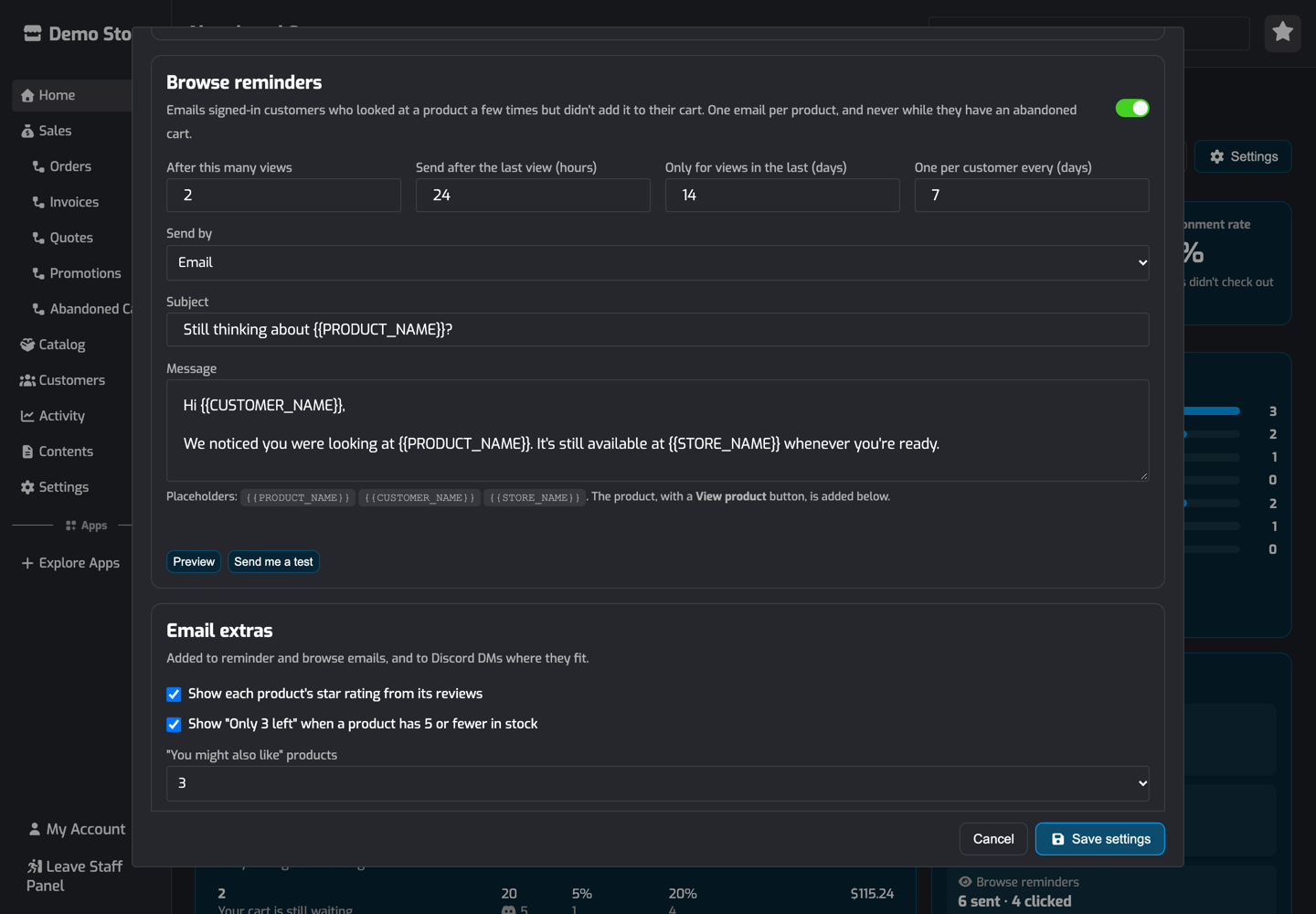
Setting | Default | What it does |
|---|---|---|
After this many views | 2 | How many times they viewed the product. Views within 30 minutes count once. |
Send after the last view | 24 hours | How long to wait after their last view. |
Only for views in the last | 14 days | Older views are ignored. |
One per customer every | 7 days | The most browse reminders a customer gets. |
Send by | Email, Discord DM or Email and Discord DM, as for Discord DM reminders. | |
Subject and Message |
|
When a browse reminder isn't sent:
More than one product qualifies: each customer gets at most one per check, for the product they viewed most.
They have an abandoned cart: cart reminders come first.
The product is in their cart, or they already own it.
The product is hidden or paused.
They've turned off cart reminders.
It's during quiet hours.
Each product is only ever reminded about once per customer.
The Other ways back panel shows how many browse reminders were sent, clicked and bought. Products bought within 30 days of the reminder count as bought.
Guest Carts
With Guest carts on, visitors can add products to a cart without signing in. Guest carts are on unless you turn them off in Settings.
The cart: it's kept in their browser for 30 days.
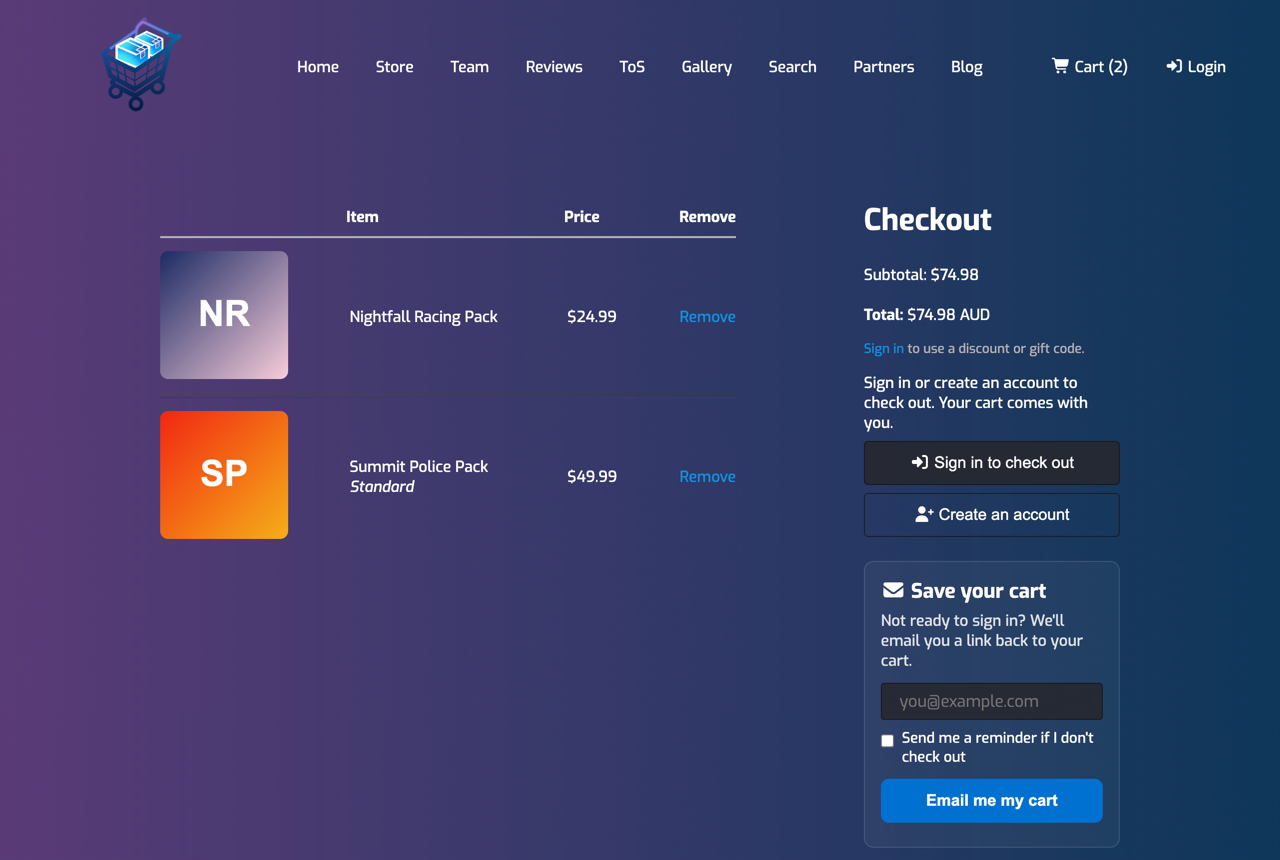
Checking out: the cart page asks guests to Sign in to check out or Create an account.
After signing in: once they sign in to a verified account, their guest cart is added to their account's cart.
Discount codes: guests sign in to use these.
Some products need an account before they can be added. Products that need approval, or that need another product first, ask guests to sign in.
Save your cart. With Show "Email me my cart" ticked, guests can enter their email to get a link back to their cart. The link opens their cart on any device.
Reminders need the tick: a guest is only tracked and sent reminders if they also tick Send me a reminder if I don't check out.
What guests get: guest reminders are emails, without coupons, and every one has a link to stop them.
On the staff page: guests show with a Guest badge.
Signing in later: if the guest signs in, their abandoned cart moves to their account.

The exit offer offers guests the same thing as a popup.
FaxStore removes guest carts nobody has used for 60 days.
Staff Alerts
Turn on Staff alerts in Settings to notify your store owners:
when a cart worth at least the amount you set is abandoned,
when a customer answers the survey,
and, if Also alert when a cart is recovered is ticked, when a cart is recovered.
Alerts appear in the staff panel notifications of everyone listed as an owner. To also post them in Discord, enter a channel ID in Discord channel ID. Your Discord bot needs to be set up and able to post in that channel. See Discord Integration.
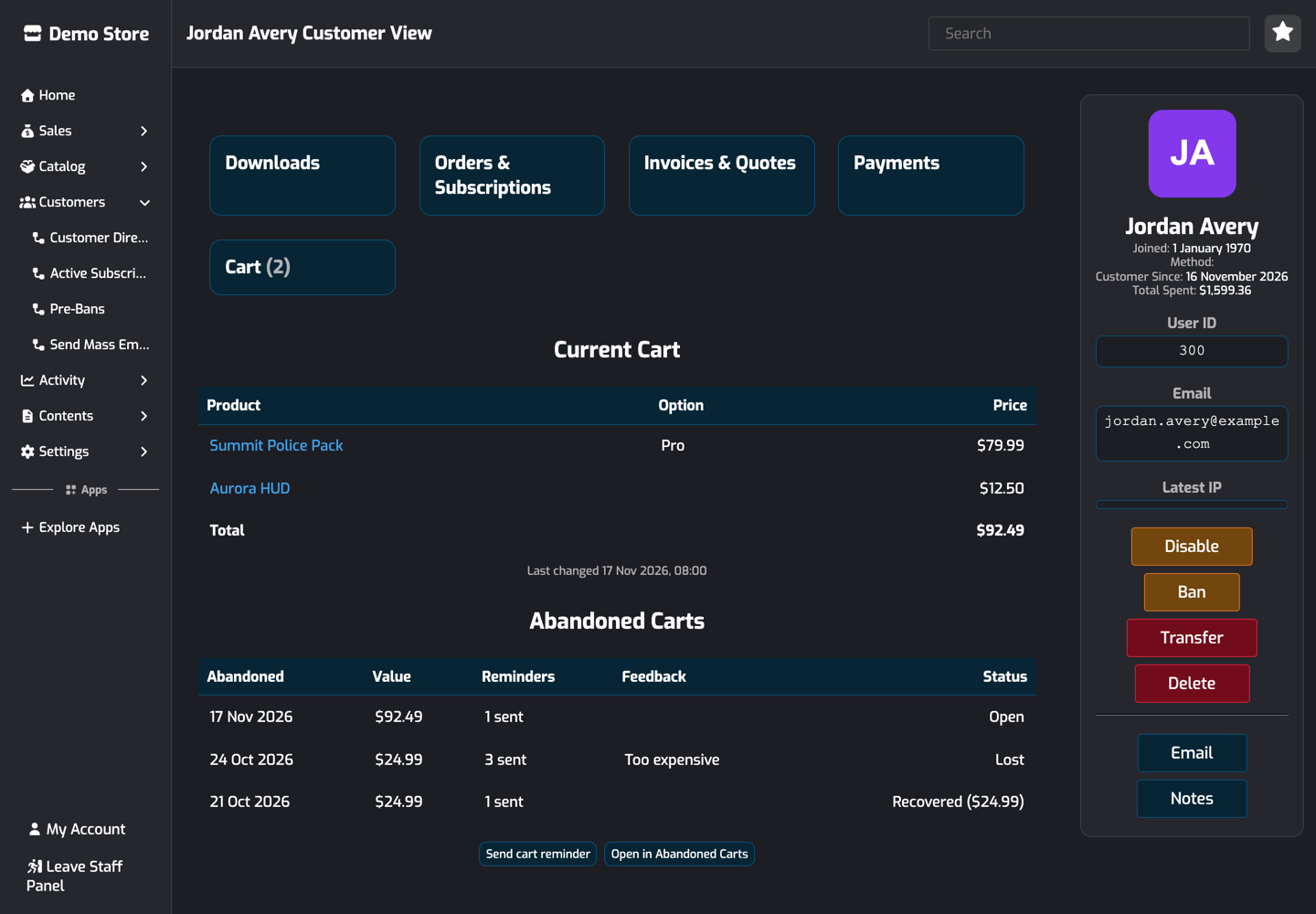
A Customer's Cart
A customer's profile under Customers has a Cart tile, showing:
what's in their cart now and when they last changed it,
their last 10 abandoned carts, with what happened to each.
Click a row to open their carts on the Abandoned Carts page, or click Send cart reminder to email them about their open cart.
Email Preferences
Customers can turn cart reminders off under Cart Reminders on the email preferences page, which the Unsubscribe link in every reminder opens. FaxStore doesn't send automatic or staff reminders to customers who have turned them off, by email or Discord, and pauses the reminders for their open carts.
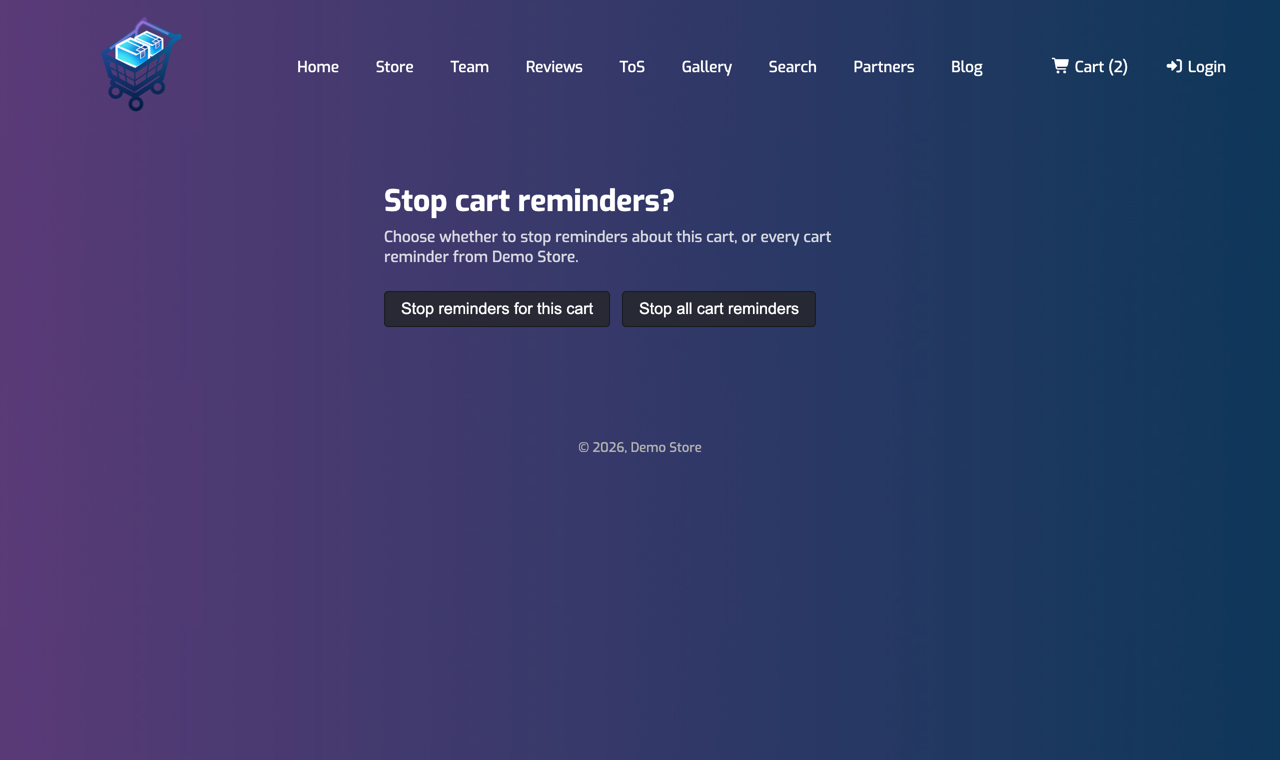
The Stop reminders button in Discord DMs, and the unsubscribe link in guest emails, open a page that asks first. Customers can stop reminders about that cart, or stop every cart reminder.
When you update FaxStore, customers who allow promotional emails also get cart reminders. Customers who never changed their email preferences get all emails, including cart reminders.
Reminders are sent with your store's email settings. See Email System & Notifications, SendGrid Integration and SMTP Integration.
Exporting, Weekly Summaries and the Staff Home
Export CSV. Export CSV on the Abandoned Carts page downloads the carts in the date range, matching the filter and search you have on. It includes each cart's customer, email, products, value, stage, status, reminders, clicks, coupon, survey answer and comment, what it was recovered for, and dates.
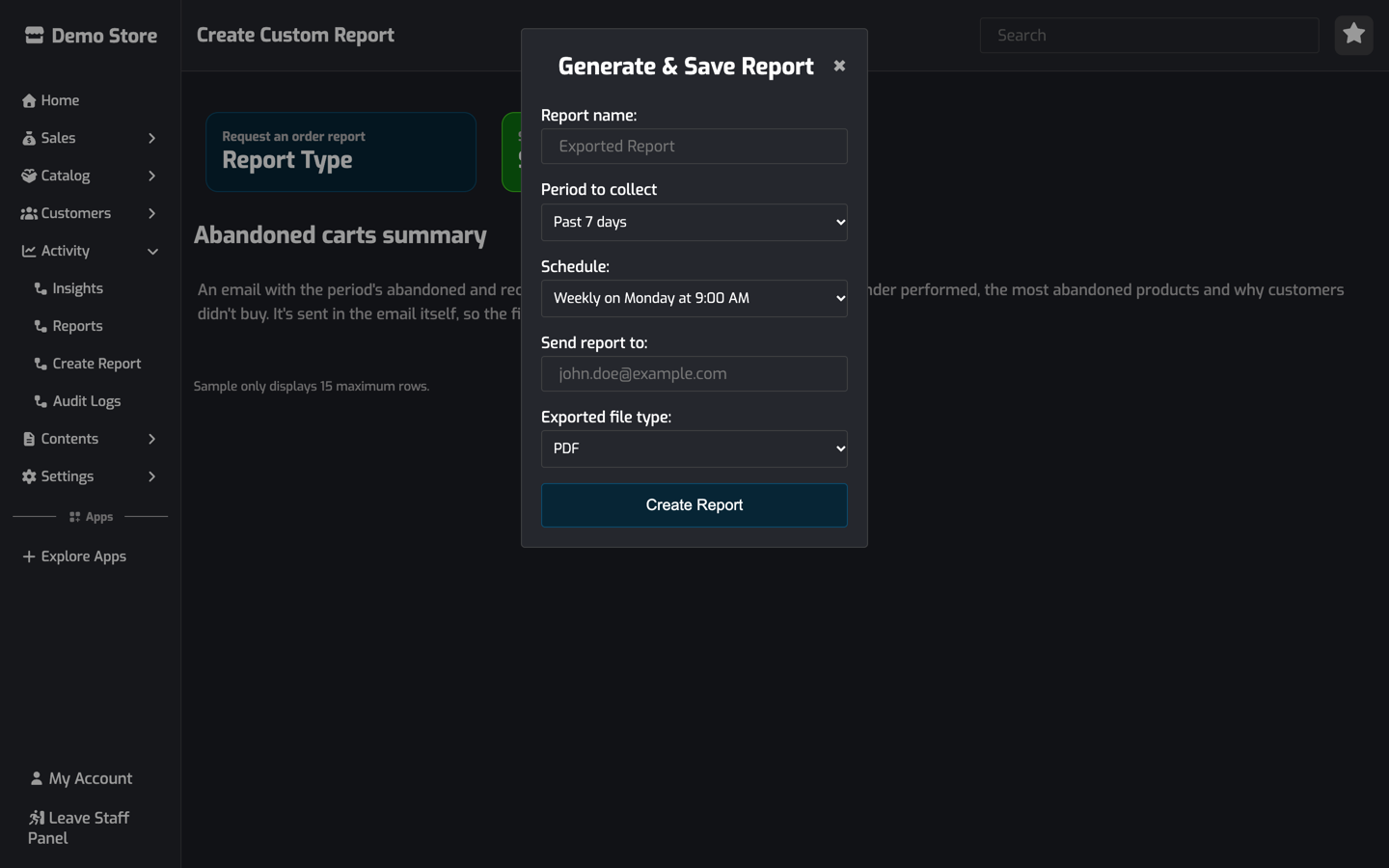
Weekly summary. Owners can have a summary emailed on a schedule:
Go to Activity → Create Report.
Choose Abandoned carts summary as the report type.
Click Generate & Save Report. The period (7 days) and schedule (Mondays at 9:00 AM) are filled in for you.
Enter the email to send it to.
The summary arrives in the email itself, so the file type doesn't matter. It has:
the period's abandoned and recovered carts, and recovered revenue;
how each reminder performed;
exit offer, browse reminder and guest cart results;
the most abandoned products;
why customers didn't buy.
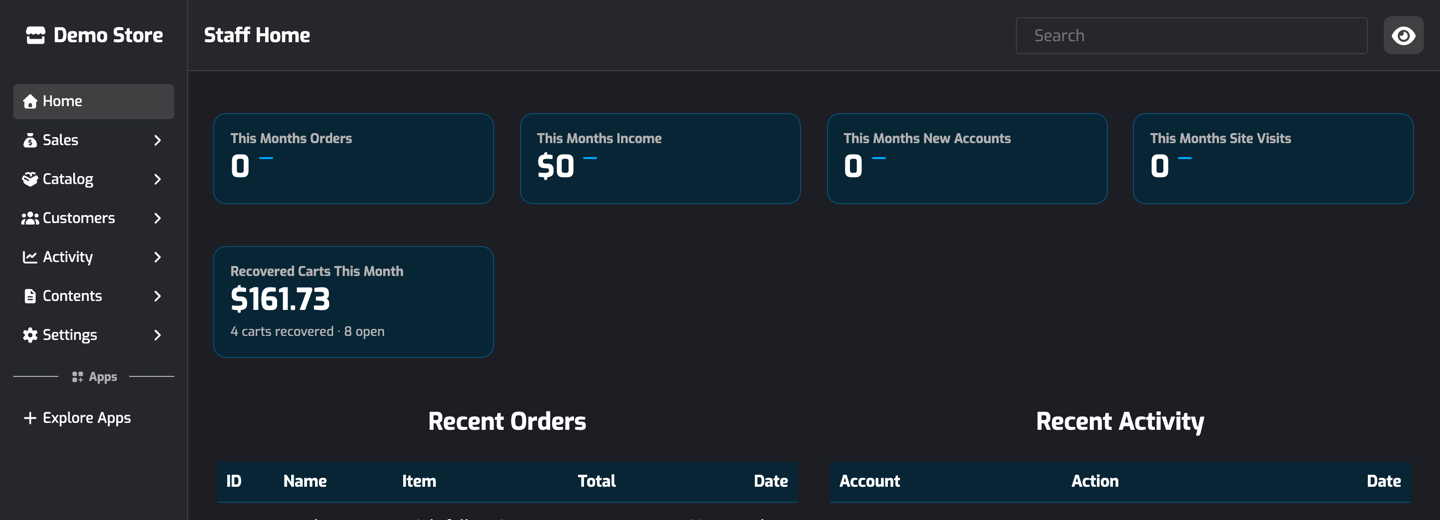
Staff home. Staff who can see Abandoned Carts get a Recovered Carts This Month tile on the staff home page, with how many carts are still open. Click it to open Abandoned Carts.
How Recovered Carts Are Counted
When a customer checks out, FaxStore looks for their most recent open or lost cart from the last 30 days:
Recovered: they clicked a reminder, used the exit offer, opened their cart from the on-site reminder, or were sent a reminder before buying. The amount they paid is added to Recovered.
Came back: they checked out without any reminder.
The cart's details show what brought the customer back. This works for PayPal, Stripe, Square, free checkouts and Tebex.
Troubleshooting
No carts are showing. A cart only shows once it has been left for the Count a cart as abandoned after time, and FaxStore checks every 10 minutes. Make sure the date range at the top includes the carts you expect. Customers need to be signed in and verified to have a cart.
Reminders aren't being sent. Check that Automatic reminder emails and at least one reminder are turned on, and that email is set up under Integrations. Carts worth less than Only email carts worth at least, older carts, paused carts and customers who turned off cart reminders aren't emailed. The cart's timeline shows any reminder that was skipped and why.
A customer didn't get the coupon. Coupons need Recovery coupons turned on and Include a coupon ticked on that reminder. A customer who got a coupon within One coupon per customer every gets the reminder without one.
A customer says the coupon doesn't work. Recovery codes only work for the customer they were made for, once, until they expire. Check the code under Sales → Promotions.
A customer didn't get a Discord DM. They need to have signed in with Discord, share a server with your bot and allow DMs from server members, and your bot needs to be connected. When a DM can't be sent, the reminder is emailed instead. The cart's timeline shows how it went.
Guests can't add to their cart. Check Guest carts is on in Settings. Products that need approval, or another product first, always ask guests to sign in.
The exit offer doesn't show. It shows at most once a day per customer, never after they click a checkout button, and only for carts worth at least the minimum. A coupon offer also needs Recovery coupons on. Customers who had a coupon within the cooldown see the survey instead.
A reminder seems late. Check Quiet hours: reminders due overnight in the customer's timezone wait until morning.
The email preview shows sample products. When you preview a reminder from Settings, FaxStore uses your own cart, or a couple of products if your cart is empty. Previews from the table use the customer's real cart.