 FaxStore
Tebex Integration
FaxStore includes built-in Tebex integration, allowing products sold through FaxStore to be fulfilled through Tebex. This makes it possible to keep the storefront experience within FaxStore while still using Tebex for package delivery where needed.
As of FaxStore version 3.0.0 and above, Tebex Checkout is also supported and is the recommended approach for securely delivering assets to customers through Tebex.
Table of Contents
Tebex Checkout Flows
FaxStore supports two Tebex-based checkout methods:
Tebex Checkout
Tebex Checkout sends the customer through a Tebex-hosted checkout flow. This is the recommended method for most modern setups, especially where Tebex-managed delivery is required for compliance or platform support - including FiveM and RedM.
Tebex Manual Payment Creation
Manual Payment Creation keeps the checkout flow inside FaxStore and creates the Tebex payment in the background. This can reduce external checkout steps, but it may not be permitted for some platforms or payment types, including certain FiveM-related use cases. This is not the recommended Tebex Integration method.
Getting Started with Tebex Checkout
To configure Tebex Checkout, only the Public Token from the Tebex creator dashboard is required.
Open the Tebex Creator Dashboard
Navigate to the API keys section
Copy the public token
In FaxStore navigate to the FaxStore integrations page in the staff panel
Paste the token into the public token field and save.
Restart FaxStore from the controller
Getting Started with Manual Payment Creation
Manual Payment Creation is available, but it is generally not recommended unless the use case has been reviewed carefully. Some games, mods, and platforms require purchases to be sold through Tebex directly to remain compliant with Tebex terms and conditions
To configure Manual Payment Creation, the Tebex game server secret key must be added to the FaxStore configuration.
Open the Tebex Creator Dashboard
Navigate to Integrations > Game Servers
Select the required game server and choose Edit
Copy the server Secret Key
Add the key to the
tebexSecretvalue in the FaxStore configuration fileRestart FaxStore from the controller
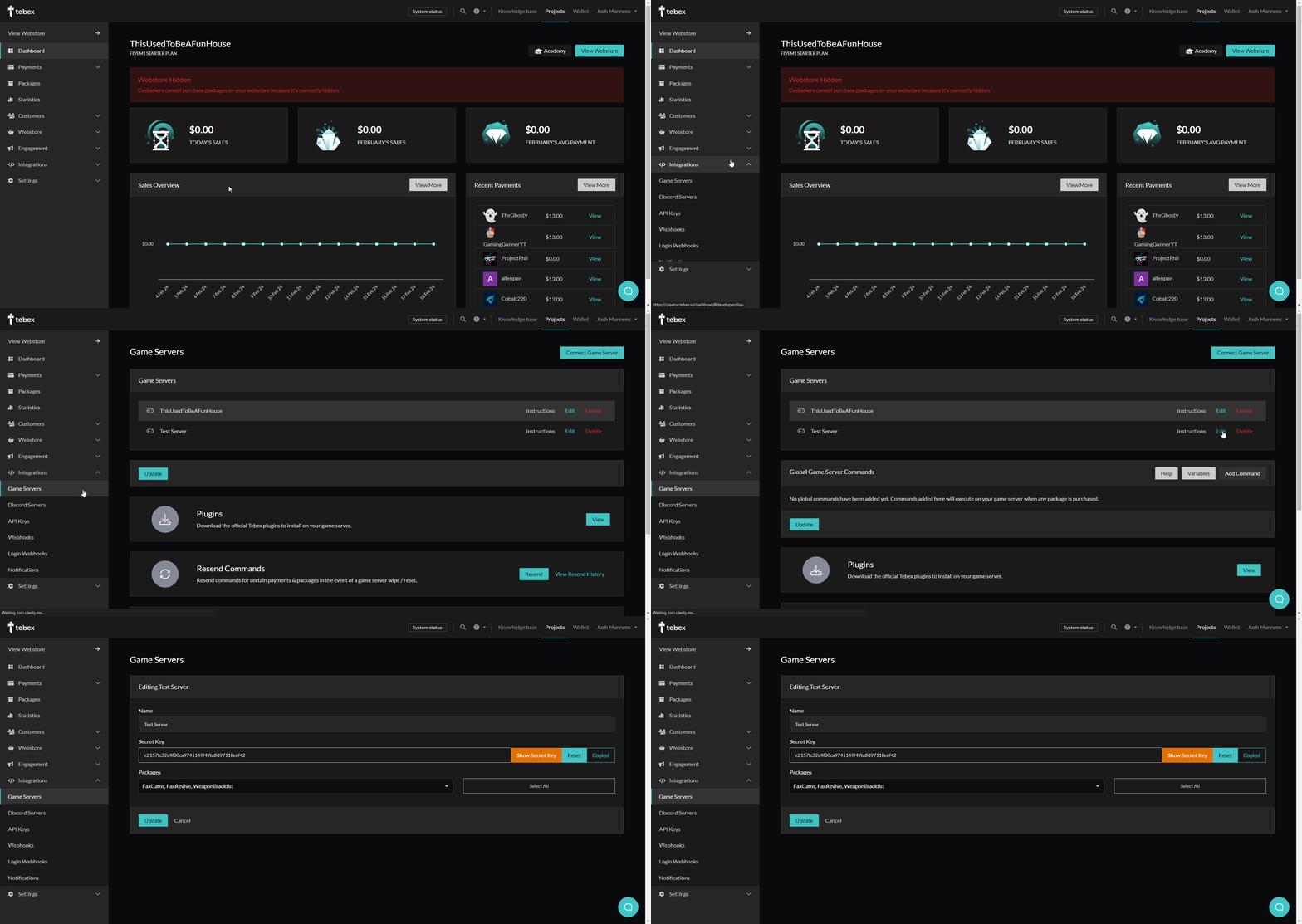
YouTube Video: https://youtu.be/Ok7851WqPXE
Setting Up Products
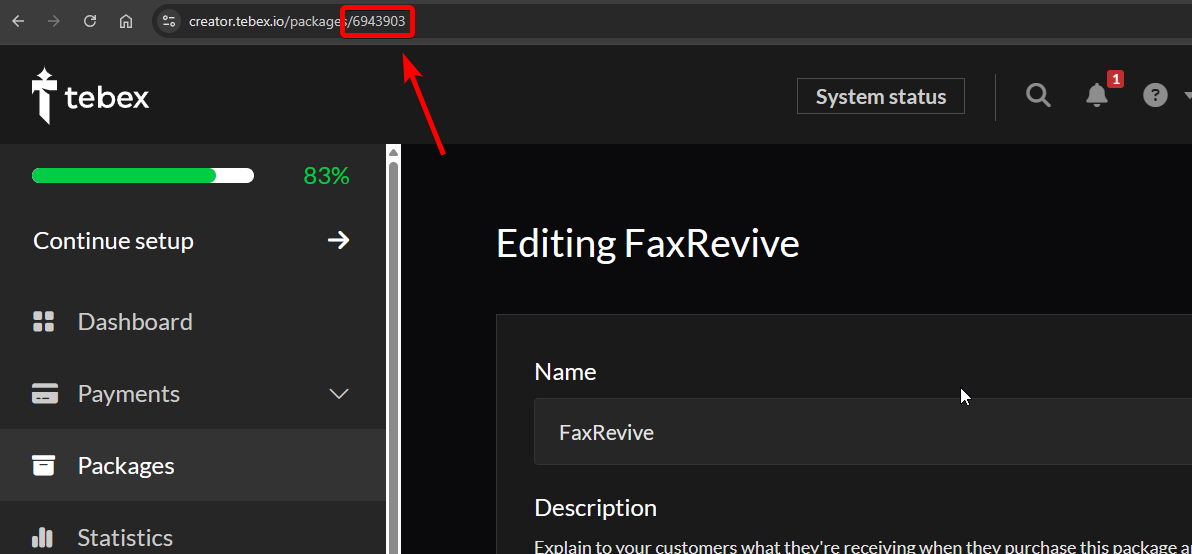
For a FaxStore product to use either Tebex method, the relevant Tebex package ID must be collected from the package URL in Tebex. Once the package ID has been identified, it can be added to the product configuration in FaxStore alongside the appropriate Tebex option.
Supported product options include:
tebx:packageID(deprecated) - Links the purchase to the specified Tebex package.
TebexCheckout:packageID- Routes the selected Tebex package through Tebex Checkout.
Getting a Package ID
Tebex pages don't explicitly define a package's ID anywhere on the dashboard. However the URL when editing a product on Tebex will display the ID - it's typically around 6-12 digits in length.