 FaxStore
5. Login Configuration
With the rest of FaxStore configured, the final major setup task is choosing and configuring a login provider.
FaxStore supports four login methods. This page covers the following providers:
Each section below explains how to create the required OAuth application and where to place the credentials in your FaxStore config.
Discord
Discord is one of the most commonly used login methods and offers several platform integrations that work well with FaxStore. Discord logins complete over 90% of all accounts over every FaxStore instance.
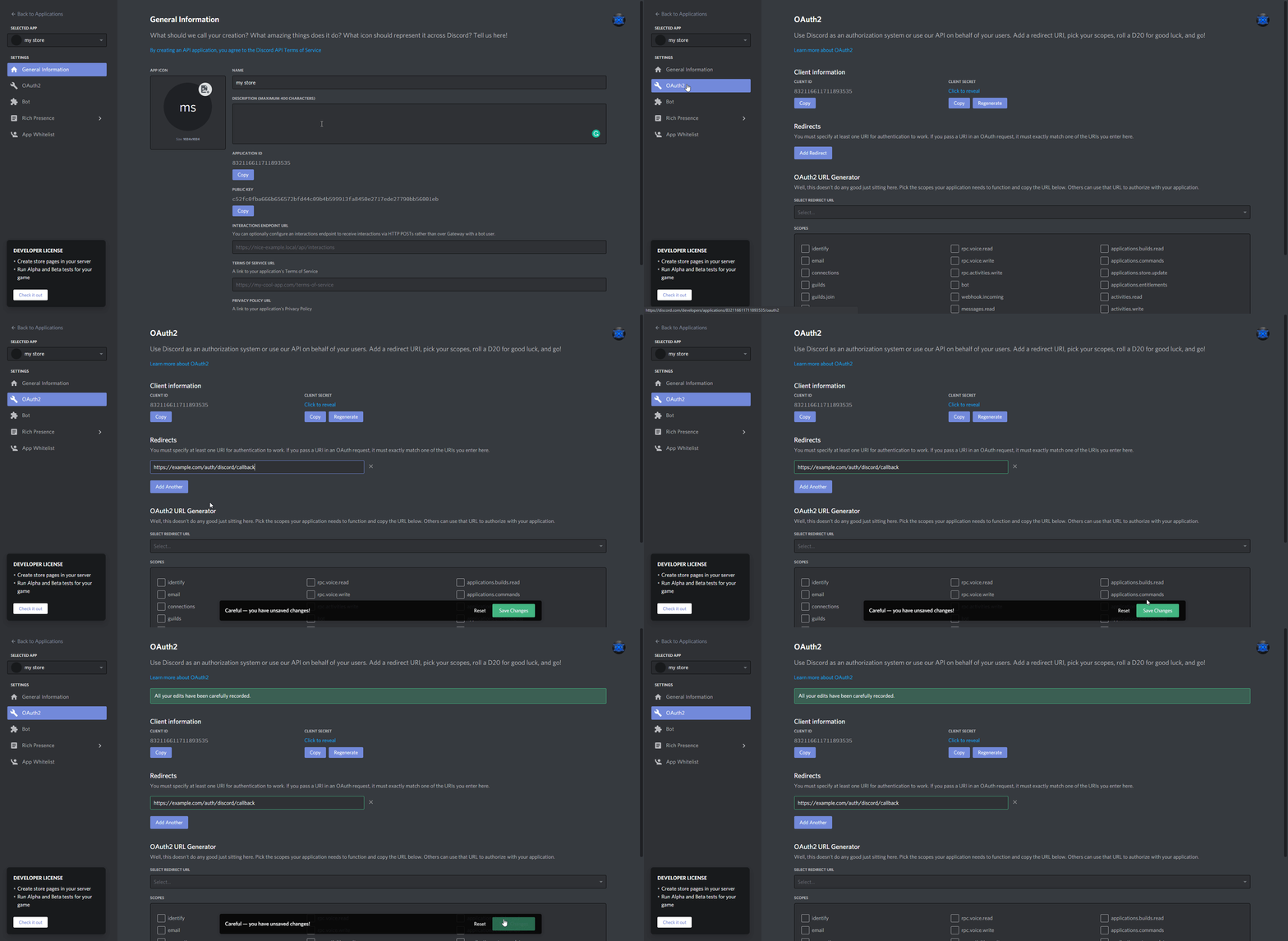
Go to the Discord Developer portal and create an application
Open the OAuth section and add the below redirect URI, replacing
example.comwith the chosen domain for FaxStore
https://example.com/auth/discord/callbackCopy the credentials required for FaxStore
Client ID
Client Secret
Add the credentials into the configuration file and save it
GitHub
GitHub is considered one of the easiest methods to setup. However, it also one of the least used with only around 10 users authenticated with it over every FaxStore instance.
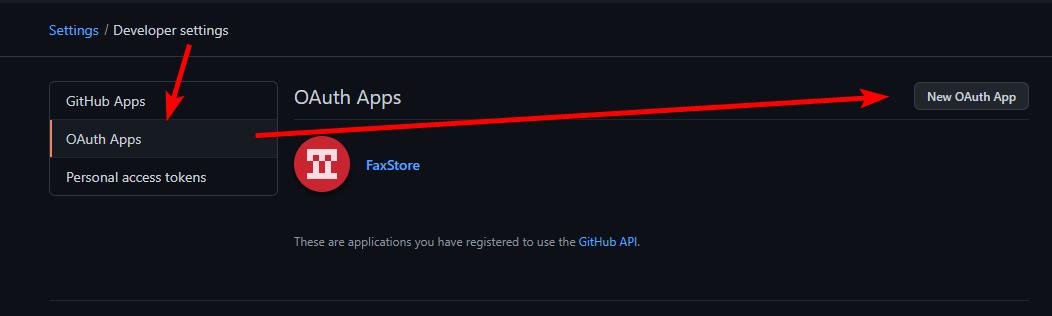
Open GitHub developer settings and create a new OAuth application
Fill in the application details and set the OAuth URI to be the below, replacing example.com with the chosen FaxStore domain
https://example.com/auth/github/callback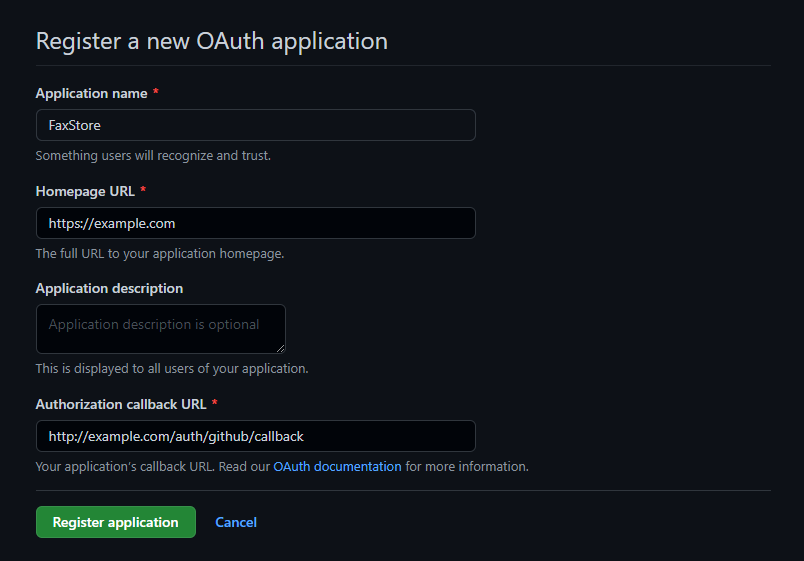
Copy the credentials provided including:
Client ID
Client Secret
Add the details into the configuration file and save
Google is often referred to having a more complicated setup. However, the reach of users with a Google account is extremely high.
Open the Google developers console
Create a new project for FaxStore and provide the requested details
The create button is located in the top-right corner in the blue dropdownOpen credentials and click "Create Credentials" and choose OAuth client ID
If prompted, an OAuth consent screen may need to be completed, if so, choose external as the user-type. If selecting scopes ensure the two below are chosen
userinfo.emailuserinfo.profile
Create the client by going back and choosing web application
User "Authorised Redirect URIs" add the below, replacing example.com with the chosen FaxStore domain
https://example.com/auth/google/callbackCopy the credentials presented
Client ID
Client Secret
Add the copied ID and secret to the configuration file and save
Standard Logins (Username & Password)
Often referred to as a username/email and password login, FaxStore offers Standard logins by default and doesn't require one of the three above OAuth methods to be activated. Standard logins are enabled by default and can be toggled off after the setup has been completed via the staff panel.
For ease of access during setting up FaxStore it's generally encouraged to pick at least one of the three OAuth methods.