 FaxStore
4. Payment Configuration
FaxStore supports three payment methods on the base store configuration. One provider, two providers, or all supported providers can be enabled at the same time depending on the store setup and business requirements. This page covers how to connect each provider and where the required credentials come from.
Table of Contents
Before Starting
Before enabling any payment method in FaxStore, make sure the account being connected is fully set up for live payments with that provider. Test or sandbox credentials should only be used for testing and should not be placed into a live FaxStore configuration. Stripe separates sandbox and live API keys, PayPal provides app credentials through its developer dashboard, and Square separates sandbox and production credentials in its Developer Console.
Payment credentials must be treated as sensitive. Secret keys, access tokens, and client secrets should never be shared publicly
PayPal
FaxStore can use PayPal as a direct payment method. To use PayPal APIs in a live environment, a PayPal Business account is required.
Sign into PayPal and navigate to the developer dashboard
Open the Apps & Credentials tab
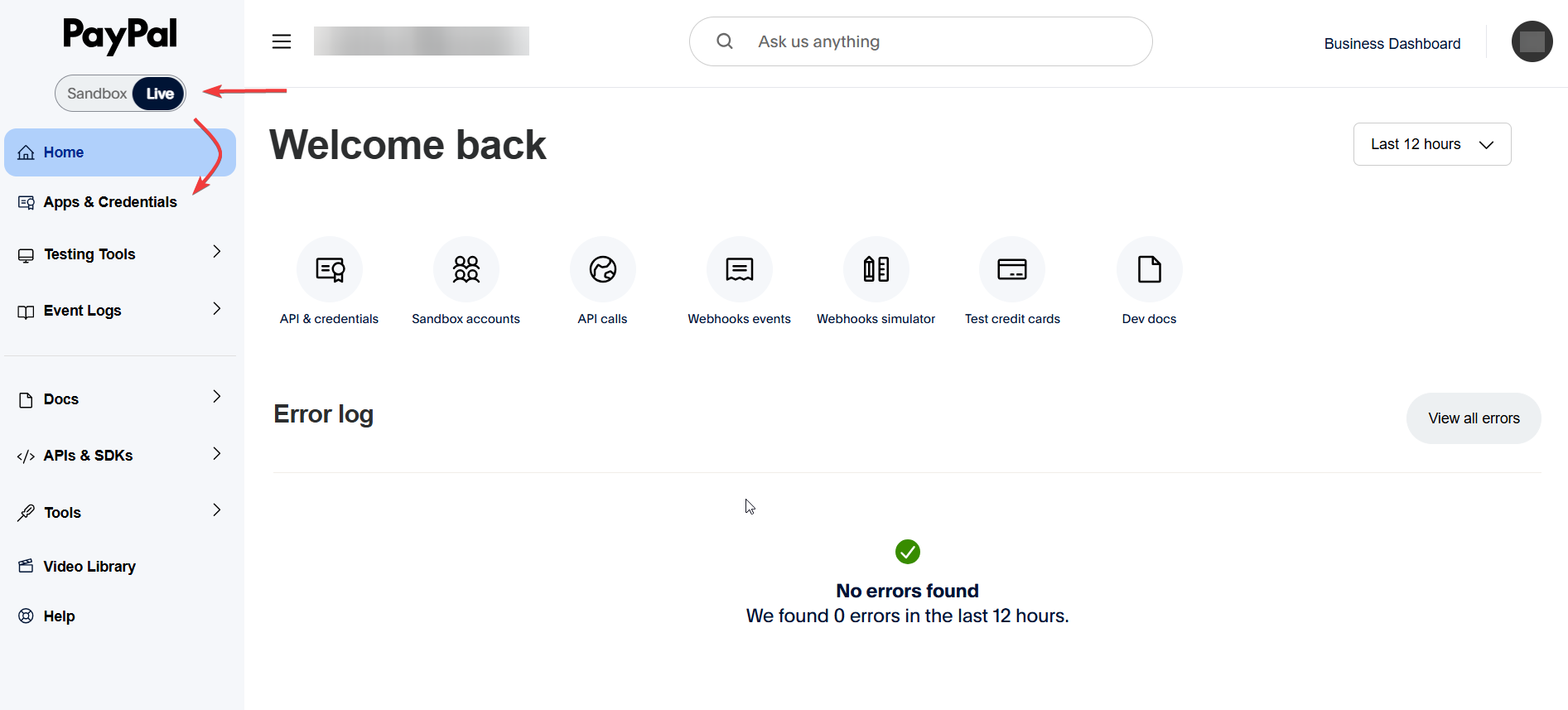
Create a new application for FaxStore (top right corner)
Copy the Client ID and Client Secret for the live application and set aside
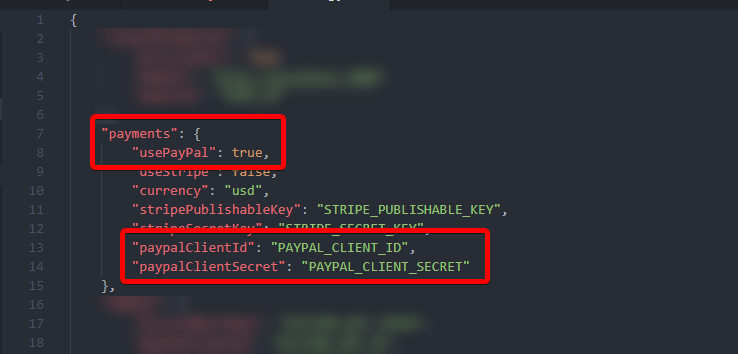
Open the FaxStore configuration file and set the below items
usePayPal should be
trueSet the PayPal Client ID
Set the PayPal Secret
Save the configuration file
Stripe
Stripe is fully supported in FaxStore and is the recommended payment provider on FaxStore.
Login to Stripe and navigate to:
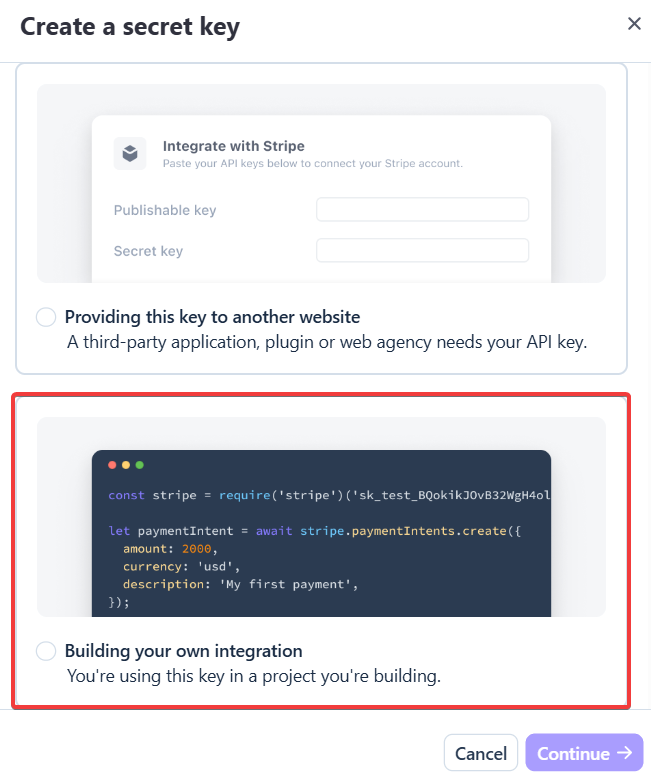
Developers (bottom left) > API KeysCreate a new "Standard Key" for building an integration
Complete verification if required
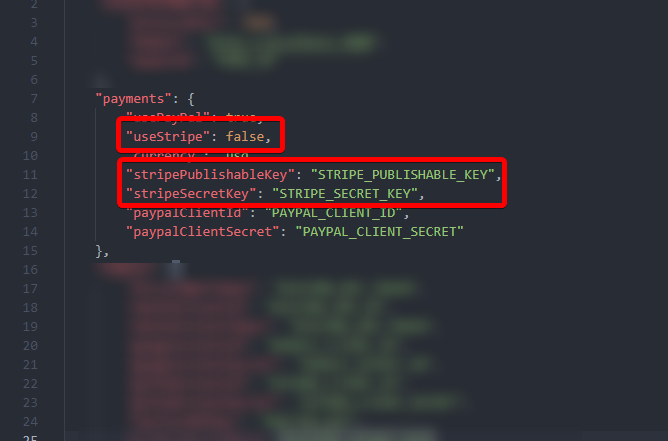
Copy the secret key and publishable key and place them into the configuration file
Set useStripe to
truein the configuration fileSave the configuration file
Square
Square is also supported by FaxStore and uses application credentials from the Square Developer Console.
Login or create an account with Square
Open the developer console
Create an application for FaxStore
Switch the environment to production
Open Credentials in the left sidebar
Copy the Production Application ID
Reveal and copy the Production Access Token
In the FaxStore configuration file set the useSquare key to
trueand set the application ID and tokenSave the configuration file
Step four has been completed