 FiveM Documentation
Discord Not Found - Debugging
This page is intended to help users get Discord to link to FiveM if a identifier is not found. These are gathered from FiveM community sources and other external sources.
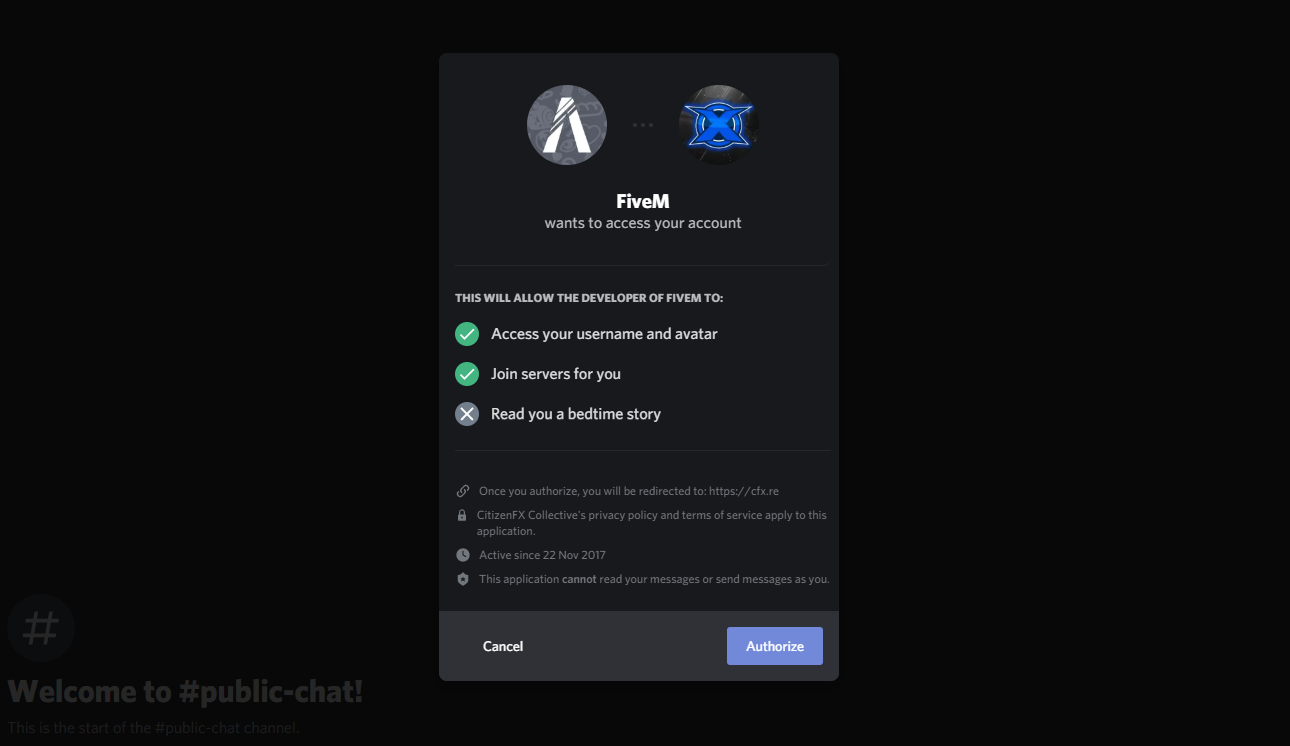
Ever since the new Discord to FiveM methods mentioned here, Discord now requires you to give permission for FiveM/RedM to use your Discord user id. If it's your first time opening FiveM you will more than likely have a Discord pop-up in the Discord app asking you to authenticate. This will look like the below image.
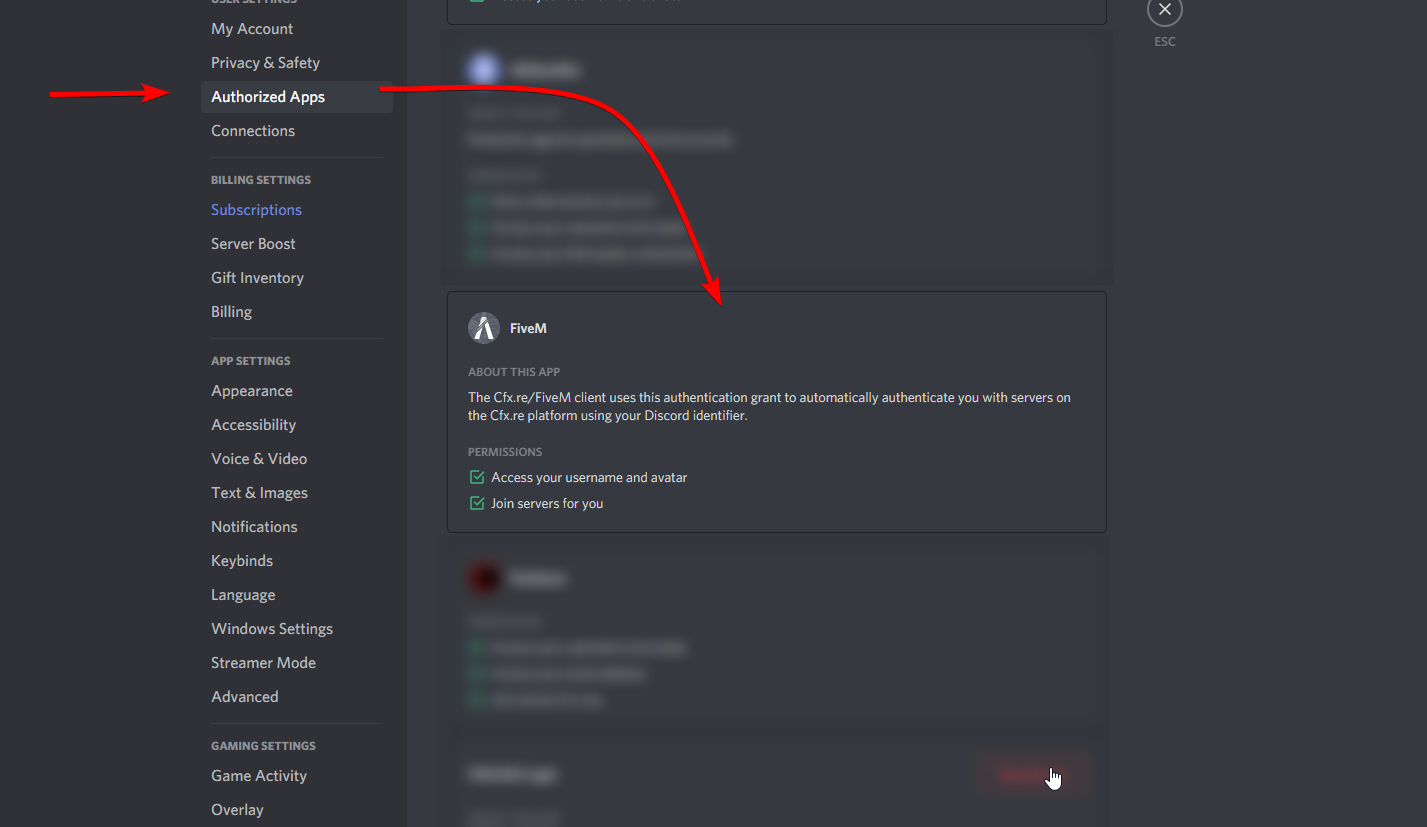
If you have already authenticated Discord you will see this in your Discord settings Settings > Authorized Apps
Resolution Methods
Feel free to move through these steps in order to try and get Discord and FiveM to work together. Not all methods may work and you may need to do multiple. They will be ordered in a somewhat good order so just start at the top and move down as needed.
Relaunch FiveM and once launched check your Discord window and see if the pop-up is there.
You should see the pop-up like in the above image and the authorised application in Discord should be displayed as well.
If issues continue to occur Discord may need to be uninstalled and then reinstalled using the below method.
Uninstall Discord
Restart your PC
Install Discord
Launch FiveM or RedM
If you're still in need of assistance join our Discord community.